Follow these steps to install AST PRO, activate your license, and confirm the plugin is running correctly. If you are upgrading from the free Advanced Shipment Tracking plugin, your existing tracking data and settings are preserved automatically — AST PRO deactivates the free version on activation.
Requirements
| Requirement | Minimum version |
|---|---|
| WordPress | 5.6 or higher |
| WooCommerce | 6.0 or higher |
| PHP | 7.4 or higher |
| HPOS | Fully compatible |
Install the plugin
- 1Download the plugin
.zipfile from the Subscriptions tab in your zorem.com account. - 2In your WordPress admin, go to Plugins → Add New Plugin.
- 3Click Upload Plugin at the top of the screen, select the downloaded
.zipfile, and click Install Now. - 4Click Activate Plugin once installation completes.
- 5Go to WooCommerce → Shipment Tracking to confirm the plugin is active.
Activate the license
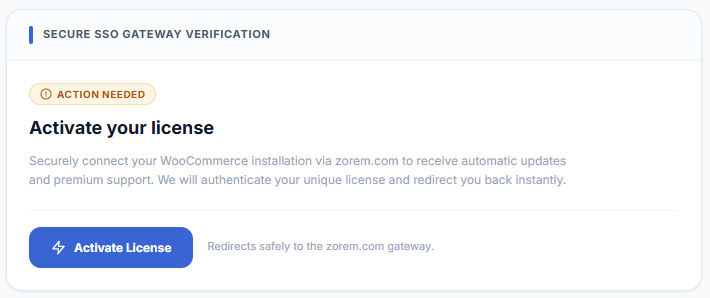
- 1From your WordPress dashboard, go to WooCommerce → Shipment Tracking → License and click Activate License.
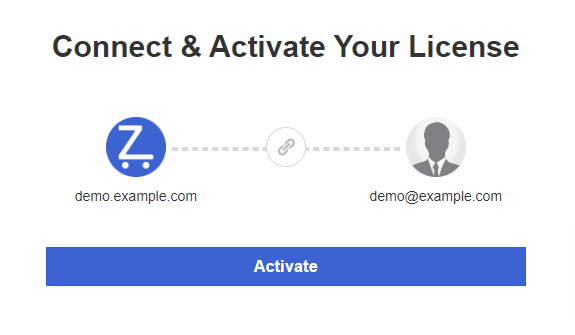
- 2You will be redirected to zorem.com — log in to your account and authorize the connection to your store.
- 3You will be returned to your store automatically with the license active and all PRO features unlocked.
Troubleshooting license activation
If activation fails, work through the checks below:
- “Already registered” error — the license seat is taken by another site. Go to zorem.com → My Account → Subscriptions, find the license, and remove the old site to free the seat.
- www vs non-www mismatch — the URL used during activation must match your site’s canonical URL exactly. Check WordPress → Settings → General and make sure both address fields use the same format.
- Staging or local site — activating on a staging URL uses a license seat. Deactivate the license on staging before moving to production, or use a separate development seat if your plan includes one.
- Outbound requests blocked — activation requires your server to reach
zorem.com. Ask your host to whitelist outbound HTTPS tozorem.comif the redirect never completes.
Deactivate the license
Deactivate the license before migrating to a new domain, moving from staging to production, or freeing a seat for another site.
- 1Go to WooCommerce → Shipment Tracking → License.
- 2Click Deactivate License. The seat is released immediately and the license can be activated on another site.

How updates are delivered
While your license is active, AST PRO updates appear in WordPress → Dashboard → Updates alongside your other plugins — update the same way you would any WordPress plugin. If updates stop appearing, check that your license is still active under WooCommerce → Shipment Tracking → License.
Next: Setup and Configuration — configure carriers, order statuses, and tracking email templates.