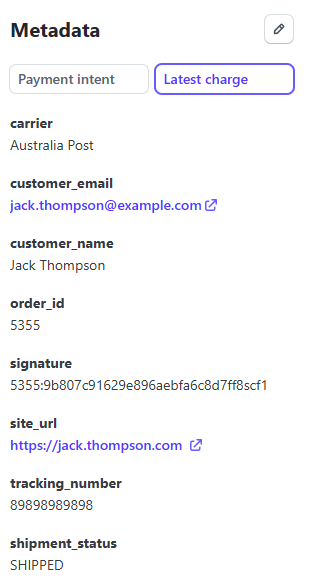
Stripe Tracking automatically syncs shipment tracking from WooCommerce to your Stripe transactions when an order is marked Shipped or Completed. This gives Stripe visibility into fulfilled orders and can help reduce disputes and chargebacks.
Prerequisites
- A Stripe account with at least one Stripe payment method active on your store.
- A Stripe secret key (
sk_live_…for live,sk_test_…for test mode). See How to get your Stripe API secret key.
How it works
- 1A customer pays via Stripe and places an order.
- 2You add a tracking number to the order in WooCommerce (manually, via CSV, or via API) and the order status moves to Shipped or Completed.
- 3AST PRO immediately sends the tracking number, carrier name, and shipment date to the associated Stripe transaction via the API. A note is added to the WooCommerce order confirming the sync.
- 4(Optional) If you use TrackShip, the shipment status on Stripe is updated again automatically when the carrier marks the package as Delivered.
Settings
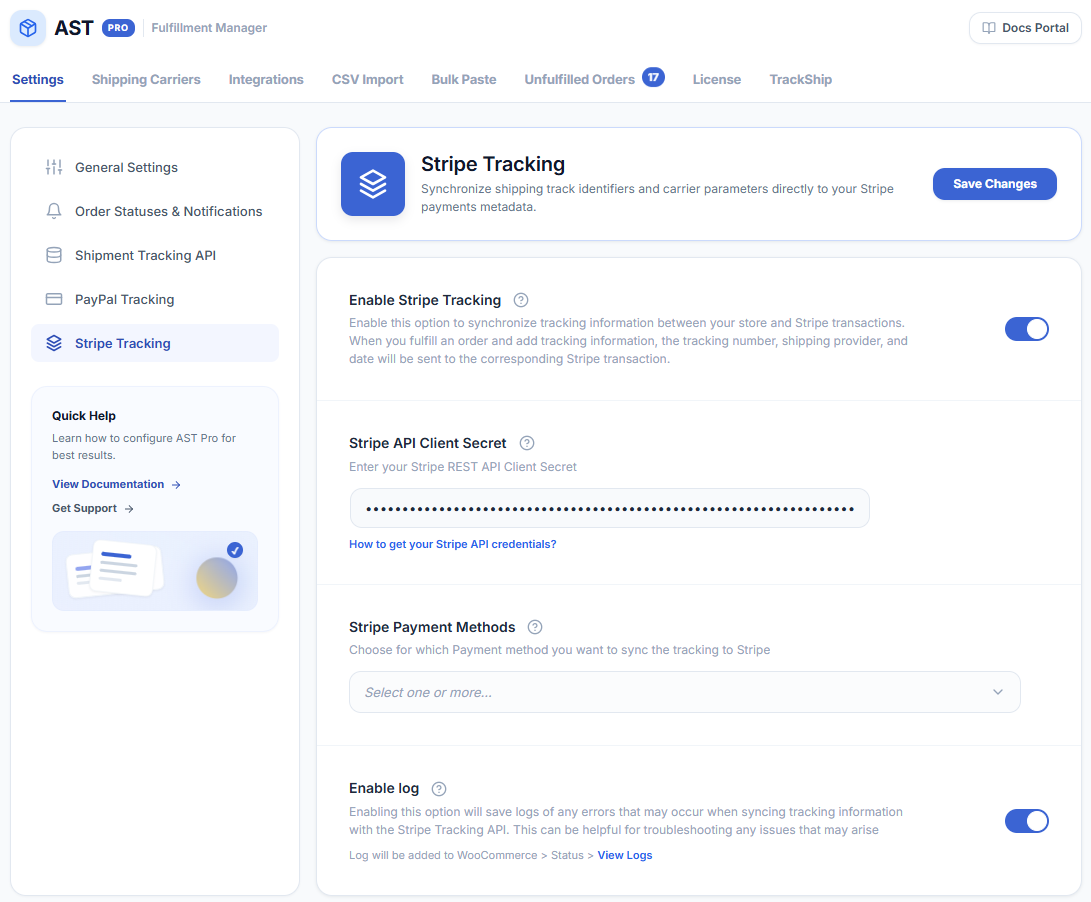
Go to WooCommerce → Shipment Tracking → Settings → Stripe Tracking.
| Setting | Description |
|---|---|
| Enable Stripe Tracking | Activates the sync. No tracking is sent to Stripe until this is on. |
| Stripe Secret Key | Your Stripe secret key (sk_live_… for live mode, sk_test_… for test mode). Use the test key while setting up — it only syncs to Stripe’s test transactions and does not affect live data. See How to get your Stripe API secret key. |
| Stripe Payment Methods | Select which Stripe payment gateways on your store trigger a sync. Select all active Stripe methods to avoid missed syncs. |
| Enable Logs | Logs every sync attempt and any errors. Go to WooCommerce → Status → Logs and filter by source ast-pro-stripe to find the entries. |
Tracking visibility
After a successful sync, two things appear in your WooCommerce admin:
- Order note — a private note is added to the order confirming the tracking number and carrier were sent to Stripe.
- Stripe Tracking column — the WooCommerce orders list shows a Stripe Tracking column with a checkmark for synced orders.

Deleting tracking
If you delete a tracking number from a WooCommerce order, AST PRO automatically cancels the corresponding shipment record on the Stripe transaction. Go to the order, remove the tracking entry, and save — no manual action in Stripe is needed.
Bulk export to Stripe
To sync tracking for past orders that were fulfilled before Stripe Tracking was enabled, use the bulk Stripe export tool.
Troubleshooting
- Sync not firing — confirm Enable Stripe Tracking is on and the order’s payment method is selected under Stripe Payment Methods.
- Authentication error — check that you are using a test secret key (
sk_test_…) for test transactions and a live secret key (sk_live_…) for live orders. Mixing these is the most common setup mistake. - Tracking sent but Stripe shows nothing — Stripe can take a few minutes to reflect the update. If it does not appear, check the log (source:
ast-pro-stripe) for a failure response. - Failed past orders — use the bulk Stripe export tool to re-send tracking for orders that missed the sync.
Next: Customize Email Notifications & Tracking Widget