The Fulfillment Dashboard is a dedicated order management screen in AST PRO focused on unfulfilled orders — orders that have been placed but not yet shipped. It gives you a streamlined view for adding tracking numbers, bulk-fulfilling orders, and monitoring fulfillment status without working through the full WooCommerce orders list.
Go to WooCommerce → Shipment Tracking → Fulfillment Dashboard.
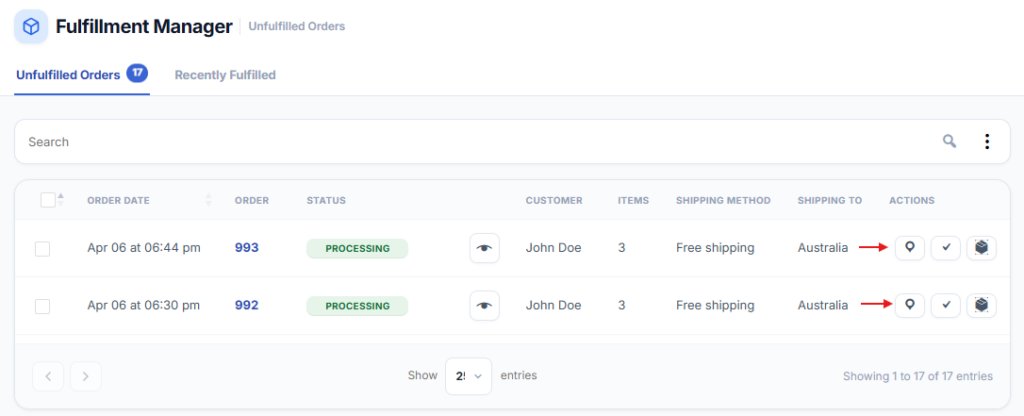
What “unfulfilled” means
The dashboard shows orders in whichever statuses you have selected under General Settings → Fulfillment Order Statuses. By default this is Processing and Partially Shipped. Orders in other statuses — including Completed and Shipped — do not appear.
Dashboard columns
| Column | Description |
|---|---|
| Order | Order number and date placed. |
| Customer | Customer name and billing email. |
| Items | Products and quantities in the order. |
| Ship To | Shipping address. |
| Status | Current order status badge. |
| Actions | Tracking icon to open the Add Tracking Info form; edit icon to open the full order. |
Filters and search
- Search — filter orders by order number, customer name, or email.
- Date range — narrow the view to a specific date window.
- Status filter — show only orders in a specific fulfillment status within your configured set.
Adding tracking from the dashboard
Click the tracking icon in the Actions column next to any order to open the Add Tracking Info form. See Add Tracking to Orders for full details on the form fields and partial fulfillment workflow.
Bulk actions
Select multiple orders using the checkboxes and use the Bulk Actions dropdown to change order status for all selected orders at once — useful for marking batches of orders as Shipped after adding tracking via CSV Import or API.
Pagination
The dashboard paginates at 20 orders per page by default. Use the page controls at the bottom of the table to navigate. On large stores the dashboard loads only the current page’s orders — performance is not affected by total order volume.
Custom columns
You can add extra columns to the dashboard — such as payment method, item count, or custom order metadata — using developer filters. See Custom Columns in the Fulfillment Dashboard.
Troubleshooting
- Fulfillment Dashboard menu not appearing — the menu requires the
manage_woocommercecapability. See Setup & Configuration → Troubleshooting for the full checklist. - No orders appearing — check that your target statuses are selected under General Settings → Fulfillment Order Statuses. Orders in statuses not selected there will not show.
- HPOS compatibility — the Fulfillment Dashboard is fully compatible with WooCommerce HPOS. The order ID displayed is the HPOS order ID, not the post ID.