Use this when you need to re-send tracking for orders that were fulfilled before PayPal Tracking was enabled, or for any orders where the automatic sync failed.
Prerequisites
Bulk export
- 1Go to WooCommerce → Orders.
- 2Filter by status if needed to narrow the list to fulfilled orders. The bulk export works on any order status — only orders paid via PayPal will sync successfully.
- 3Check the boxes next to the orders you want to re-send.
- 4Open the Bulk actions dropdown at the top of the orders list and select Export Tracking to PayPal.
- 5Click Apply.
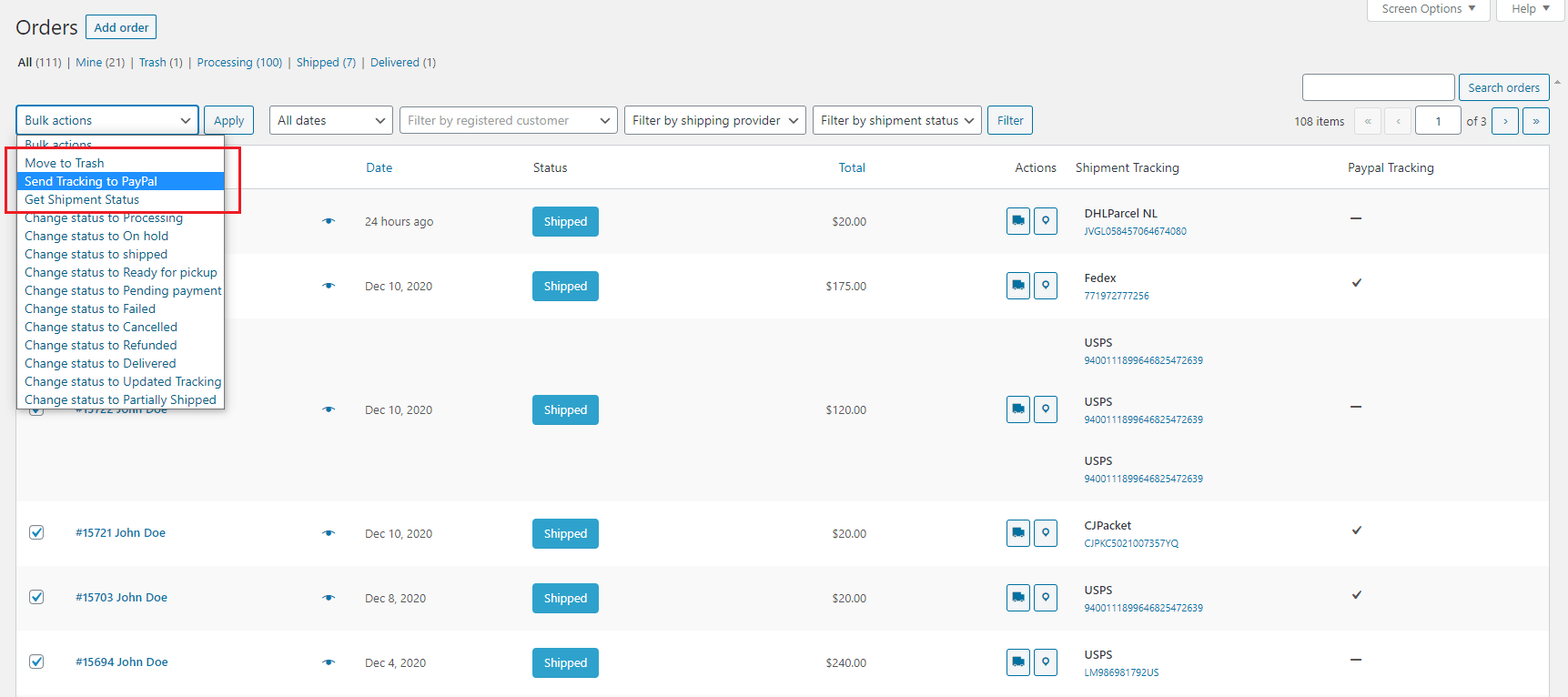
After applying, orders that synced successfully show a checkmark in the PayPal Tracking column. Orders that failed show no checkmark — check the log for the reason.
Single-order export
To re-send tracking for one order:
- 1Open the order.
- 2Find the Order actions dropdown — on the legacy screen it is in the right sidebar; on the HPOS screen it is in the Order actions panel at the top right.
- 3Select Send Tracking to PayPal and click Update.
If the export fails
Go to How to View the PayPal Tracking Error Logs for step-by-step instructions on finding and reading the error log. Common causes are invalid credentials, a sandbox/live mismatch, or the Transaction Search feature not enabled on the PayPal REST app.
For Stripe bulk export, see How to Export Tracking to Stripe in Bulk.