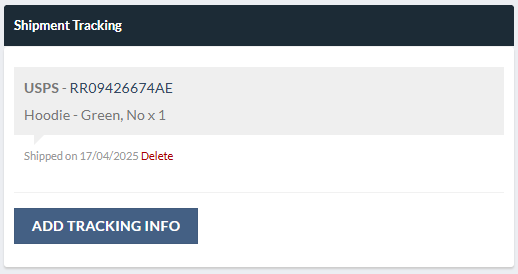
AST PRO is fully compatible with WCFM Marketplace. When both plugins are active, marketplace vendors can add and manage shipment tracking directly from their WCFM vendor dashboard — without needing access to the WooCommerce admin.
What vendors can do
- Add a tracking number, carrier, and shipped date to any order they fulfil.
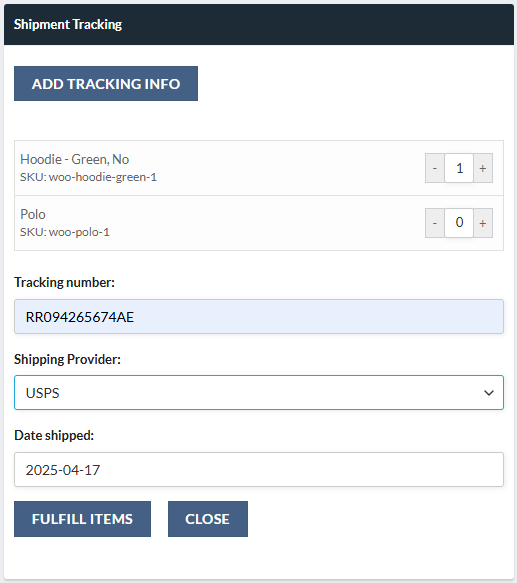
- Assign different tracking numbers to different items within the same order (per-item tracking).
- Add tracking per quantity — useful when the same item ships in multiple packages.
- Vendors can only view and add tracking for their own order items — they cannot see or modify another vendor’s items on the same order.
Requirements
How to add tracking from the vendor dashboard
- 1Log in to the WCFM vendor dashboard and go to Orders.
- 2Click the Order ID to open the order detail screen.
- 3Scroll to the Shipment Tracking section.
- 4Select the items and quantities you are shipping in this package.
- 5Enter the Tracking Number, Shipping Provider, and Date Shipped.
- 6Click Fulfill Items to save.