If your carrier is not in the built-in list, you can add it as a custom carrier with your own tracking URL. Custom carriers appear in the carrier dropdown when adding tracking numbers to orders, exactly like built-in carriers.
Custom carriers do not receive automatic real-time status updates from TrackShip — TrackShip only tracks carriers in its own supported list. If you need live tracking events, check whether your carrier is available in the built-in list via Sync Carriers, or contact TrackShip to request support for your carrier.
How to add a custom carrier
- 1Go to WooCommerce → Shipment Tracking → Shipping Carriers.
- 2Click the three-dot menu in the top-right corner.
- 3Select Add Custom Carrier from the dropdown. A sidebar form opens.
- 4Fill in the carrier details (see fields below).
- 5Click Save at the bottom of the sidebar. The carrier appears in your active carrier list immediately.
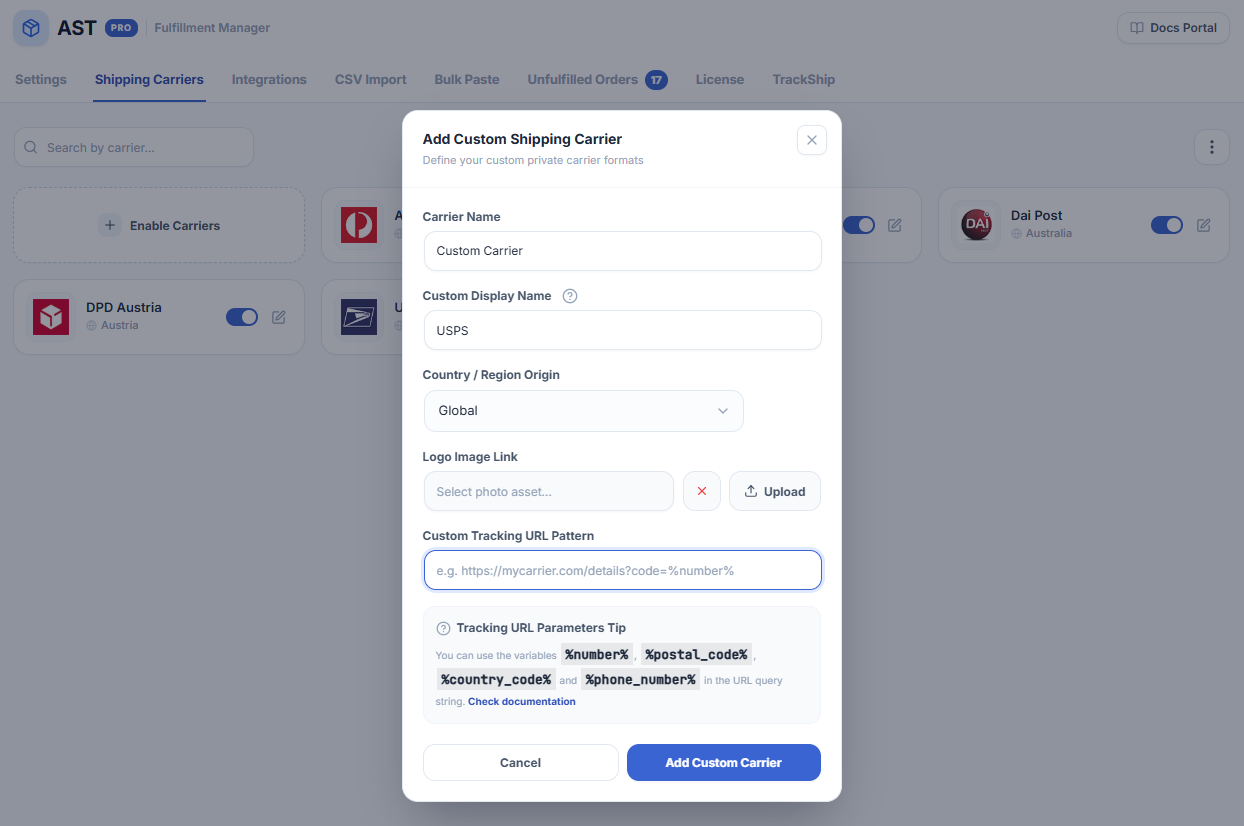
Carrier fields
| Field | Required | Description |
|---|---|---|
| Carrier Name | Yes | Internal name used in your WooCommerce admin and order notes. |
| Custom Display Name | No | The name shown to customers in tracking emails and the My Account page. Defaults to Carrier Name if left blank. |
| Country | No | The region the carrier serves. Select Global for international carriers. |
| Logo Image | No | Upload a 60×60 px PNG or JPG carrier logo shown in emails and the tracking widget. |
| Custom URL | Yes | The carrier’s tracking page URL. Use placeholders (see below) so the tracking number and shipping details are passed dynamically. |
URL placeholders
Include these placeholders in the Custom URL field. AST PRO replaces them with the actual order values when generating the tracking link.
| Placeholder | Replaced with |
|---|---|
%number% | The tracking number added to the order |
%postal_code% | The shipping address postal code |
%country_code% | The two-letter shipping country code (e.g. US, GB) |
Example URL:
https://track.customcarrier.com?tn=%number%&zip=%postal_code%&country=%country_code%Important: Sync Carriers resets custom carriers
The Reset carriers database option on the Sync Carriers page wipes the entire carrier database and re-imports from TrackShip — this deletes all custom carriers. Use Sync Only (not Reset) to update the built-in list without losing your custom carriers.
Troubleshooting
- Placeholder not substituted in the tracking URL — confirm the placeholder is spelled exactly as shown (
%number%,%postal_code%,%country_code%) including the percent signs. Any typo causes the placeholder to appear literally in the link. - Custom carrier not appearing in the order dropdown — confirm the carrier was saved (it should be visible in the active carriers table). If it still doesn’t appear, clear any object cache and reload the order screen.
- Custom carrier disappeared after a sync — if you used Reset carriers database on the Sync page, custom carriers are deleted. Re-add them manually and use Sync Only going forward.