This guide walks you through integrating Chit Chats with Advanced Shipment Tracking (AST) PRO, allowing you to automate the process of syncing tracking information and updating order statuses in WooCommerce.
🔄 How the Integration Works
When orders are fulfilled through Chit Chats, tracking information is synced back to the corresponding WooCommerce order.
Once tracking information is available in WooCommerce:
- Chit Chats updates the WooCommerce order with shipment tracking information.
- Tracking information is stored within the WooCommerce order data.
- Order fulfillment information is synchronized back to WooCommerce.
However, Chit Chats does not update AST’s shipment tracking fields directly. As a result, customers do not receive the tracking widget in their shipping confirmation emails.
✅ What AST PRO Does
The Chit Chats integration in AST PRO solves this issue by:
- Automatically extracting the tracking number and carrier from the order note.
- Saving it to AST’s Shipment Tracking Order Meta.
- Updating the order status to Shipped (optional).
- Triggering the shipping confirmation email with the AST tracking widget.
This ensures tracking details appear in customer emails and on the My Account > View Order page.
⚙️ How to Enable the Integration
- Go to WooCommerce > Shipment Tracking > Integrations
- Enable the Chit Chats integration
- (Optional) Enable Auto-complete shipped orders – AST will automatically set the order status to Shipped once tracking info is added.
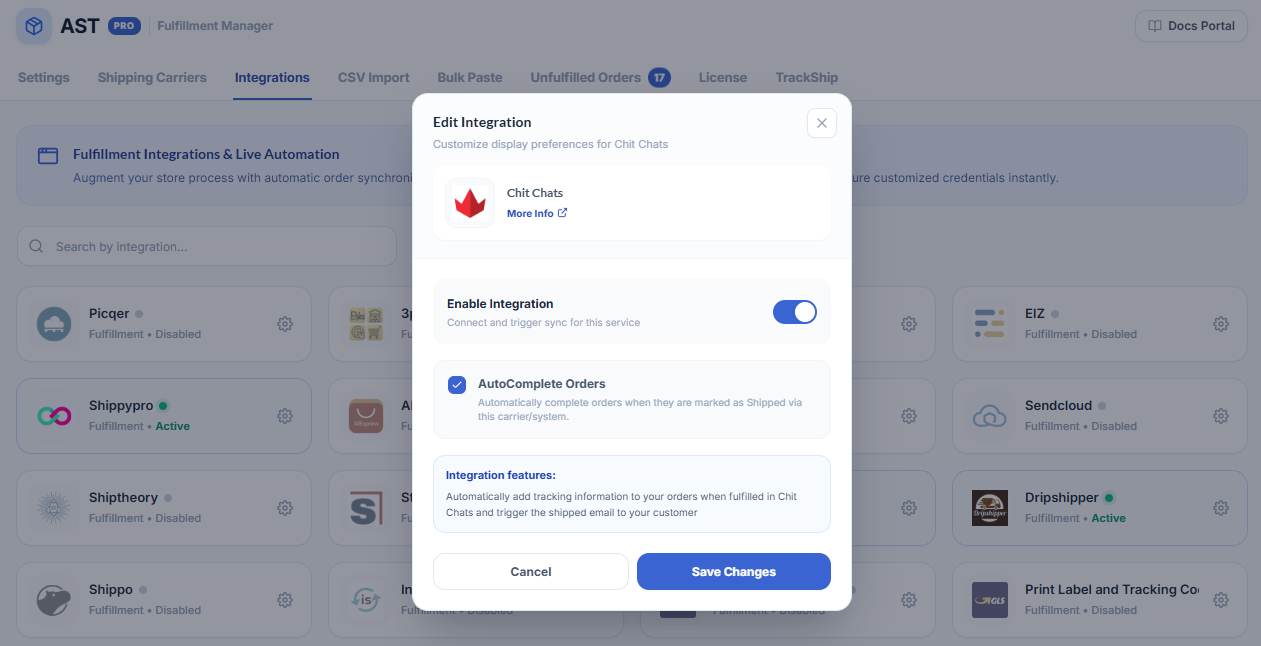
🧩 Carrier Name Mapping (Avoid Missing Tracking Links)
Chit Chats may send shipping carrier names that differ from AST’s recognized list. If the name isn’t matched, the tracking link will be missing from the shipping confirmation email.
To solve this, AST PRO allows you to map external carrier names to the correct entries in its internal list.
🔧 How to Map Carrier Names:
- Go to WooCommerce > Shipment Tracking > Shipping Carriers
- Click Edit on the relevant carrier
- In the Custom API Name field, enter the exact name used by Chit Chats
- Use the ➕ icon to add multiple aliases if needed
- Click Update to save changes
This ensures AST properly matches the carrier and generates the correct tracking link for email notifications and customer order views.
💡 Best Practices
- Sync Regularly: Ensure AST’s shipping carrier list is up-to-date to maintain accurate mappings.
- Monitor Integration: Check that tracking is syncing after any plugin updates.
- Inform Customers: Let your customers know how they’ll receive tracking info.