This guide walks you through integrating Dianxiaomi with Advanced Shipment Tracking (AST) PRO, enabling automated syncing of tracking numbers and seamless order status updates in your WooCommerce store.
🔄 How the Integration Works
Dianxiaomi provides its own WooCommerce plugin to manage shipping and order fulfillment from within the Dianxiaomi dashboard.
When a shipping label is generated using the Dianxiaomi plugin:
- The plugin updates the WooCommerce order with the tracking number and shipping carrier
- Tracking data is passed via a filter provided by the Dianxiaomi plugin
- The order status is typically updated to Completed
However, by default, the tracking details are not saved into AST’s shipment tracking fields and therefore are not included in WooCommerce’s tracking emails or order pages.
✅ What AST PRO Does
AST PRO listens to the Dianxiaomi plugin’s filter and automatically:
- Captures the tracking number and carrier from the plugin
- Saves the tracking data to AST’s Shipment Tracking Order Meta
- (Optional) Updates the order status to Shipped
- Sends a shipping confirmation email with the AST tracking widget
- Displays tracking info on the My Account > View Order page for customers
This integration eliminates manual entry and ensures your customers receive accurate tracking updates.
⚙️ How to Enable the Integration
- Ensure both Dianxiaomi’s WooCommerce plugin and AST PRO are installed and active
- Go to WooCommerce > Shipment Tracking > Integrations
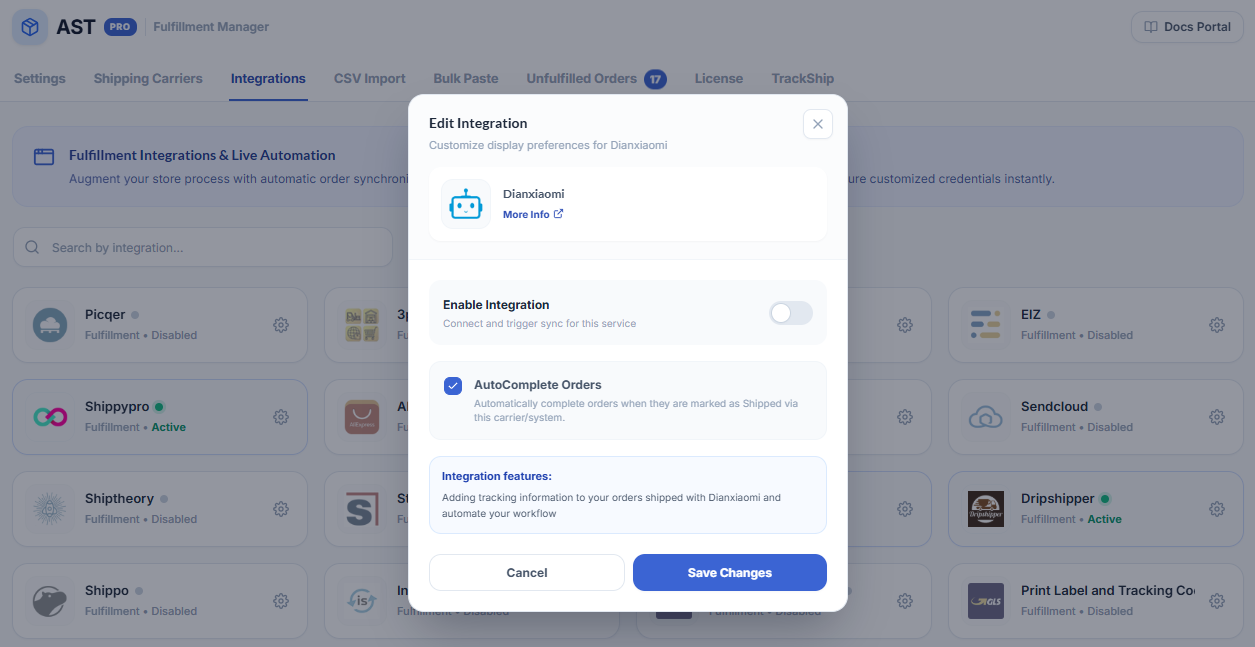
- Enable the Dianxiaomi integration
- (Optional) Enable Auto-complete shipped orders – AST will update the order status to Shipped when tracking is added
🧩 Carrier Name Mapping (Avoid Missing Tracking Links)
Dianxiaomi may use carrier names that differ from AST’s internal list. If the name isn’t mapped, the tracking link may not appear in the customer’s email.
🔧 How to Map Carrier Names
- Go to WooCommerce > Shipment Tracking > Shipping Carriers
- Click Edit on the relevant carrier (e.g., 4PX, Yanwen, DHL)
- In the Custom API Name field, enter the name used by Dianxiaomi (e.g., 4PX Express, YunExpress)
- Use the ➕ icon to add multiple name variants if needed
- Click Update to save
This ensures AST correctly recognizes the carrier and generates the proper tracking link in email notifications.
💡 Best Practices
- Ensure Dianxiaomi’s plugin is correctly configured and connected to your WooCommerce store
- Review tracking behavior after your first few fulfilled orders
- Keep your shipping carrier mappings up to date to avoid tracking issues
- Test with a sample order to confirm everything syncs correctly end-to-end