AST PRO is fully translatable. It ships with built-in translations for several languages and can be translated into any language using Loco Translate or WPML.
Built-in translations
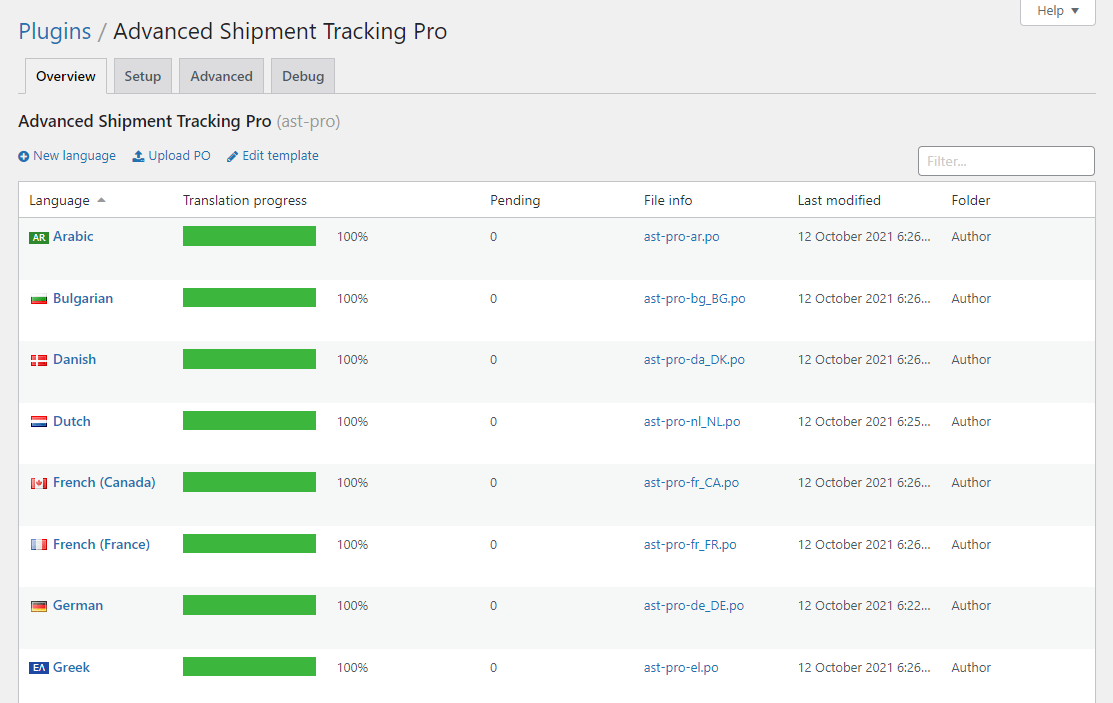
The following languages ship with AST PRO out of the box:
- English – default
- French (Canada)
- German (Deutsch)
- Dutch (Nederlands)
- Greek
- Hebrew
- Hindi
- Italian
- Norwegian (Bokmål)
- Russian
- Swedish
- Turkish
- Bulgarian
- Danish
- Spanish (Spain)
- Português (Brasil)
Where translation files are stored
AST PRO ships its translation files inside the plugin folder (wp-content/plugins/woo-advanced-shipment-tracking/languages/). These files are overwritten on every plugin update.
To make translations survive updates, save custom or edited .po / .mo files to the WordPress languages folder instead: wp-content/languages/plugins/. WordPress looks there first, so files in that location take precedence over the plugin’s own translations and are never overwritten by updates.
The plugin’s text domain is woo-advanced-shipment-tracking. The .pot template file is located at wp-content/plugins/woo-advanced-shipment-tracking/languages/woo-advanced-shipment-tracking.pot.
Translate with Loco Translate
- 1Install and activate the free Loco Translate plugin from WordPress.org.
- 2In your WordPress admin, go to Loco Translate → Plugins and find Advanced Shipment Tracking for WooCommerce.
- 3Click the language you want to translate, or click New language to add one.
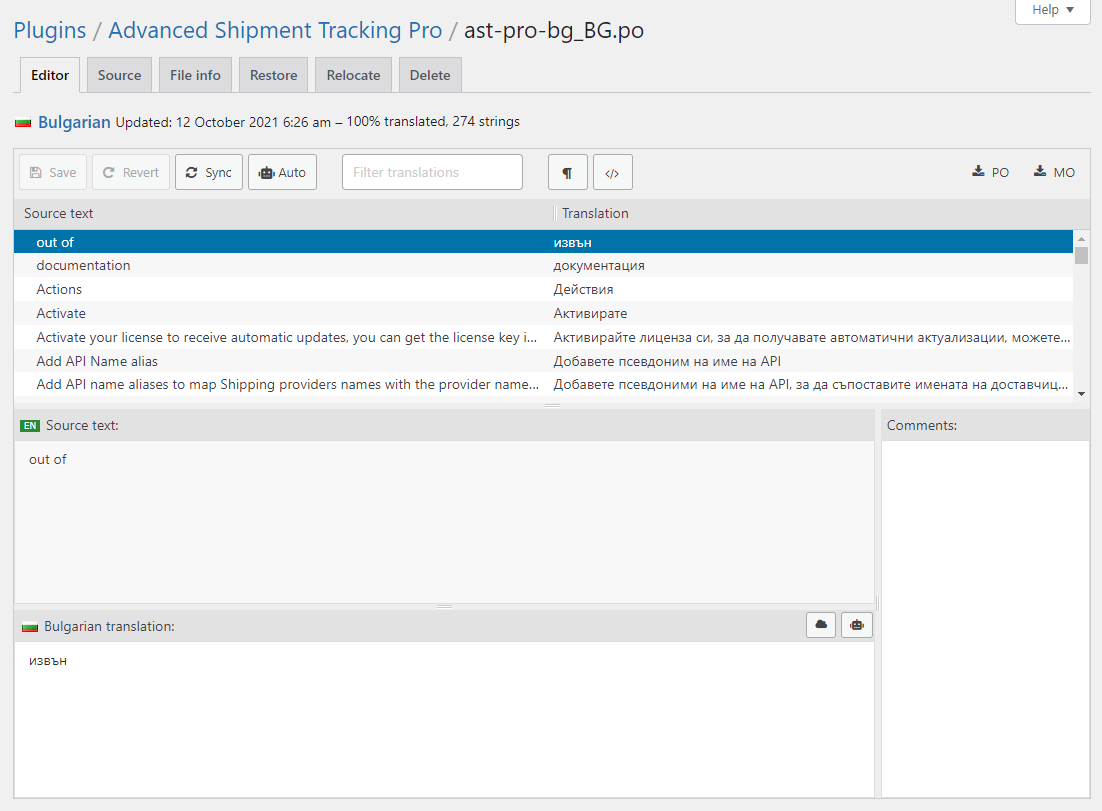
- 4Use the editor to translate strings — the source string is on the left, your translation on the right.
- 5When finished, click Save. Loco Translate writes the
.poand.mofiles towp-content/languages/plugins/by default, keeping them safe from plugin updates.
Translate with WPML
AST PRO is fully compatible with WPML. You can translate all AST PRO strings individually or in bulk from the WPML Translation Dashboard.
Bulk translation
- 1Go to WPML → Translation Dashboard.
- 2Scroll to the Other texts (Strings) section.
- 3In the Domain filter, search for the AST PRO domains:
woocommerce_customer_partial_shipped_order_settingswoocommerce_customer_shipped_order_settingswoocommerce_customer_completed_order_settingstracking_info_settings
- 4Select the strings you want to translate and click Translate your content.
- 5Choose your translation method: Translate myself to enter translations manually, or an automatic translation engine if you have one configured. Click Translate.
- 6If you chose to translate yourself, go to WPML → Translations to enter the translations for each string. Once submitted, WPML applies them automatically.
