Create multilingual SMS templates for stores serving customers in different languages, using WPML’s String Translation or Translation Dashboard. If you don’t use WPML, see how to customize SMS templates using Loco Translate instead.
Warning: never translate or alter placeholders such as {billing_name}, {billing_first}, {billing_last}, {order_id}, {order_amount}, {tracking_link}, {tracking_number}, {shop_name} and {order_status}. These must appear exactly as-is, character-for-character, in every translated template. SMS for WooCommerce looks for these exact placeholder strings before sending a message; if a placeholder is translated or altered in any way, it will no longer be recognized, and the customer will receive the raw, unreplaced placeholder text in their SMS instead of their actual order details.
Which method should you use?
WPML gives you two ways to translate SMS for WooCommerce’s strings, including its SMS templates. Use String Translation when you only need to translate a handful of specific messages quickly — for example, just the “Processing” and “Completed” order status templates. Use the Translation Dashboard when you want to translate everything at once, send strings for automatic or professional translation, or track how much of the plugin’s text has been translated across all of your languages.
Method 1: String Translation
- Install and activate the WPML plugin.
- Go to WPML → String Translation.
- Search for “SMS for WooCommerce” in the domain filter.
- Locate the SMS message templates you want to translate.
- Click on the translate icon next to each message.
- Enter translations for each language you support, leaving every placeholder such as {order_id} or {tracking_number} untouched.
- Save your translations.
Method 2: Translation Dashboard
To translate multiple SMS for WooCommerce strings at once:
Find the SMS template key you need
Every SMS template SMS for WooCommerce saves is stored under an option key ending in _sms_template. Knowing the naming pattern lets you find the key for any status or event, not just the handful shown as examples:
- Order status templates:
smswoo_wc_status_{status}_sms_template— for examplesmswoo_wc_status_completed_sms_template(Completed),smswoo_wc_status_refunded_sms_template(Refunded),smswoo_wc_status_processing_sms_template(Processing),smswoo_wc_status_on-hold_sms_template(On hold). - Admin alert templates:
smswoo_admin_{event}_sms_template— for examplesmswoo_admin_new_order_sms_template,smswoo_admin_cancelled_order_sms_template,smswoo_admin_refunded_order_sms_template,smswoo_admin_product_low_stock_sms_template. - Booking templates:
smswoo_booking_admin_{event}_sms_templateandsmswoo_booking_customer_{event}_sms_template— for examplesmswoo_booking_customer_reminder_sms_template. - Shipment tracking templates:
smswoo_trackship_status_{status}_sms_template— for examplesmswoo_trackship_status_out_for_delivery_sms_template.
Replace {status} or {event} with the order status or event you want to translate — the {status} slug matches the WooCommerce order status shown in your SMS Notifications settings.
- Log in to your WordPress dashboard.
- Navigate to WPML → Translation Dashboard.
- Scroll down to the Other texts (Strings) section.
- In the Filter by field, search using the key naming pattern above to find the SMS template you need.
- Once the relevant strings are displayed, select the checkboxes for all the strings you want to translate and click Translate your content.
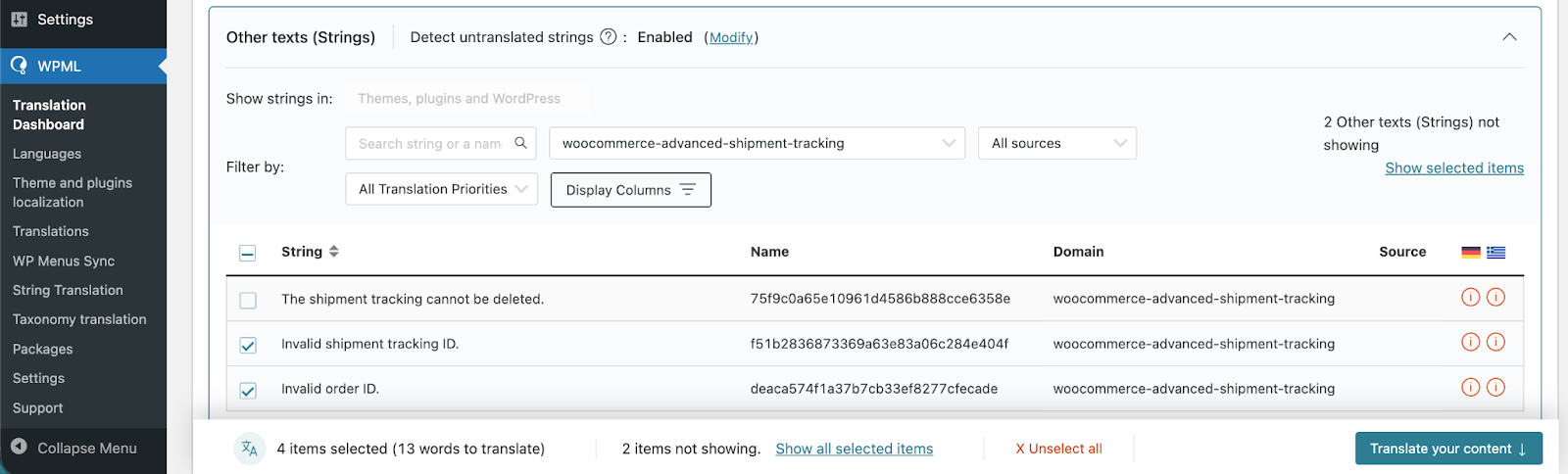
Choose a translation method
At Step 2, choose your translation method. To quickly translate multiple strings, choose Translate automatically from the dropdown. For the best results, ensure your translation engine is Private Translation Cloud (PTC), WPML’s proprietary AI. The Translation Dashboard shows you the cost of automatic translation in euros and credits. If you want to translate strings yourself, choose Translate myself.
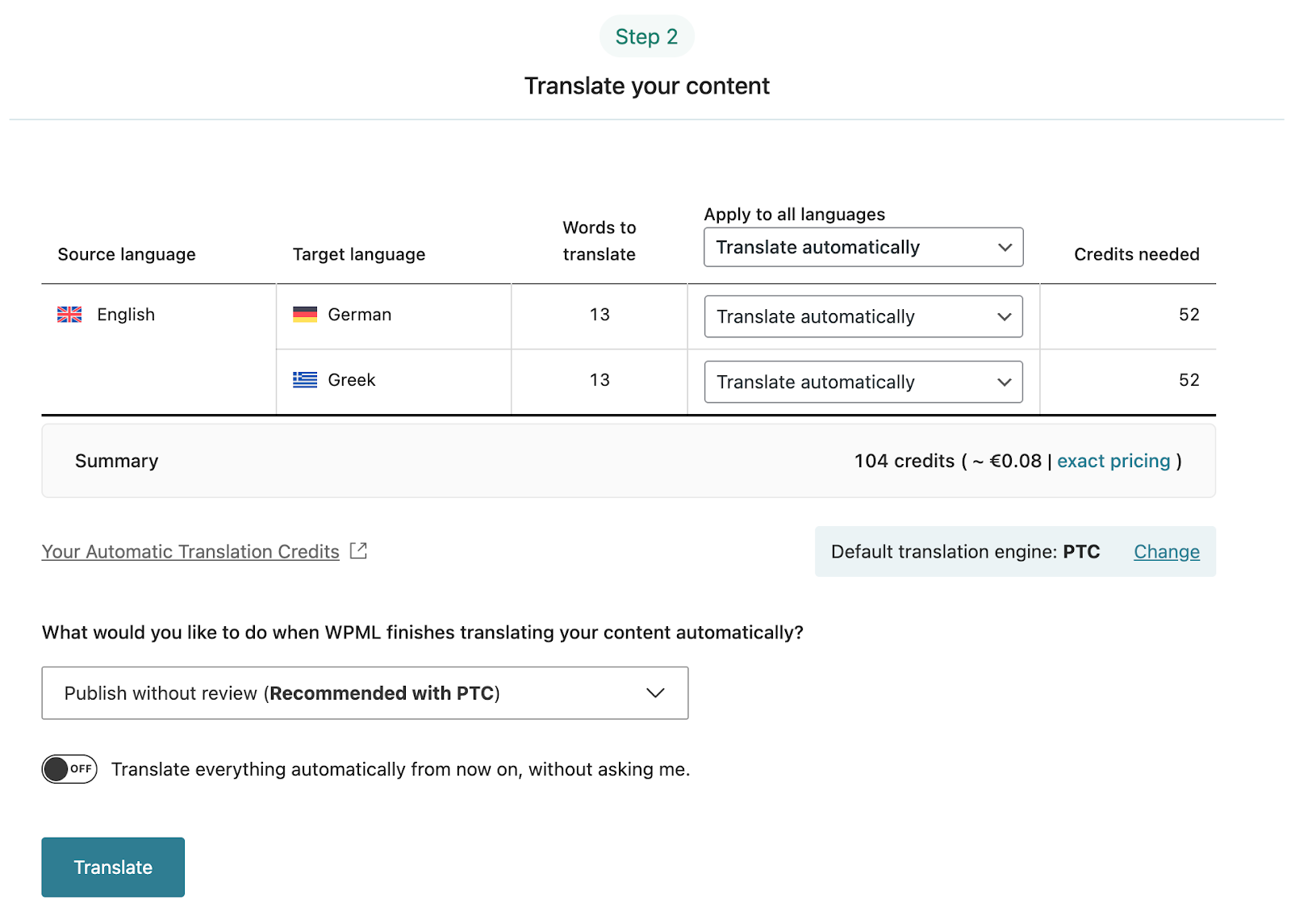
When ready, click Translate. With automatic translation, you’re all set — PTC translates your selected content in a few minutes. If you’ve chosen to translate yourself, navigate to WPML > Translations to add your translations for each string. Whichever method you choose, double-check that every placeholder in the translated text still matches the original exactly.
Sync your translations
Once you’ve translated the strings, ensure they are synced across your website. If you’ve chosen to publish without review, WPML automatically applies translations. Otherwise, go to WPML > Translations to review translated content and publish.