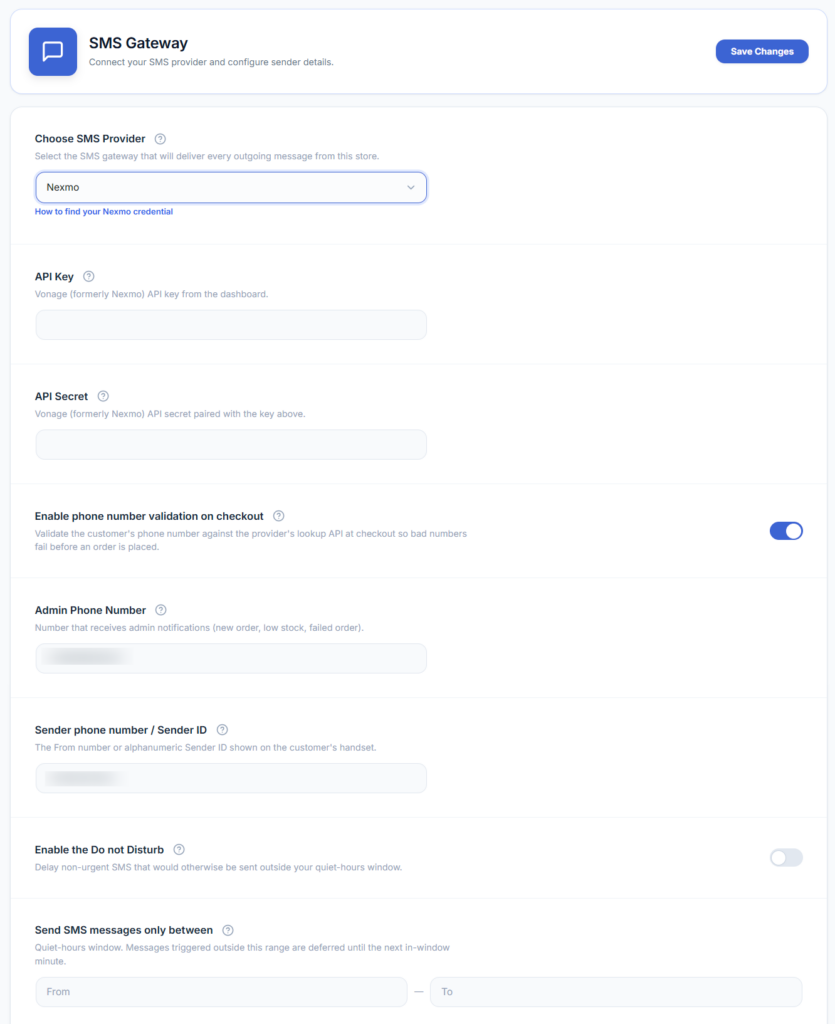
To enable SMS notifications, you need to select an SMS service provider and enter the details provided by that service.
- Go to WooCommerce → SMS Settings.
- Open the SMS Gateway section.
- Select your SMS service provider from the dropdown list — 20+ providers are supported, including Twilio, Vonage (Nexmo), Fast2SMS, MSG91, ClickSend, SMS Alert, D7 Networks, LOX24, and more.
- Enter the API credentials for that provider (these vary by provider — typically an API key/secret, account SID, or auth token).
- Add the admin phone number where you want to receive store notifications.
- Enter the sender phone number or sender ID provided by your SMS service, in E.164 international format (e.g. +14155552671 — a leading + and country code, no spaces or dashes).
- Save your changes.
- Use the “Send Test SMS” button on the same screen to confirm the connection works before relying on it for real orders.
Credential fields change depending on the provider you pick. For provider-specific steps on where to find your API key, account SID, or auth token, see the SMS Gateways guides.