The plugin logs each sent message and shows it in the SMS Logs tab. This requires logging to be turned on first — see How to Enable SMS Log Settings.
Once enabled, you can find the log at WooCommerce > SMS Notifications > Logs. Each row shows the recipient, order (if any), order status or shipment status, and whether delivery succeeded or failed.
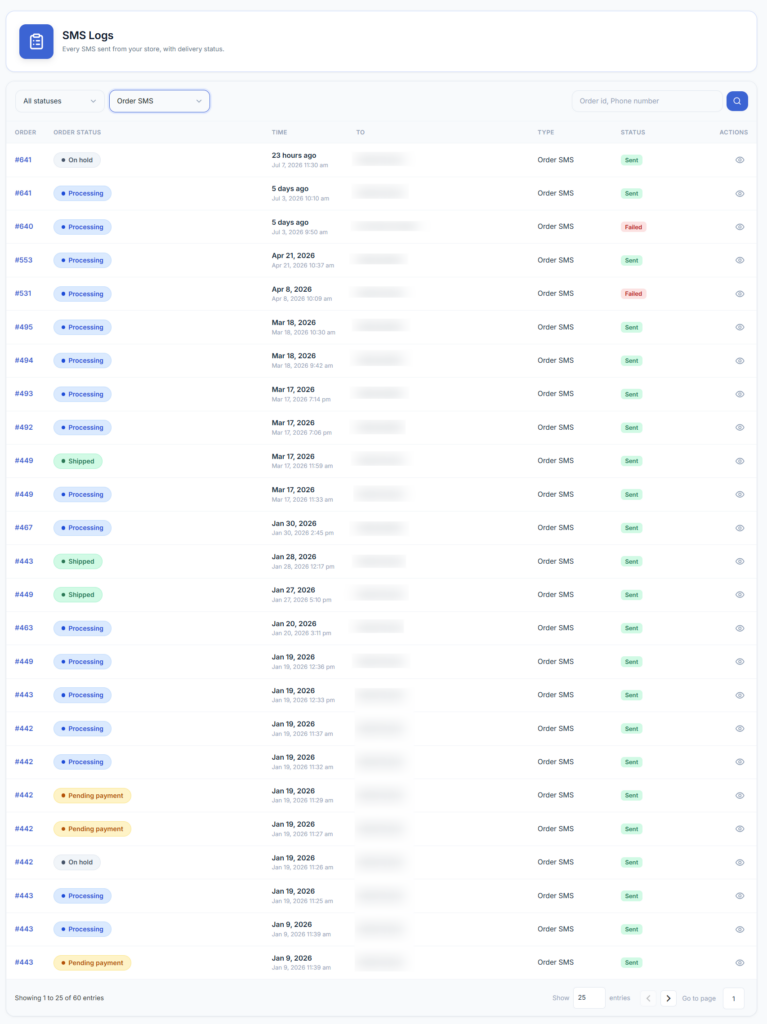
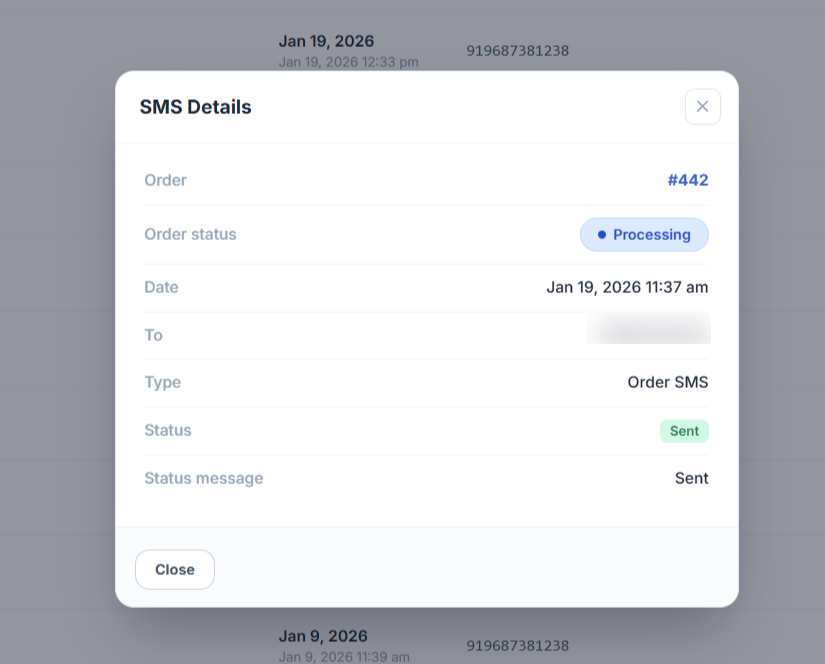
Click on the view icon to view the SMS details:
Why did a message fail?
A row marked as failed means your SMS gateway rejected or couldn’t deliver the message. Open the detail popup (the view icon) and check:
- The status message in the detail popup — this is the raw error text returned by your SMS gateway (e.g. invalid number, insufficient balance, blocked sender ID) and is the most direct clue to what went wrong.
- That your gateway credentials are still valid and the account has an active balance — expired or unfunded provider accounts are a common cause of failures.
- That the recipient’s phone number is in a valid format for your gateway (see How to connect an SMS service provider for the recommended E.164 format).
- Whether the message was sent outside your quiet hours window — those are queued, not failed, but can look similar if you’re scanning quickly.
If the gateway’s error message isn’t clear, check that provider’s own dashboard/logs for the same message — gateways often show more detail there than what they return to the plugin.