- Go to WooCommerce → SMS Settings and select Twilio.
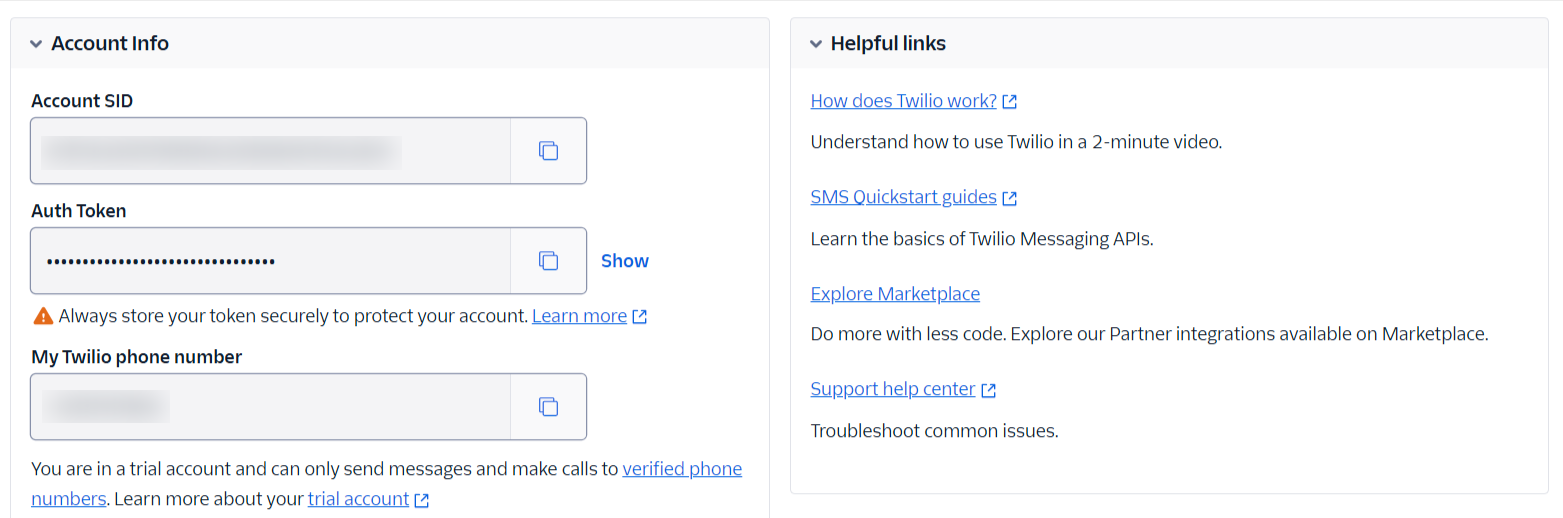
- Log in to Twilio and copy your Account SID and Auth Token.
- Copy your SMS-enabled Twilio phone number, or your Messaging Service SID if you use one (see below).
- Paste all values into SMS For WooCommerce Settings.
- Save changes.
Get your Twilio API Key (SMS)
- Login into your Twilio account.
- Copy your Account SID and Auth Token.
- Copy your phone number and put it as a Sender ID, or use a Messaging Service SID instead (recommended for the US — see below).
- Enter your Account SID, Auth Token, and Sender phone number (or Messaging Service SID) in your SMS Settings.
US and Canada: alphanumeric sender IDs are not allowed
US and Canadian carriers do not deliver SMS from alphanumeric sender IDs. In SMS Settings, the Send Via option lets you choose between a Phone Number and a Messaging Service SID — for US traffic, pick Messaging Service SID and register it for A2P 10DLC compliance. This lets Twilio automatically choose the best sending number from a registered pool and satisfies the campaign-registration requirement carriers now enforce; sending high volumes of US SMS from an unregistered long code will get throttled or filtered.
Get your Twilio API Key (WhatsApp)
Send WhatsApp notifications through Twilio using approved templates.
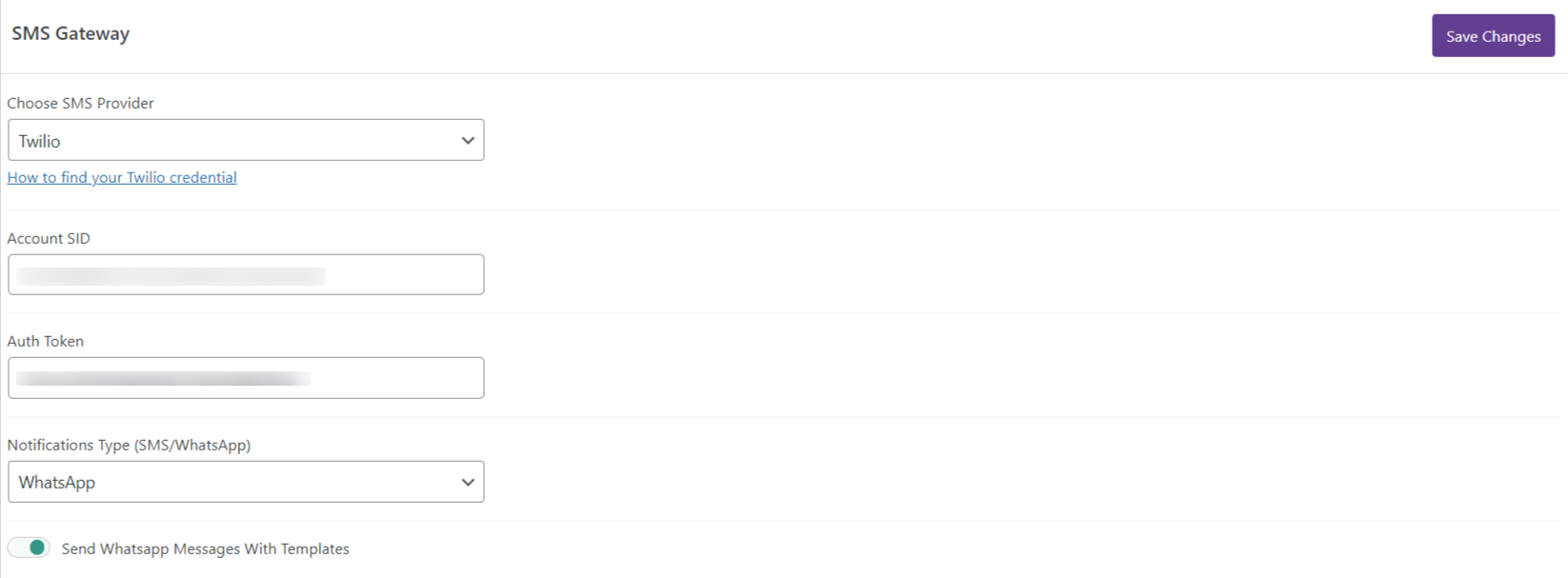
- Connect Twilio using the same Account SID and Auth Token as your SMS setup.
- Select WhatsApp as the notification type.
- Enable template-based WhatsApp sending.
- Go to WooCommerce → SMS Notifications.
- Enter your Content SID and Messaging Service SID.
- Ensure the message text exactly matches your approved templates.
- Save changes.
Next, go to WooCommerce → SMS Settings → SMS Notifications and add the following:
- Add your Content SID.
- Add your Messaging Service SID.

- For WhatsApp messages, your Account SID and Auth Token remain the same as your SMS credentials.
- Go to Messaging > Senders > WhatsApp Senders in the Twilio Console to see your WhatsApp-enabled Twilio phone numbers (senders), and use that number as the Sender ID in your SMS Settings.
How to get your Content SID and Messaging Service SID
Twilio’s WhatsApp integration requires you to set up templates that match the SMS message formats configured in this plugin. Twilio explains how to create message templates and submit them for approval in their documentation.
To send WhatsApp messages from your WooCommerce store, create a template and get it approved for each of the shipment-status messages you enable. Copy the message text for each status, create a matching template, and submit it for approval.
Test your connection
- After saving your Twilio credentials (SMS or WhatsApp), use the Send Test SMS option in SMS Settings.
- On a trial account, only send the test to a number you’ve verified in the Twilio Console — anything else will silently fail.
- Confirm the test message arrives, and for WhatsApp confirm it renders using your approved template.
Troubleshooting
- “The number is unverified” error on a trial account: trial accounts can only send to numbers manually verified in the Twilio Console — verify the destination number or upgrade the account.
- Message rejected for a US/Canada number: you’re likely sending from an unregistered long code or an alphanumeric sender ID — switch to a Messaging Service SID registered for A2P 10DLC.
- Authentication error: confirm the Account SID (starts with “AC”) and Auth Token were copied together from the same Console page; rotating one without the other breaks the pair.
- WhatsApp message not delivered: the message text doesn’t exactly match an approved template, or the template itself is still pending Meta/Twilio approval.
- Test message never arrives: check your Twilio account balance — sends fail once it’s exhausted.
See the SMS Gateways overview to compare other providers, or the general provider connection guide.