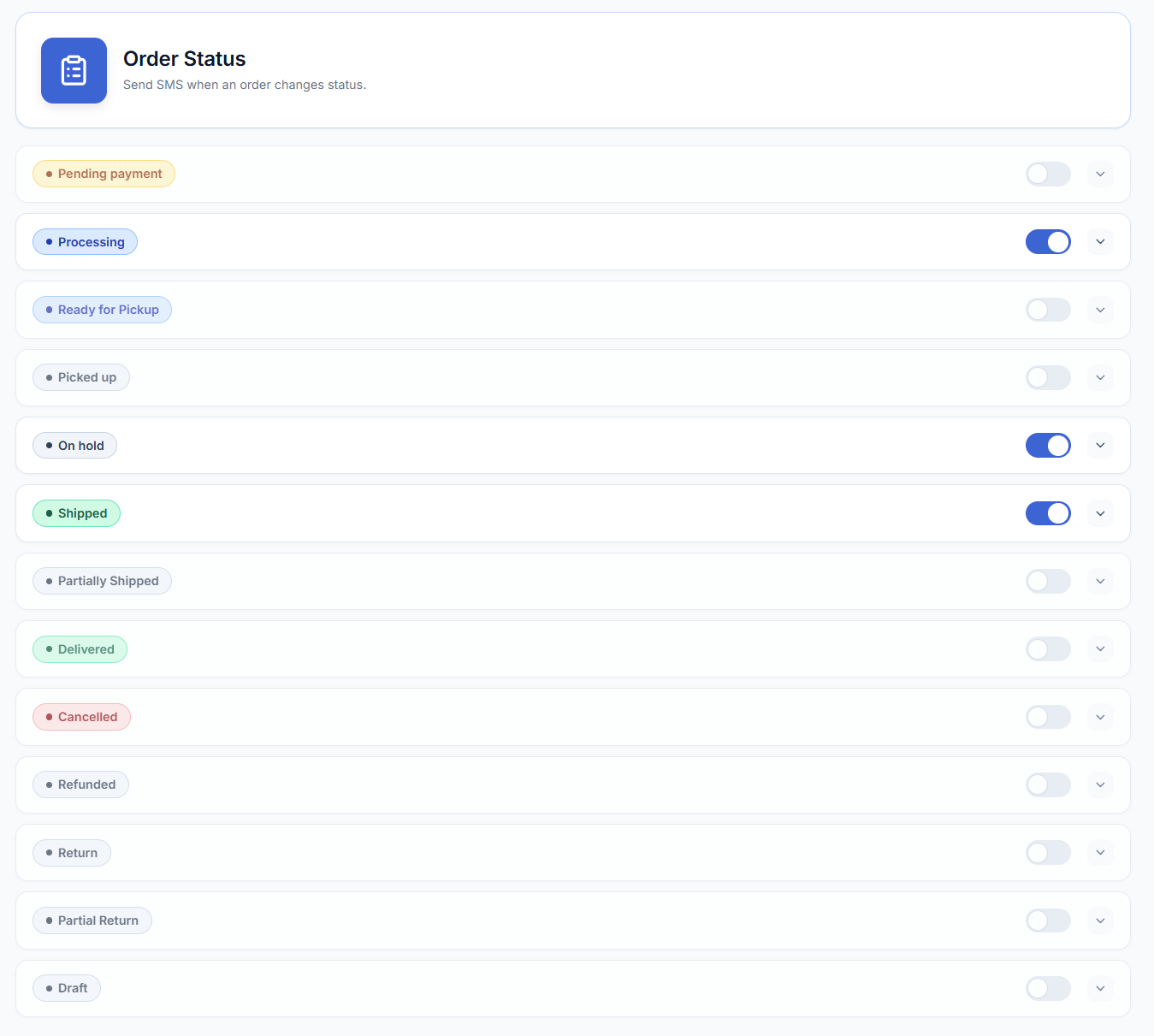
Configure automatic messages to trigger when an order moves through key stages like processing, shipping, or refunding.
- In your WordPress admin, go to WooCommerce → SMS Settings → SMS Notifications.
- Open the section for customer order notifications.
- For each order event you want customers to be informed about, enable the corresponding notification.
- Review the SMS message that will be sent when the order reaches that stage.
- Customize the message text using placeholders where needed.
- Save your changes.
| Status | Description |
|---|---|
| Pending Payment | SMS notification sent when an order’s status changes to ‘Pending Payment’ (e.g. a customer starts checkout but hasn’t completed payment yet). |
| Processing | SMS notification sent when an order’s status changes to ‘Processing’. |
| On Hold | SMS notification sent when an order’s status changes to ‘On Hold’. |
| Completed | SMS notification sent when an order’s status changes to ‘Completed’. |
| Cancelled | SMS notification sent when an order’s status changes to ‘Cancelled’. |
| Refunded | SMS notification sent when an order’s status changes to ‘Refunded’. |
| Failed | SMS notification sent when an order’s status changes to ‘Failed’. |
| Custom Order Statuses | SMS Notifications for WooCommerce supports every core WooCommerce order status and will detect any custom order status registered by another plugin. |
Opt-in is required first
Order-status SMS are only sent to customers who have opted in to SMS notifications. If WooCommerce → SMS Settings → Settings tab → Enable SMS Opt-in on Checkout is turned on (it’s off by default), a customer must tick the consent checkbox at checkout — see How to control customer opt-in at checkout. If that setting is left off, the opt-in requirement is skipped and order-status SMS go out to all customers with a phone number on the order. You can also review or override an individual customer’s opt-in status from their order — see How to manage customer SMS opt-in from order admin.