This process sets up a workflow where customers must explicitly choose to receive SMS updates, ensuring compliance and valid data collection.
- Go to WooCommerce → SMS Settings.
- Enable the workflow that requires customers to opt in to SMS notifications during checkout.
- Decide whether the opt-in checkbox should be pre-selected or require manual confirmation — see the compliance warning below before enabling pre-selection.
- Customize the opt-in label so customers understand what they are agreeing to.
- Choose where the opt-in option appears on the checkout page.
- If you are using supported providers (such as Vonage or Twilio), enable phone number validation so incorrect numbers are blocked during checkout.
- Save your changes.
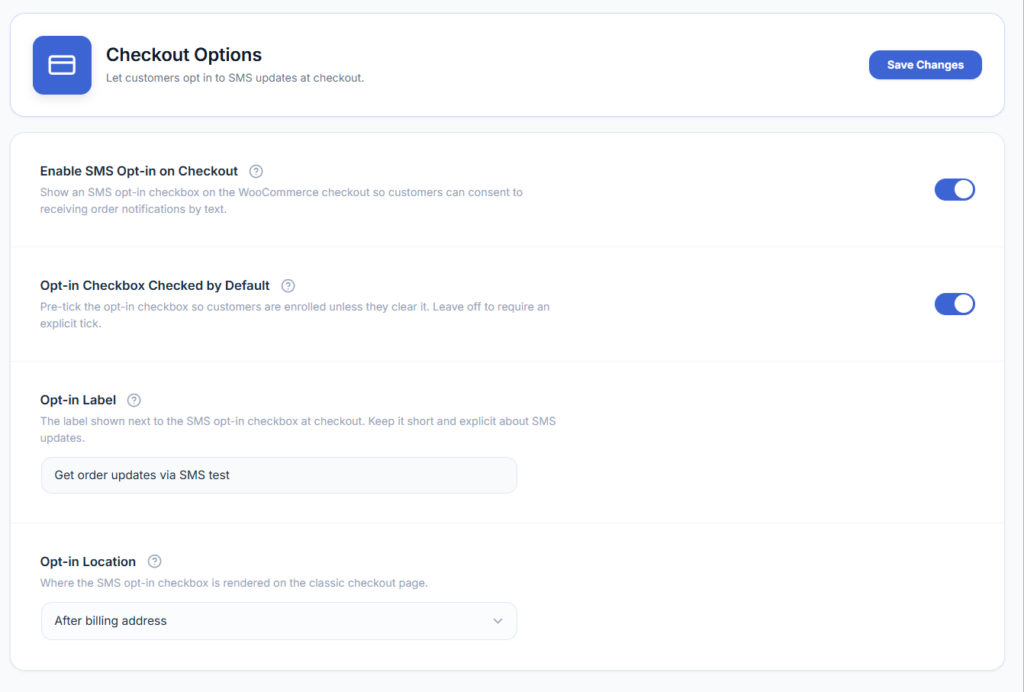
Compliance: don’t pre-check the consent box
The plugin’s “opt-in checkbox checked by default” option is off by default, and we recommend leaving it off. Pre-ticking an SMS consent checkbox is not valid consent under TCPA (US) and similar regulations in many other jurisdictions (including GDPR-based rules in the EU/UK) — consent for SMS marketing generally has to be an affirmative, unchecked-by-default action the customer takes themselves.
Whatever you set the label to, disclose clearly what the customer is agreeing to: that message and data rates may apply, roughly how often you’ll text them, and how to opt out later (see How to allow customers to opt out after checkout). A label like “Get order updates via SMS. Msg & data rates may apply. Reply STOP to opt out.” covers the basics; avoid vague wording like “Sign me up.”
The Checkout Experience
Phone number validation is only available for Twilio and Vonage (Nexmo). When enabled, it blocks checkout until the customer enters a validly formatted phone number, so orders aren’t placed with numbers your SMS gateway can’t deliver to. For provider-specific setup, see the SMS Gateways guides.
Note: the two screenshots that previously illustrated valid/invalid phone validation states were hotlinked from an off-site woocommerce.com URL and have been removed from this page pending a re-upload to docs.zorem.com.