Automatically add tracking numbers, carriers and tracking links to your order SMS messages whenever you enter shipment data using the Advanced Shipment Tracking (AST) plugin, together with SMS for WooCommerce.
Requirements
Requires Advanced Shipment Tracking for WooCommerce (free or Pro) and SMS for WooCommerce to both be installed and active on your site.
Setup Instructions
- Ensure Advanced Shipment Tracking is installed and active.
- Go to WooCommerce → SMS Settings → Settings and configure your SMS gateway (Twilio, Nexmo, MSG91, Lox24 or any of the supported providers).
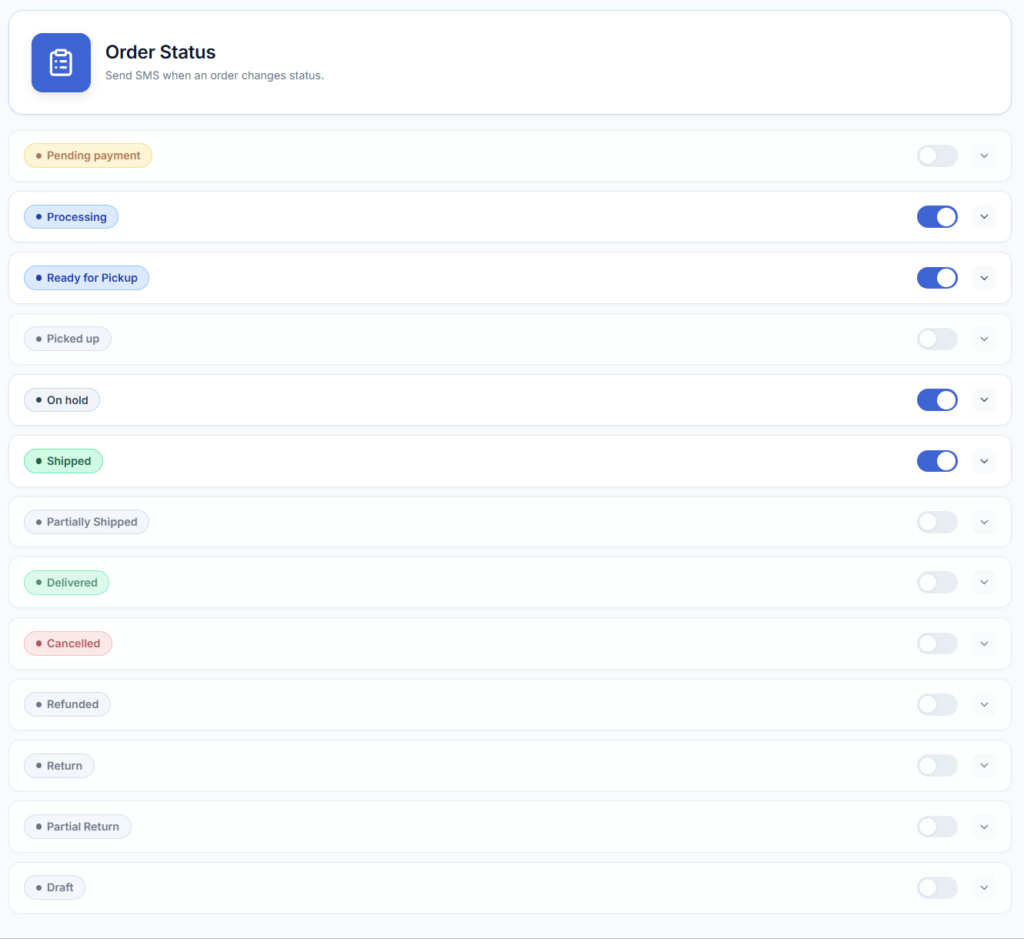
- Go to WooCommerce → SMS Settings → SMS Notifications and enable the message for whichever order status you send tracking on — usually Completed, or a custom ‘Shipped’ status if your store uses one.
- Edit that status’s SMS message and insert the AST placeholders (e.g. {tracking_number}, {tracking_link}) where you want the tracking details to appear.
- Add tracking info to an order from Edit Order → Shipment Tracking as you normally would — the next time the SMS for that order status fires, it will carry the real tracking data.
- Save your changes.
Available Placeholders for orders SMS
Use the following variables to dynamically add order and shipment information to your SMS messages. These work for both customer and admin messages. When an order has more than one shipment/tracking entry, the multi-item placeholders combine every entry into one string.
- {shipping_method} – the shipping method chosen for the order
- {tracking_number} – the tracking number(s) for the order, comma-separated if there is more than one shipment
- {tracking_provider} (also available as {shipping_provider}) – the carrier/provider name for the tracking number
- {tracking_link} – the tracking link for the order
- {formatted_tracking_info} – a ready-to-send summary line combining provider, tracking number and link for every shipment on the order (falls back to a friendly ‘tracking info unavailable’ message if AST has not returned tracking data yet)
Troubleshooting
- Placeholders show up blank in the SMS – confirm the order status you edited the message for is the same status you move the order to after adding the tracking number; if tracking is added after the status SMS already fired, the placeholders will be empty on that send.
- No SMS is sent at all – check that SMS notifications are enabled for that order status under WooCommerce → SMS Settings → SMS Notifications, and that the customer has opted in if ‘Enable SMS Opt-in on Checkout’ is turned on under Checkout Options.
- Tracking link is missing – not every carrier AST supports has a trackable URL; {tracking_link} is only populated when AST has a tracking URL template for that carrier.
Want live carrier status updates (‘Out for delivery’, ‘Delivered’) instead of a one-time tracking number, rather than the static tracking-added SMS above? See How to send shipment status SMS using TrackShip for WooCommerce.
See the full list of supported integrations on the Compatibility page.