TrackShip brings a branded tracking experience into your store’s admin and lets you offer an Amazon-style post-checkout tracking page. SMS for WooCommerce is fully compatible with TrackShip for WooCommerce — once both plugins are installed and your store is connected to TrackShip, a Shipment Tracking tab appears under WooCommerce → SMS Notifications, and you can send an SMS automatically for each real-time shipment status TrackShip reports (e.g. “Out for Delivery”, “Delivered”, “Exception”).
Requirements
Requires TrackShip for WooCommerce and SMS for WooCommerce to both be installed and active, and your store must be connected to a TrackShip account.
Setup Instructions
- Connect your store to TrackShip (TrackShip for WooCommerce → Settings).
- Go to WooCommerce → SMS Settings → Settings and configure your SMS gateway (Twilio, Nexmo, MSG91, Lox24 or any of the supported providers).
- Go to WooCommerce → SMS Settings → SMS Notifications → Shipment Tracking.
- Enable the toggle for each shipment status you want to notify on, separately for customer and admin.
- Customize each status’s SMS message using placeholders like {shipment_status} and {est_delivery_date}.
- If you only want the final ‘Delivered’ SMS to fire once every package on a multi-shipment order has actually arrived, enable the ‘All shipments delivered’ option — otherwise a Delivered SMS can send as soon as the first shipment on the order is marked delivered.
- Save your changes.
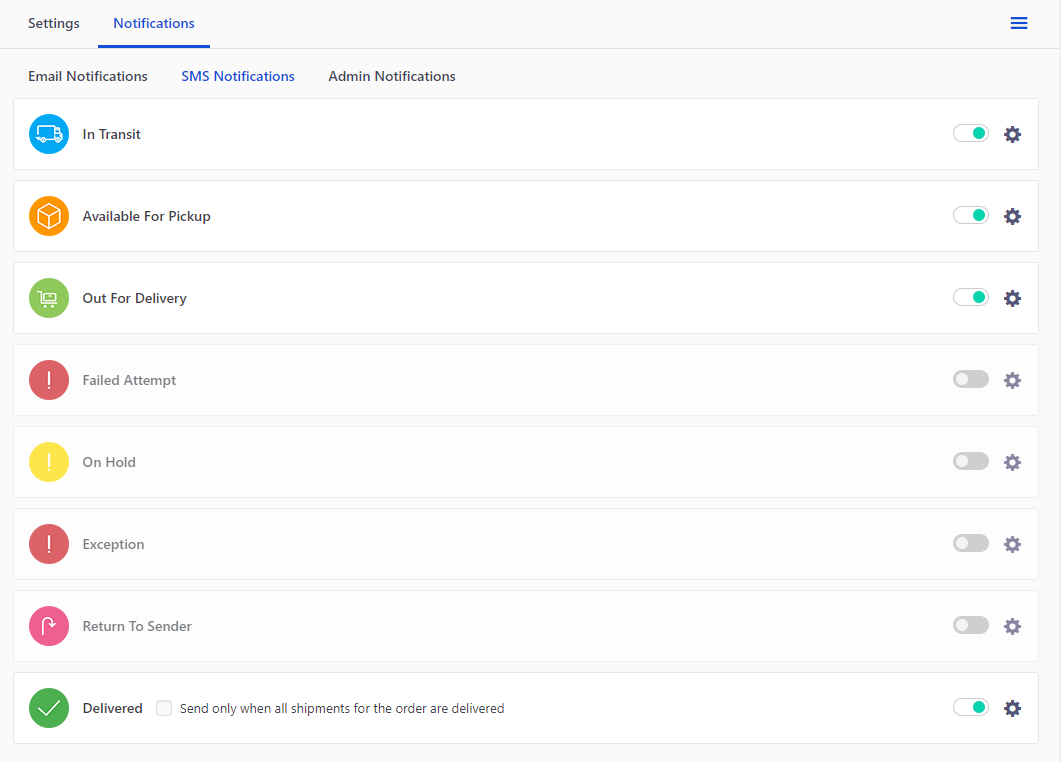
Available Placeholders for Shipment status
Use the following variables to dynamically add shipment information to your SMS messages. {shipment_status} and {est_delivery_date} only resolve once TrackShip is connected and has returned data for that shipment.
- {tracking_number} – the tracking number/s for the order
- {tracking_provider} – the shipping provider for the tracking number
- {tracking_link} – the tracking link for the order
- {shipment_status} – the current TrackShip status for that shipment (e.g. In Transit, Out for Delivery, Delivered, Exception)
- {est_delivery_date} – TrackShip’s estimated delivery date for that shipment, or ‘N/A’ if TrackShip has not returned an estimate yet
Troubleshooting
- No Shipment Tracking tab under SMS Notifications – it only appears once your store is actually connected to a TrackShip account, not just with the plugin active.
- {shipment_status} or {est_delivery_date} is blank – TrackShip has not yet returned tracking data for that shipment from the carrier; these fill in once TrackShip’s own status polling picks up the update.
- ‘Delivered’ SMS fires too early on multi-package orders – enable the ‘All shipments delivered’ setting so the SMS waits until every shipment on the order is delivered.
Don’t use TrackShip? If you just need to text customers the tracking number and link you enter manually (without live carrier status updates), see How to send shipment SMS using Advanced Shipment Tracking.
See the full list of supported integrations on the Compatibility page.