Integrate BulkGate using your HTTP Simple API credentials.
- Go to WooCommerce → SMS Settings and select BulkGate.
- Log in to BulkGate and go to Modules & APIs → HTTP Simple API.
- Copy your Application ID and Application Token.
- Choose the correct sender type (e.g., gText) and paste credentials into SMS For WooCommerce Settings.
- Save changes.
How to get your BulkGate API Key:
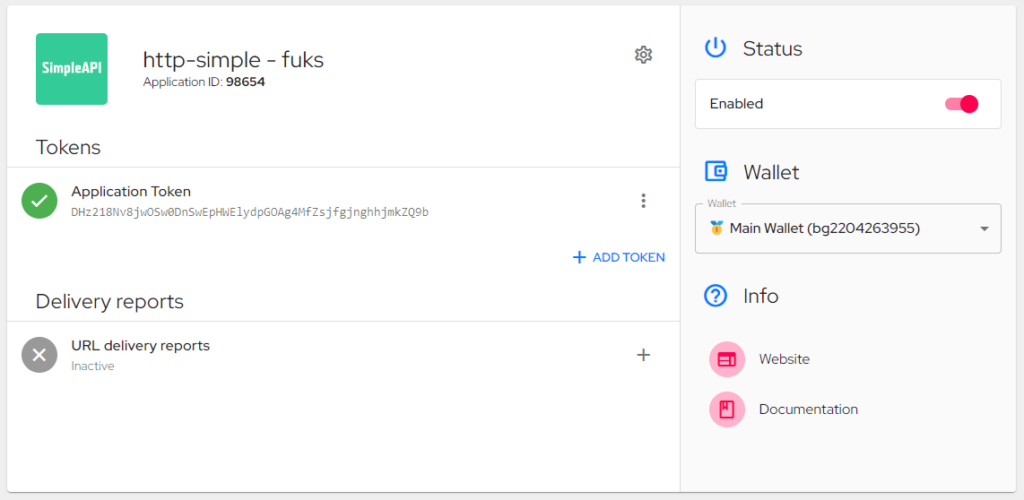
How to get your BulkGate phone number:
- The sender id refers to the table below, and if You have a Text sender, you will have to enter gText in the General Settings as a Sender phone number / Sender ID.
| Option | Description |
|---|
Coverage and sender ID requirements
BulkGate routes messages through direct operator connections across Europe and worldwide. Many countries — especially within the EU — require an alphanumeric Sender ID (such as a gText sender) to be pre-registered with the local carrier before it will deliver. Review BulkGate’s Sender ID documentation for the registration requirements in your target countries before going live.
Test your connection
- In WooCommerce → SMS Settings, click Send Test SMS to confirm BulkGate delivers a message to your own phone.
- If the test fails, check the delivery status and error code shown in your BulkGate portal before troubleshooting further.
Troubleshooting
- Messages aren’t delivered: the Sender ID (gText, gSystem, etc.) is not pre-registered or approved for the destination country.
- 401 Unauthorized: the Application ID and Application Token don’t belong to the same BulkGate application.
- Send blocked or fails silently: the BulkGate account balance is too low — top up credit in the BulkGate portal.
- Invalid recipient: the destination number is missing its country code — use full E.164 format (e.g. +14155552671).
More SMS gateway integrations
See every supported provider and how to get its API keys in the SMS Gateways overview.