Translating Customer Email Verification Pro
Customer Email Verification Pro is compatible with both WPML and Polylang, letting you translate the plugin’s strings into any language for your multilingual WooCommerce store. Its text domain is customer-email-verification.
What Can Be Translated
41 admin-configurable strings are registered for translation, grouped as:
- Popup content — header, message, footer, and button text for the Registration, Checkout, Account Verify, and Login Authentication popups.
- Email content — subject, heading, body, and footer for all 5 verification email types (Registration, Checkout, Edit Account, Login OTP, Login Authentication).
- Admin messages — the Resend Limit Message, Verification Success Message, and Disposable Block Message.
These are the strings you’ve customized in the Customizer and Settings — not the plugin’s interface text, which follows your site’s admin language automatically.
Translating with WPML
WPML’s String Translation module makes it simple to localize the plugin’s strings for your multilingual store. You can translate strings individually or in bulk.
- Go to WPML → String Translation.
- Use the search box to find the specific string by its text or its name (e.g. “Resend Limit Message”).
- Click the flag icon for the language you want to add, type the translation, and click Save.
To translate multiple strings at once:
- Log in to your WordPress dashboard.
- Navigate to WPML > Translation Dashboard.
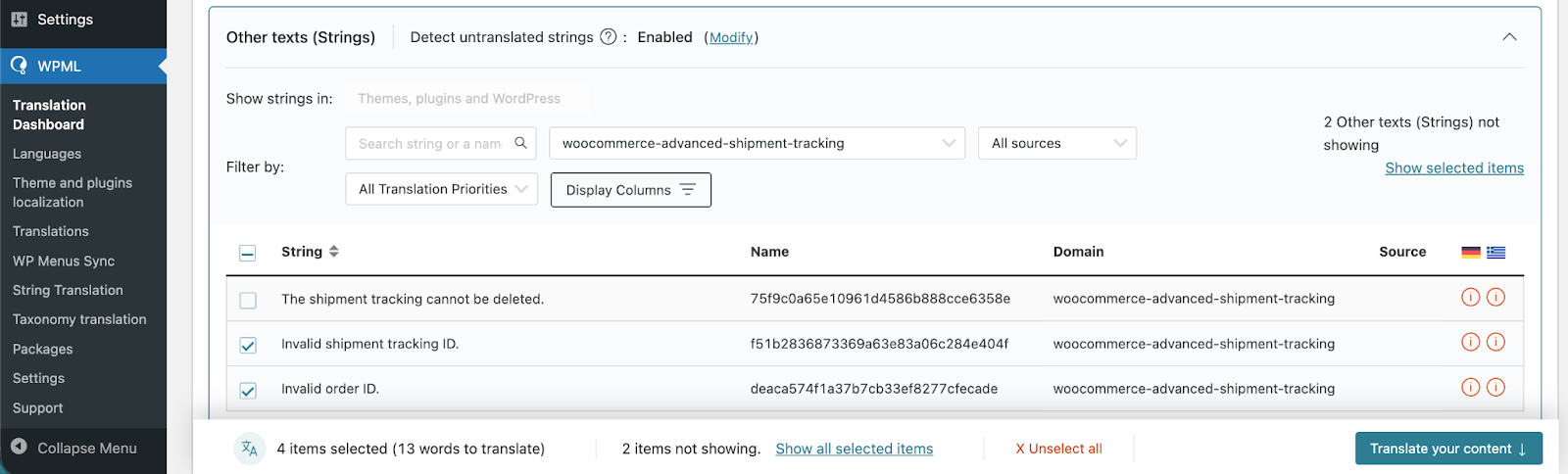
- Scroll down to the Other texts (Strings) section.
- In the Filter by field, search for the plugin’s strings using any of the key names above, e.g.:
- cev_verification_header
- cev_verification_message
- cev_verification_widget_footer
- Select the checkboxes for all the strings you want to translate and click Translate your content.
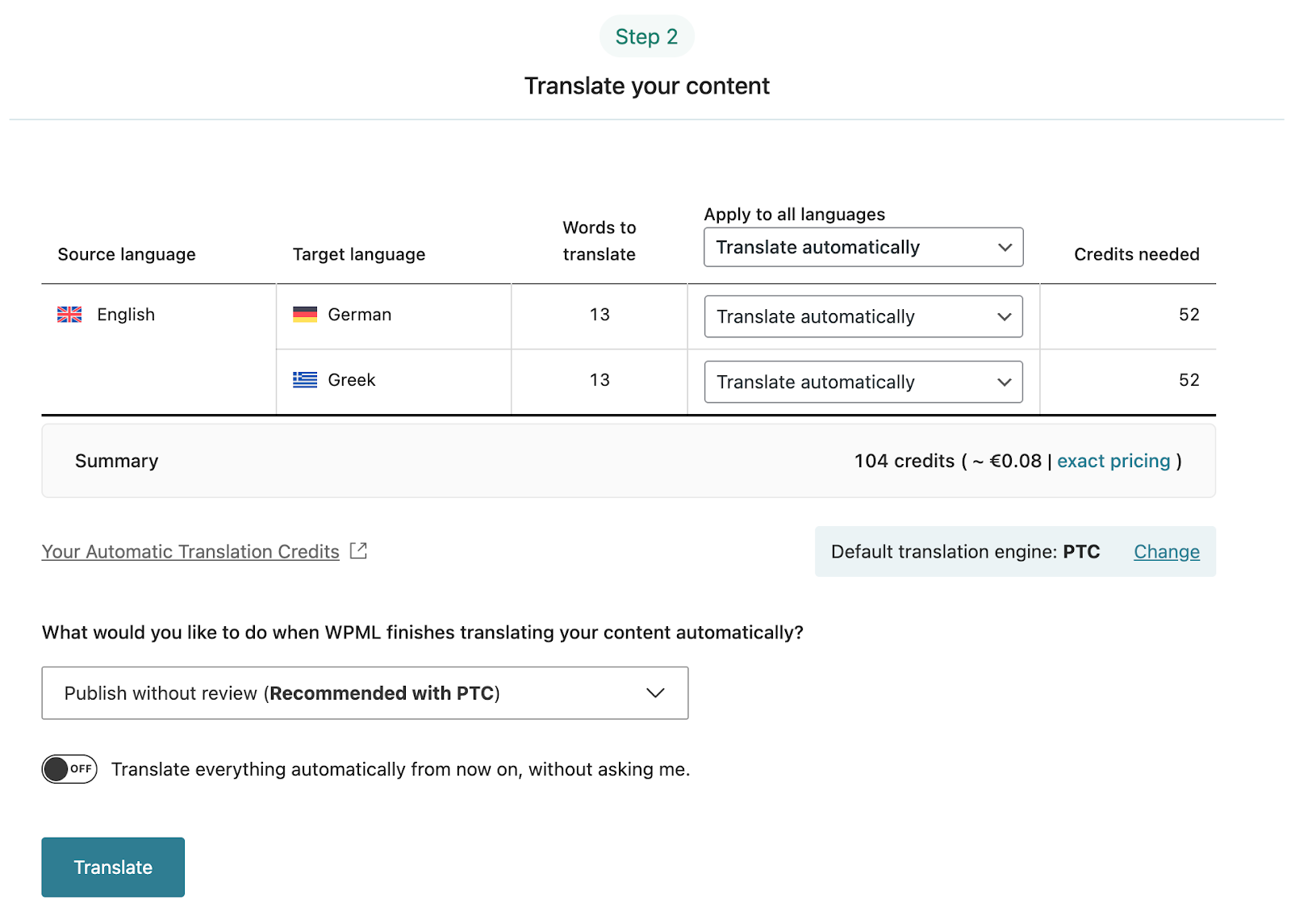
At Step 2, choose your translation method. To quickly translate multiple strings, choose Translate automatically from the dropdown. For the best results, ensure your translation engine is Private Translation Cloud (PTC), WPML’s proprietary AI. The Translation Dashboard shows you the cost of automatic translation in euros and credits. If you want to translate strings yourself, choose Translate myself.
With automatic translation, you’re all set! PTC translates your selected content in a few minutes. If you’ve chosen to translate yourself, navigate to WPML > Translations to add your translations for each string.
Syncing Your Translations
Once you’ve translated the strings, ensure they are synced across your website. If you’ve chosen to publish without review, WPML automatically applies translations. Otherwise, go to WPML > Translations to review translated content and publish.
Translating with Polylang
All 41 registered strings are also available through Polylang’s String Translations, under the group Customer Email Verification Pro.
- Go to Languages → String Translations.
- Filter by the group Customer Email Verification Pro, or search for the string by name.
- Enter your translation for each language and click Save Changes.
Verification emails and SMS/WhatsApp messages are delivered to the customer in the language you’ve translated their strings into, once translated — see the Smart Form FAQ for how this applies to Smart Form.
Translating Without WPML or Polylang
If your store doesn’t use either plugin, the plugin’s interface text (not the admin-configurable strings above) can still be translated the standard WordPress way: it ships a translation template file at /lang/customer-email-verification.pot. Use a tool like Loco Translate to create a .po/.mo file for your language from this template, or check /lang/ for a translation that may already exist for your language.