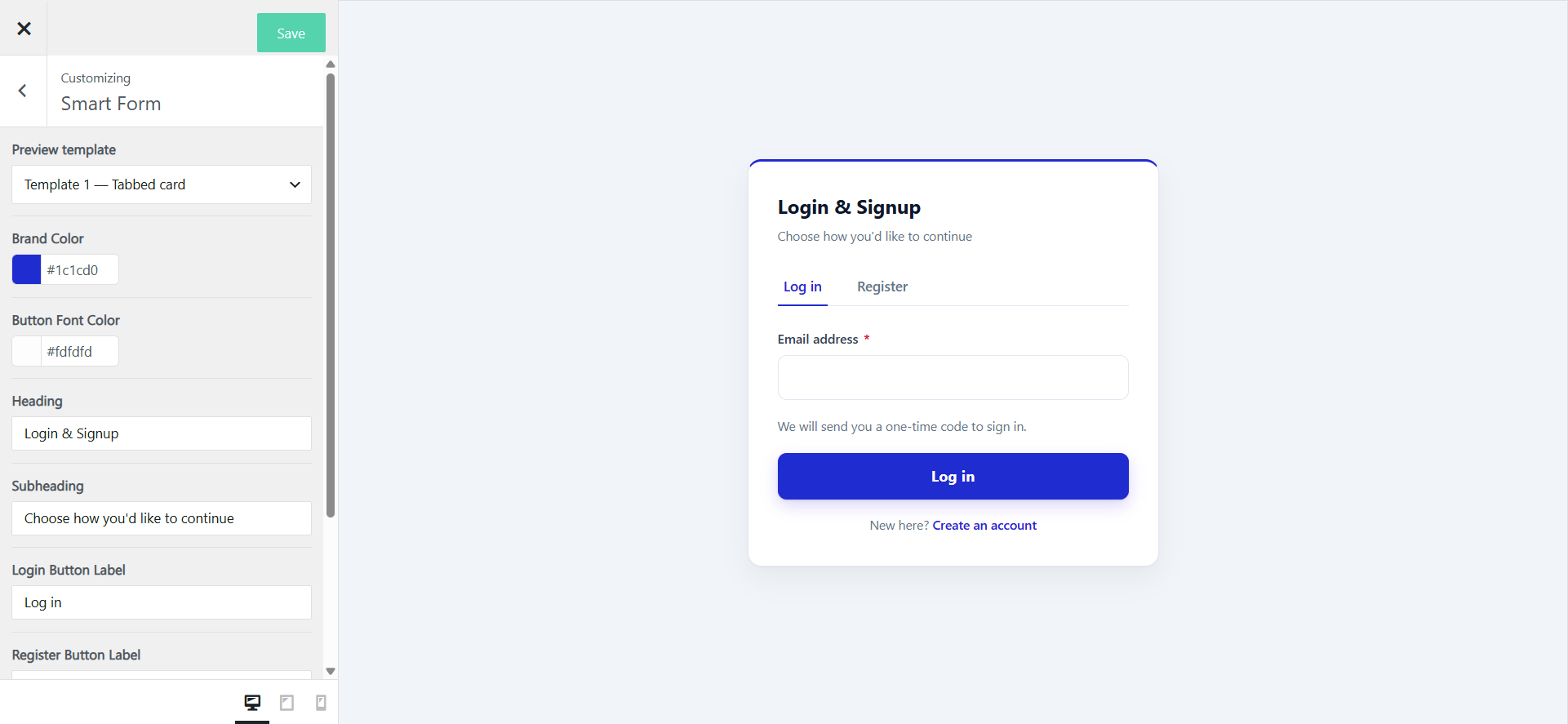
Smart Form’s design and copy are tuned from the existing Customizer. Go to WooCommerce → Email Verification → Customize, open the Smart Form panel, then pick a template from the dropdown at the top — the fields shown below change depending on which template you’re editing.
Fields available
All four templates share a common set of text and colour fields. Templates 2 and 3 add two panel colour fields; Template 4 drops the Heading and Subheading fields, since its layout doesn’t display them.
| Field | Default | Templates |
|---|---|---|
| Brand Color | #4f46e5 | All 4 |
| Button Font Color | #ffffff | All 4 |
| Heading | Your site name | 1, 2, 3 |
| Subheading | “Choose how you’d like to continue” | 1, 2, 3 |
| Login Button Label | “Log in” | All 4 |
| Register Button Label | “Create account” | All 4 |
| Footer Content | Empty | All 4 |
| Panel background color | #4f46e5 | 2, 3 only |
| Panel font color | #ffffff | 2, 3 only |
Template 1 also has its own Reset to defaults button, which restores its fields to the values above in one click.
Not currently available
Font size, spacing/padding, corner radius, form width, and a logo upload are not configurable fields in this panel — Heading doubles as the brand text for templates that show one. There are also no separate OTP button text, resend text, or custom success/error message fields; those come from your Email Verification settings, not the Smart Form panel.
Related
- Backwards compatible. Switching back to WooCommerce Form at any time restores the original WooCommerce login/registration experience. No customer data is lost.
- Translation-ready. All Smart Form strings (labels, buttons, error messages) are translatable via WPML and Polylang’s String Translations.
- For registration and login method behavior, see How to Configure Smart Form Registration & Login Methods?.
- For where the form appears and its four layouts, see How to place Smart Form on the frontend?.
Troubleshooting
- A change doesn’t appear on the frontend — hard-refresh the page (clear any page cache or CDN cache first); confirm you edited the same template that’s active in Signup Verification settings, since fields are per-template.
- Colour looks right in the preview but not on the live site — your theme’s CSS may be more specific than Smart Form’s styles. Check your browser’s inspector for a conflicting rule and add a more specific override in your theme’s custom CSS if needed.