If you chose Phone verification for registration or Phone OTP for login, Smart Form needs an SMS gateway to deliver the codes. Four providers are supported out of the box, each asking for its own credentials.
MSG91
| Field | Notes |
|---|---|
| Authentication Key | Required. From your MSG91 dashboard. |
| Sender ID | Required. Your approved MSG91 sender ID. |
| Use DLT template ID | Optional. Enable if your MSG91 account requires India’s DLT-registered templates. |
Twilio
| Field | Notes |
|---|---|
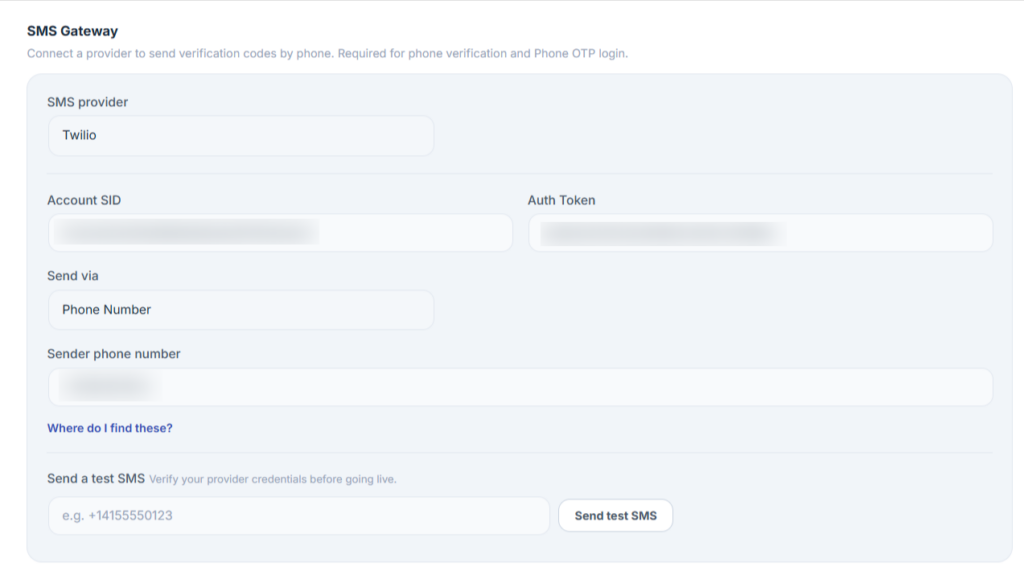
| Account SID | Required. |
| Auth Token | Required. |
| Send via | Choose Phone number or Messaging Service SID. |
| Sender phone number | Required if Send via is set to Phone number. |
| Messaging Service SID | Required if Send via is set to Messaging Service SID. |
Vonage (Nexmo)
| Field | Notes |
|---|---|
| Key | Required. Your Vonage API key. |
| Secret | Required. Your Vonage API secret. |
| Sender phone number / Sender ID | Required. The number or alphanumeric ID shown to recipients. |
WhatsApp Business (Cloud API)
| Field | Notes |
|---|---|
| Access token | Required. From your WhatsApp Business Platform / Meta app. |
| Namespace | Your message template namespace. |
| Sender / Phone number ID | Required. The WhatsApp “From” phone number ID. |
| Header image + Header image URL | Optional. Enable to attach a header image to the template message. |
How to configure an SMS gateway
- Go to WooCommerce → Email Verification → Settings → Signup Verification.
- Scroll to the SMS Gateway section.
- Pick a Provider from the dropdown.
- Enter the credentials for that provider, from the tables above.
- Click Send test SMS to verify the connection.
- Click Save changes.
Note
SMS credentials are stored on your server and are never exposed to the browser or to customers. Only the active SMS provider name is referenced on the frontend — never the API key.
Troubleshooting
- SMS/WhatsApp code never arrives — click Send test SMS to confirm the credentials work in isolation; check the provider’s dashboard for delivery errors (unverified sender ID, unsupported destination country, or a trial-account restriction are the most common causes).
- Test SMS works but real OTPs don’t send — confirm the correct provider is selected as active (only one gateway is active at a time) and that Phone verification/Phone OTP is actually enabled — see How to Configure Smart Form Registration & Login Methods?.