Advanced Local Pickup Pro (ALP PRO) is fully compatible with WPML. Use WPML String Translation to translate ALP PRO’s pickup texts — the messages, email subjects and contents, and widget headers you entered in the settings, which are stored as options rather than in the .po language files.
Bulk Translation via WPML Translation Dashboard
- Log in to your WordPress dashboard.
- Navigate to WPML → Translation Dashboard and scroll down to the Other texts (Strings) section.
- In the Domains filter, search for the ALP PRO string domains:
- admin_texts_wclp_local_pickup_message_content (product page message)
- admin_texts_wclp_emails_additional_content (additional emails content)
- admin_texts_wclp_processing_additional_content (processing email content)
- admin_texts_pickup_instruction_customize_settings (pickup widget headers)
- admin_texts_woocommerce_customer_ready_pickup_order_settings (Ready for Pickup email)
- admin_texts_woocommerce_customer_pickup_order_settings (Picked Up email)
- admin_texts_woocommerce_customer_pickup_reminder_order_settings (Pickup Reminder email)
- Select the checkboxes for all the strings you want to translate and click Translate your content.
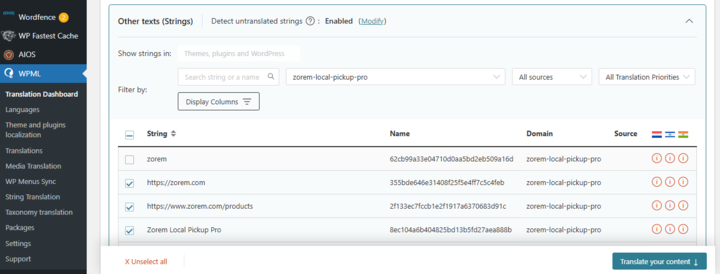
At Step 2, choose your translation method. To quickly translate multiple strings, choose Translate automatically from the dropdown. For the best results, ensure your translation engine is Private Translation Cloud (PTC), WPML’s proprietary AI. The Translation Dashboard shows you the cost of automatic translation in euros and credits. If you want to translate strings yourself, choose Translate myself.
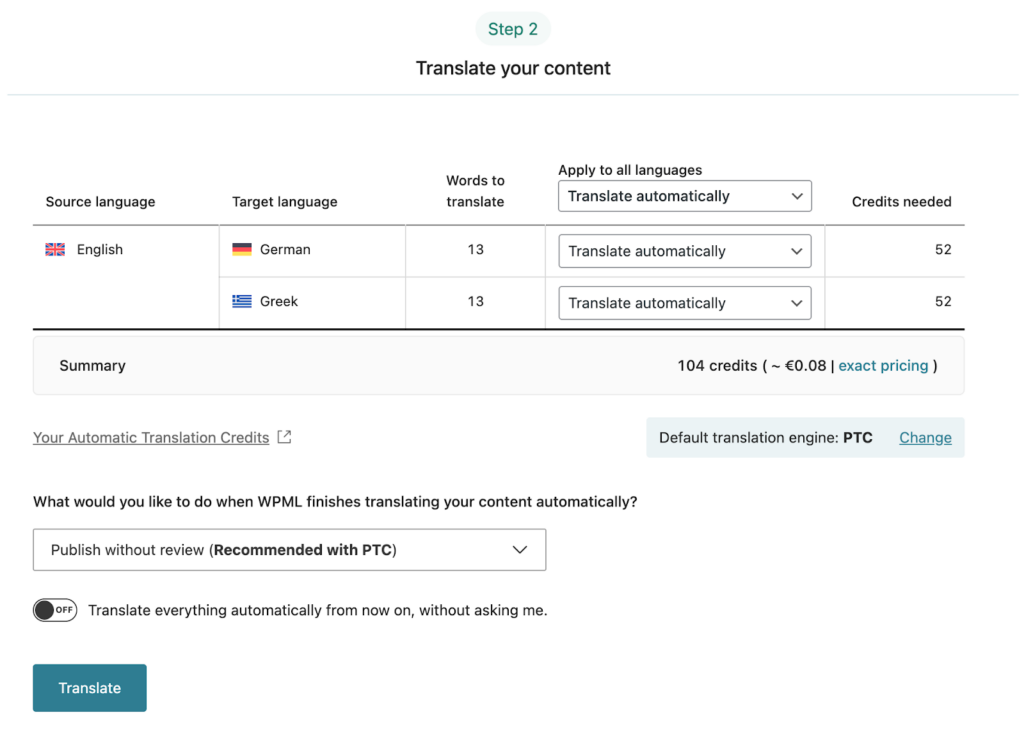
- When ready, click Translate. With automatic translation, you’re all set — PTC translates your selected content in a few minutes. If you’ve chosen to translate yourself, navigate to WPML → Translations to add your translation for each string.
Sync Your Translations
Once you’ve translated the strings, ensure they are synced across your website. If you’ve chosen to publish without review, WPML applies translations automatically. Otherwise, go to WPML → Translations to review the translated content and publish it.
Next Steps
- How to Translate with Loco Translate — the plugin’s built-in strings.
- Translation — shipped languages and the text domain.