Force Local Pickup makes a product available exclusively for local pickup — customers cannot have it shipped. You can apply it to individual products, product variations, or entire product categories.
For Individual Products
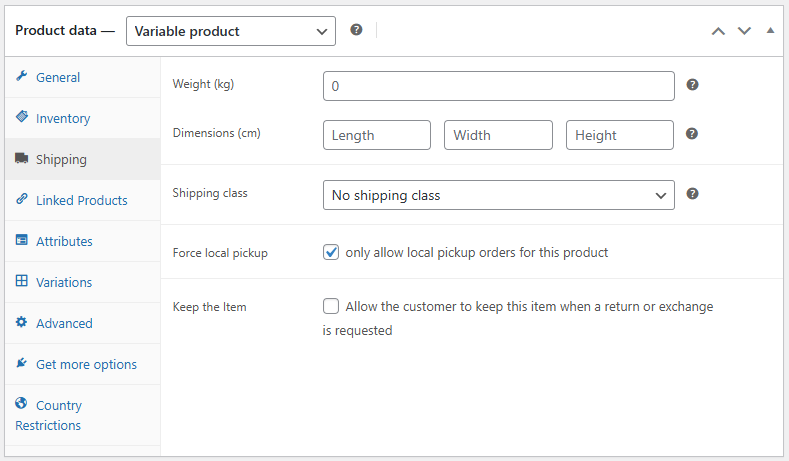
- Navigate to the Edit Product page in your WooCommerce store.
- In the Product Data panel, click on the Shipping tab.
- Enable the Force local pickup option to make the product available exclusively for local pickup.
For Individual Variations
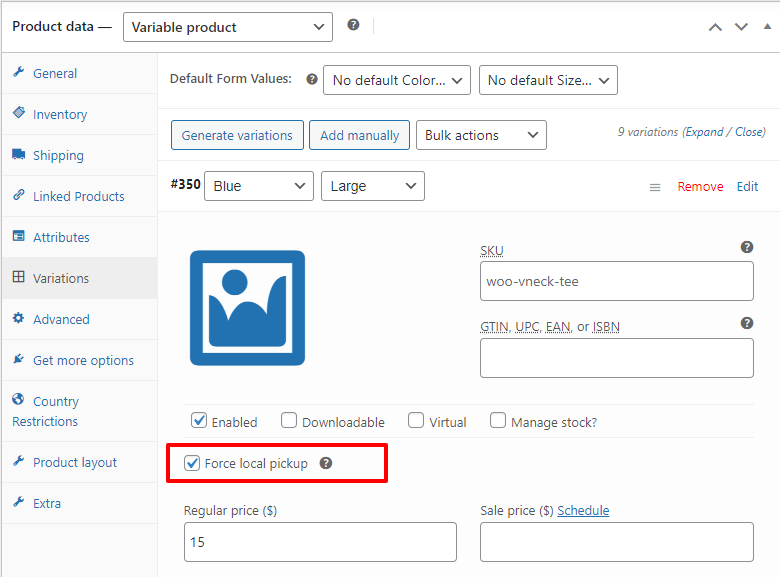
- Navigate to the Edit Product page in your WooCommerce store.
- In the Product Data panel, go to the Variations tab and open the variation.
- Enable the Force local pickup setting to make this variation available exclusively for local pickup.
For Product Categories
- Navigate to Products → Categories and add or edit a category.
- Tick the Force local pickup option for the category.
- Every product in the category becomes exclusively available for local pickup orders.

How the Product, Variation, and Category Flags Combine
- For a variation, the variation’s own flag is checked first; if it isn’t set, the parent product’s flag applies.
- A category flag forces pickup for every product in that category, in addition to any product or variation flags.
- A product is pickup-only if any applicable flag is set — there is no way to un-force a product that belongs to a forced category.
IMPORTANT
When a cart contains a forced-pickup item together with shippable items, all other shipping methods are removed for the whole cart — the entire order becomes pickup-only. This applies regardless of the Allow mixed orders and Allow pickup per item settings. If customers should be able to ship the rest of the order, don’t mix forced-pickup products into shippable carts — or reconsider using the flag on that product.
Troubleshooting: No Shipping Methods Shown at All
If a cart contains a forced-pickup product but no pickup location is available for it — no location is enabled, or no location’s product list covers it — the pickup method is removed and, because the forced product also removes the other shipping methods, the customer sees no shipping options at all. Fix it by enabling a pickup location that covers the product (see How to Set Up a Pickup Location).
Next Steps
- How to Configure Cart & Checkout Options — mixed orders and pickup per item.
- How to Set Up a Pickup Location — per-location product lists.