Curbside Pickup Mode (introduced in ALP PRO 1.9.5) lets customers stay in their vehicle and let your team know when they have arrived. You can turn curbside on for any pickup location. When a customer chooses a curbside-enabled location, they can add their vehicle details at checkout. Once their order is Ready for Pickup, an “I’ve arrived” button appears on their order page — and tapping it sends your store an instant email.
Step 1 — Enable Curbside for a Location
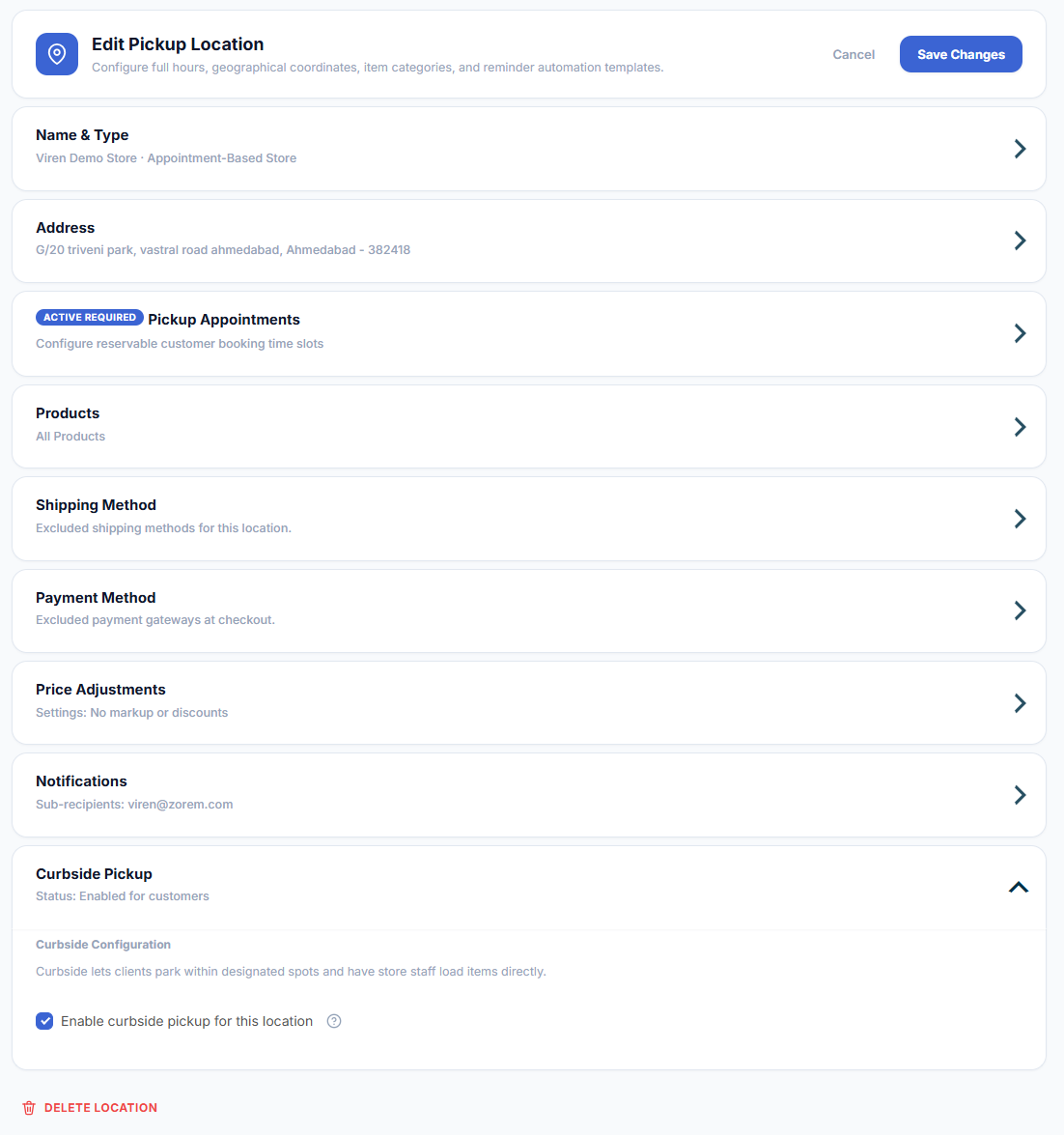
WooCommerce → Local Pickup Pro → Pickup Locations → Edit location → Curbside Pickup- Tick Enable curbside pickup for this location.
- Click Save Changes.
Customers who choose this location at checkout will then see the curbside fields. You can enable curbside on as many locations as you like.
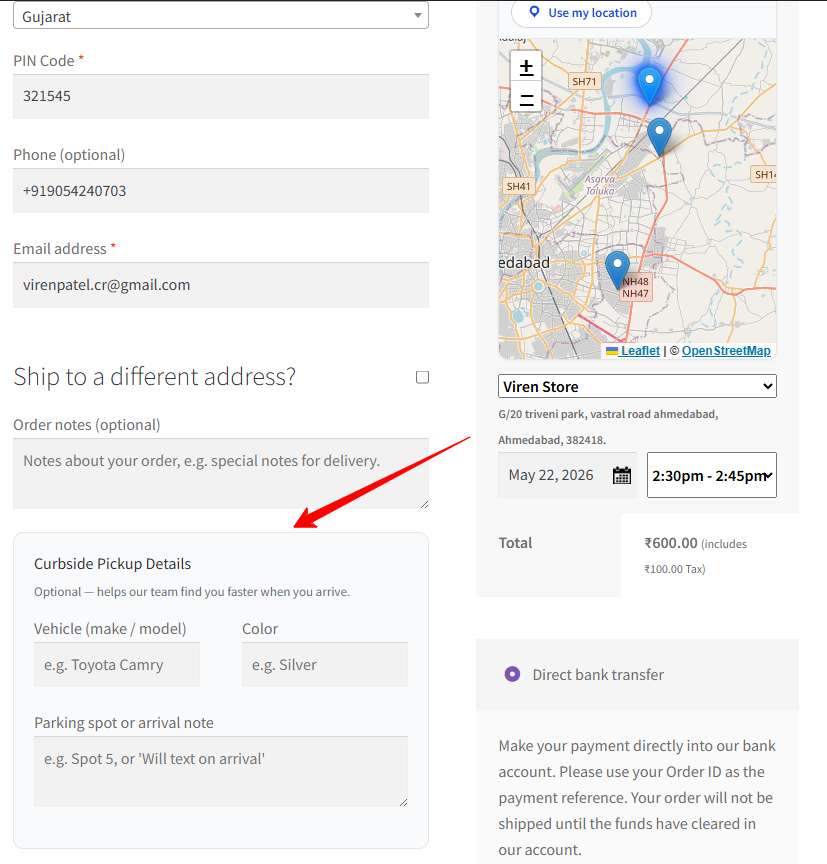
Step 2 — The Customer Adds Vehicle Details at Checkout
When the selected pickup location has curbside enabled, a “Curbside Pickup Details” box appears at checkout. The fields are optional and help your team find the customer faster on arrival:
Step 3 — The Customer Taps “I’ve Arrived”
The customer’s vehicle details are saved with their order and shown back to them on their order page. Once you mark the order as Ready for Pickup, an “I’ve arrived” button appears on the order page. Customers reach it from the link in their Ready for Pickup email (the button lives on the order page, not inside the email itself), and guest customers can use it too — the button works on the order page guests reach through their order links. Tapping it notifies your store right away; the button is one-shot, so repeated taps don’t send repeated emails.

What Happens When a Customer Arrives
Good to know: The “I’ve arrived” button only appears once the order is marked Ready for Pickup, so customers can’t notify you before their order is prepared.
Privacy Note
The vehicle make/model, color, and parking note the customer enters are stored as metadata on the order and included in the arrival email to your staff. They are kept for as long as the order exists and are removed when the order is deleted. They are custom order fields, so WordPress’s personal-data export and erasure tools do not specifically list them — if you use those tools for privacy requests, handle pickup orders’ curbside fields as part of the order data, and mention them in your privacy policy.
Next Steps
- How to Set Up a Pickup Location — the Notifications recipients that receive arrivals.
- Daily Pickup Pick-List (“Today” Mode) — manage the day’s pickups.
- QR Code Pickup Handoff System — confirm the handoff at the car window.