The Map-Based Location Picker (introduced in ALP PRO 1.9.5) lets customers choose their pickup store from an interactive map instead of only a dropdown. This is especially helpful for stores with several pickup locations, as customers can see exactly where each store is. An optional “Use my location” button detects the customer’s position and sorts the locations by nearest distance.
The map is rendered with Leaflet using OpenStreetMap tiles, so no Google Maps API key is needed for the map itself. (The Google key in Cart & Checkout Options serves a different feature — server-side Distance sorting of the location list via the Google Geocoding API.)
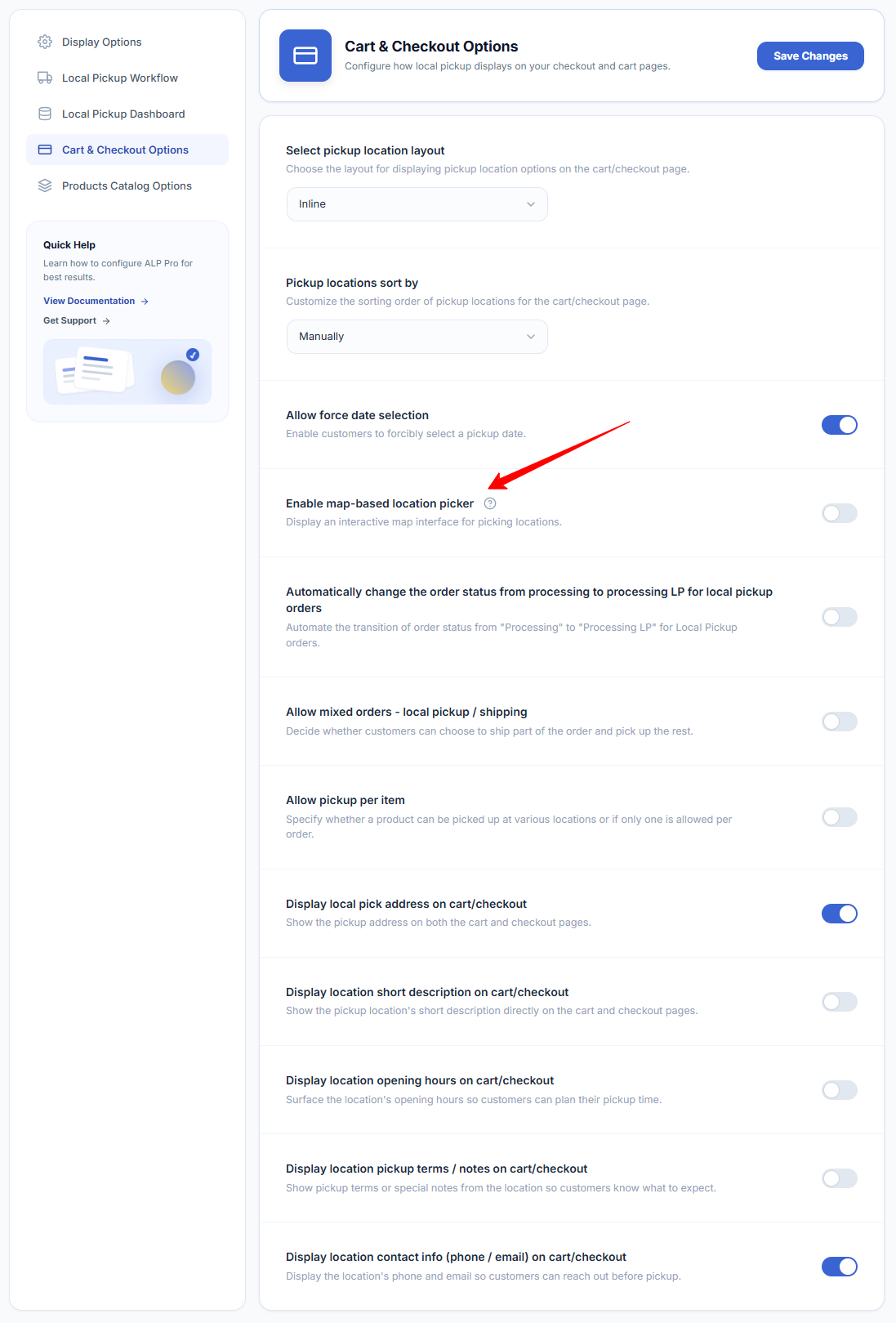
Step 1 — Turn On the Map Picker
WooCommerce → Local Pickup Pro → Settings → Cart & Checkout Options- Tick Enable map-based location picker (default: off).
- Optionally set Number of nearest locations to show (default: 0 = all) to limit the map and dropdown to the closest N locations.
- Click Save Changes.
Step 2 — Add Coordinates to Each Location
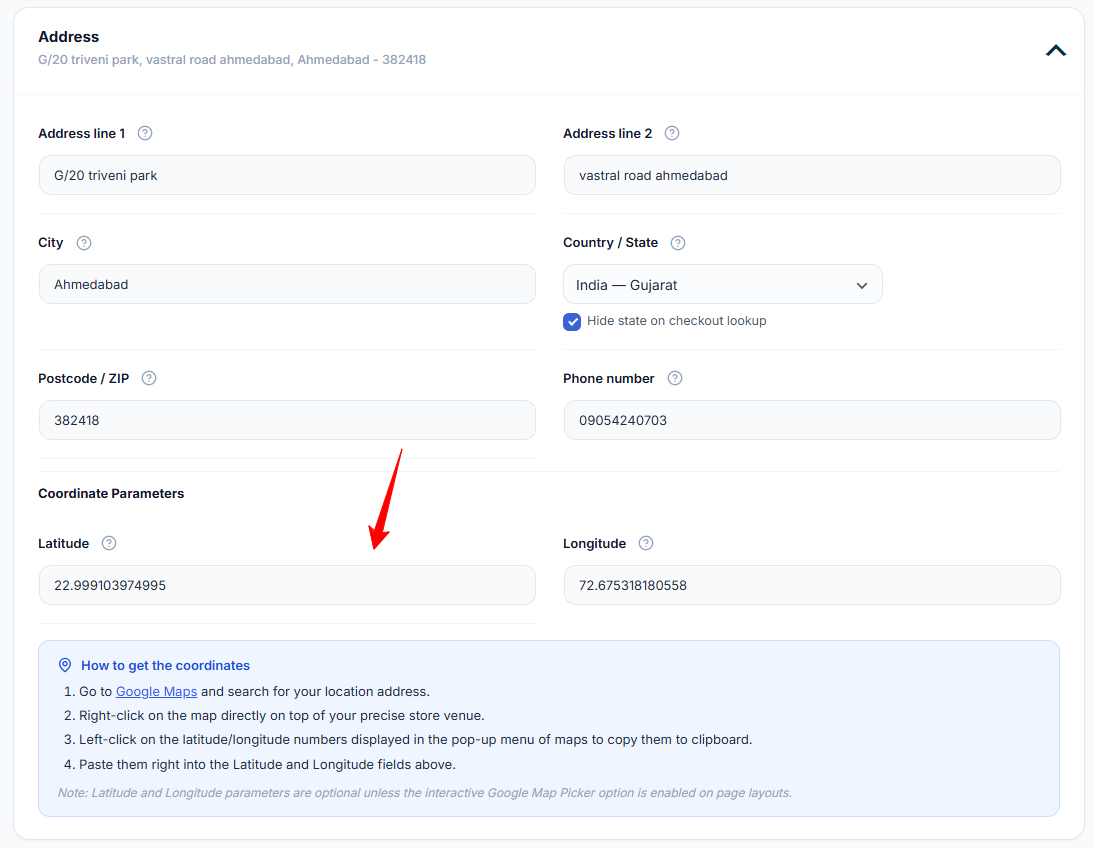
The map can only show locations that have coordinates. For each pickup location, add its Latitude / Longitude in the Address section (Pickup Locations → edit a location):
- Open Google Maps and search for your store location.
- Right-click directly on your store’s pin on the map.
- Click the numbers shown at the top of the menu to copy them.
- The first number is the Latitude and the second is the Longitude — paste each into the matching field and Save.
What the Customer Sees
At checkout, your pickup locations appear as pins on the map. The customer clicks a pin to select that store, or taps “Use my location” to sort the list by the nearest store first. The dropdown below the map stays in sync with the selection.

Good to know: The map only loads on the cart and checkout pages, and only when the picker is turned on, so the rest of your store is unaffected. On smaller screens the picker stays easy to use.
Privacy Note
Fallback Behavior
- Geolocation denied or unavailable — the map and dropdown keep working; locations simply stay in their configured order.
- A location has no coordinates — it doesn’t appear on the map, but remains selectable in the dropdown.
- Tiles blocked (ad blocker, firewall) — the dropdown still works and checkout is not blocked.
Next Steps
- How to Configure Cart & Checkout Options — layouts, sorting, and the Google key for Distance sorting.
- How to Set Up a Pickup Location — the address section with the coordinate fields.