Click Add Pickup Location on the Pickup Locations tab to open the location options:
WooCommerce → Local Pickup Pro → Pickup Locations → Add Pickup Location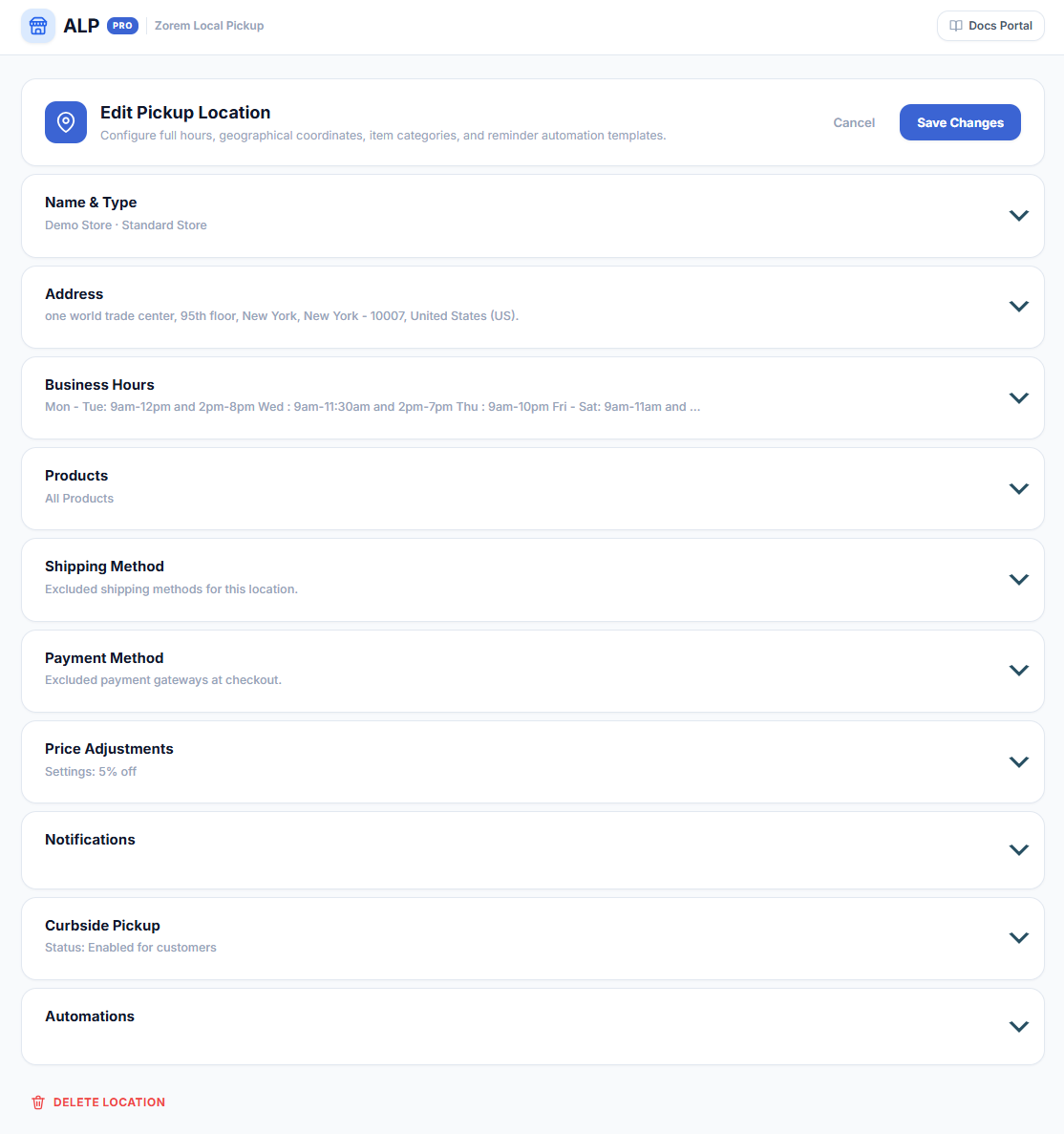
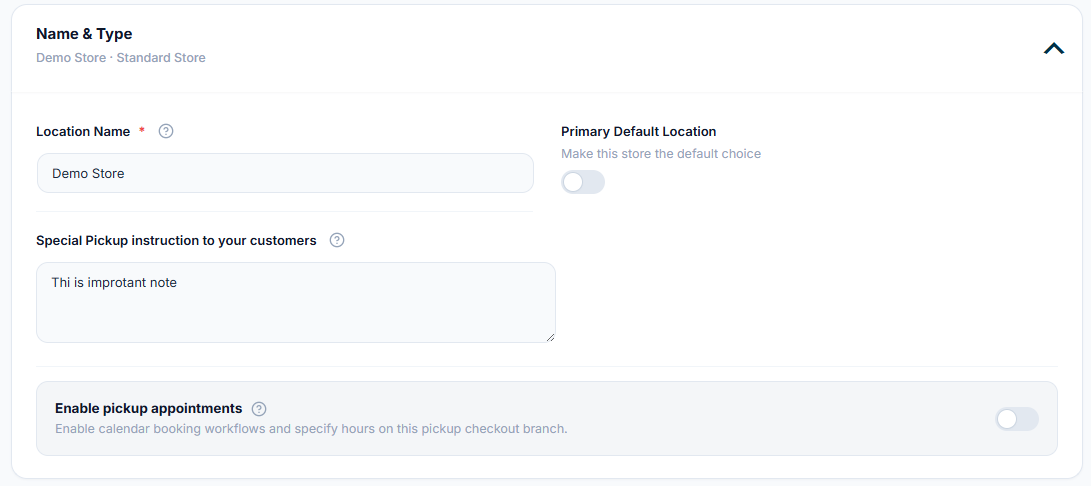
Location Information
Pickup Address
- Address 1 / Address 2
- City, State, ZIP
- Country — with an option to show or hide the country in the displayed address
- Telephone
Note: The default location address is the store address from WooCommerce settings.

Business Hours
- Choose Time Format — 12H or 24H display for customers.
- Select Work Days and Work Hours — the hours are entered and displayed in your site’s timezone (Settings → General).
- Split Work Hours — add intervals to split morning/afternoon (e.g., Monday 8am–12pm, 2pm–7pm).
- Common Public Holidays — holiday dates displayed to customers next to the business hours in the pickup instructions (e.g., “Holidays: 20 May, 27 May”). Only the current month’s holiday dates are shown in emails.
- Holidays/Exception Message — a free-text note displayed next to the business hours (e.g., “On holidays, we are open from 9 am – 2 pm”).
Note: The order of business days follows the “Week Starts On” option in WordPress settings.
Price Adjustments
Apply a discount or fee to local pickup orders, per location:
- Cart Adjustment Rule — the adjustment applied when the Local Pickup shipping method is chosen: Percentage discount (%), Fixed amount discount, Percentage fee (%), or Fixed fee.
- Amount — the discount or fee value.
Note: Adjustments apply only to the line items assigned to that location.
Products
The pickup location is available for all products by default. You can restrict it by including or excluding individual products or product categories:
Shipping Method
The pickup location is available for all shipping methods by default. Use Exclude Shipping Method to hide this location when specific shipping methods are selected.
ZIP / Postcode Restriction
By default the location is available to all ZIP / postcodes. Add specific ZIP / postcodes to offer this location only to customers in those areas.
Payment Method
The pickup location is available for all payment methods by default. Use Exclude Payment Method to hide this location when specific payment gateways are selected at checkout.
Notifications
Notify a list of email addresses when an order contains a pickup at this location. The notification includes only the products to be picked up here.
Reminder timing. For appointment-based locations: Trigger the pickup reminder notification X (Minutes / Hours / Days) before the appointment time — this is the lead time before the customer’s appointment. For locations without appointments: Send pickup reminder after X days — sent X days after the order was set to Ready for Pickup and not yet Picked Up, with an optional second reminder X days after the first. Reminders are sent automatically by your site’s scheduled tasks (WP-Cron), so they require normal site traffic or a server cron to fire on time.
Automations
- Automatically mark as Ready For Pickup when the order status is Completed — when the order status becomes Completed, it is flipped to Ready For Pickup so the customer gets the pickup-ready notification automatically.
Curbside Pickup
Customers who choose this location at checkout see three optional fields — vehicle (make / model), color, and a parking spot or arrival note. Once the order is marked Ready for Pickup, they can tap “I’ve arrived” on the order page, which sends an instant email to this location’s notification recipients. See Curbside Pickup Mode.
Troubleshooting: A Location Is Missing at Checkout
- Include lists — if the location has Products, Categories, or Brands selected, it only appears when the cart contains them (the #1 cause).
- Location disabled — check the enable toggle in the Pickup Locations list.
- Excluded methods — the customer’s chosen shipping or payment method may be in the location’s exclude lists.
- ZIP restriction — the customer’s postcode may be outside the location’s ZIP / postcode list.
Next Steps
- How to Set Up Pickup Appointments — date and time slots for this location.
- Curbside Pickup Mode — the “I’ve arrived” flow.
- How to Configure Cart & Checkout Options — how locations display at checkout.