The QR Code Pickup Handoff system (introduced in ALP PRO 1.9.5) gives every pickup order a unique confirmation code that the customer shows at the counter. Your staff scan the code from a phone or tablet, review the order on screen, and confirm the handoff — the order is then marked as Picked Up. This makes handoffs faster, removes the need to read out order numbers, and keeps a record of who completed each pickup and when.
Enable it with Show pickup confirmation QR code in Display Options. The customer’s code then appears automatically on their order page and in their pickup emails — there is nothing for them to set up.
What the Code Is (and Why It’s Safe)
The QR code encodes a link to the scan page for that one order, carrying a cryptographic per-order token (an HMAC signature derived from the order and your site’s secret keys) — not a plain order number or URL that could be guessed. A code is only ever valid for its own order, cannot be forged for another order, and confirming a pickup additionally requires staff verification (below). The code itself doesn’t expire, but once the order is picked up — or if it is cancelled, refunded, or failed — scanning it can no longer change the order.
Where the Customer Sees Their Code
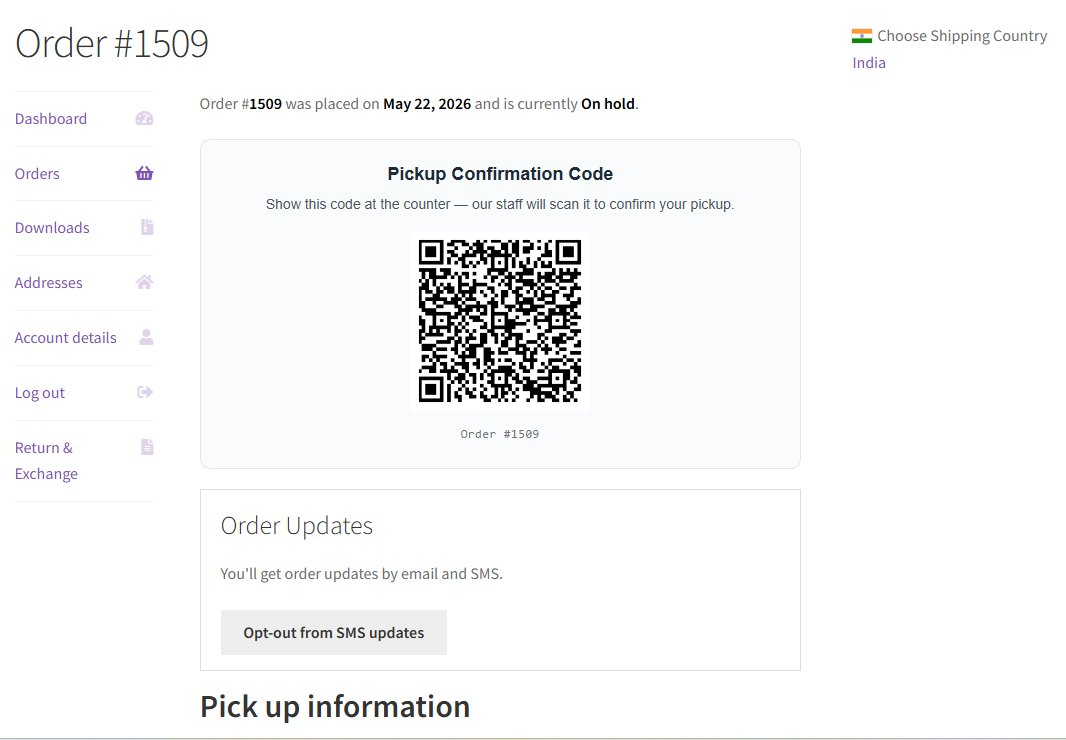
When a customer places a pickup order, the Pickup Confirmation Code is shown on the My Account → View Order page and inside their pickup emails (such as the Ready for Pickup email). The customer simply shows the code — on their phone or printed — at the counter.
How Staff Scan the Code
There is no page for staff to find or bookmark: scanning the customer’s code with any phone camera or QR scanner app opens the mobile-friendly scan page for that order automatically — it’s a front-end page, so it works without wp-admin and without being logged in. The order details load so staff can confirm they have the right order, then either tap Mark as Picked Up (when signed in as staff) or enter the Staff Pickup PIN to complete the handoff. The device only needs a camera and an internet connection.
Staff Verification (Prevents Self-Confirmation)
Because the confirmation code also appears in the customer’s own email and account page, the order is only marked Picked Up once the person confirming has proven they are staff. This stops a customer from scanning their own code and marking the order collected before they actually pick it up.
This is controlled by Require staff verification before marking picked up in Display Options, just under the QR toggle (on by default). With it on, a scan can be confirmed in one of two ways:
- Signed-in staff — a user with the manage_woocommerce capability (administrator or shop manager) logged in on the device taps Mark as Picked Up.
- Staff Pickup PIN — on a shared device that is not logged in, staff enter the PIN to confirm. After 5 incorrect attempts the device is locked out for 15 minutes to block guessing. Leave the PIN blank to require a logged-in staff account instead.
Tip: Prefer the quick “scan and confirm” flow without verification? Turn Require staff verification before marking picked up off. Staff still review the order and tap a button to confirm — since version 2.3, the order is never marked Picked Up automatically on scan (versions 2.1–2.2 auto-marked on scan; this was removed).
What Happens After a Scan
- The code is checked to make sure it is valid and matches the order.
- Staff confirm the pickup by tapping Mark as Picked Up, or by entering the Staff Pickup PIN on a shared device.
- The order status changes to Picked Up.
- The pickup time and the staff member (or scan device) are saved with the order.
- An order note is added, for example: Order marked as picked up via QR scan at 2026-05-22 14:32 by John Doe.
Tip: If a code is scanned again after the order is already collected, the page shows the original pickup details instead of completing the order a second time — so you always have a clear, reliable pickup history.
Troubleshooting
- The camera won’t open — the QR is an ordinary link: use the device’s built-in camera app or any QR scanner app; no special app or browser permission is needed.
- “Invalid code” — the code doesn’t match an order on this site (wrong site, cropped/damaged code, or a manually altered link). Ask the customer to open the code from their email or account page and rescan.
- PIN locked out — after 5 wrong attempts the device is locked for 15 minutes; wait, or confirm with a signed-in staff account instead.
- Order can’t be confirmed — orders that are already Picked Up, cancelled, refunded, or failed can’t be confirmed again; the scan page explains the order’s state.
Next Steps
- How to Configure Display Options — enable the QR code and set the Staff PIN.
- Daily Pickup Pick-List (“Today” Mode) — manage the day’s handoffs.
- Curbside Pickup Mode — handoffs without the counter.