After a pickup order is placed, the pickup information widget — location name, address, business hours, special instructions, and appointment details — appears in several places for the customer, controlled by the Display Options.
On the Order Received and View Order Pages
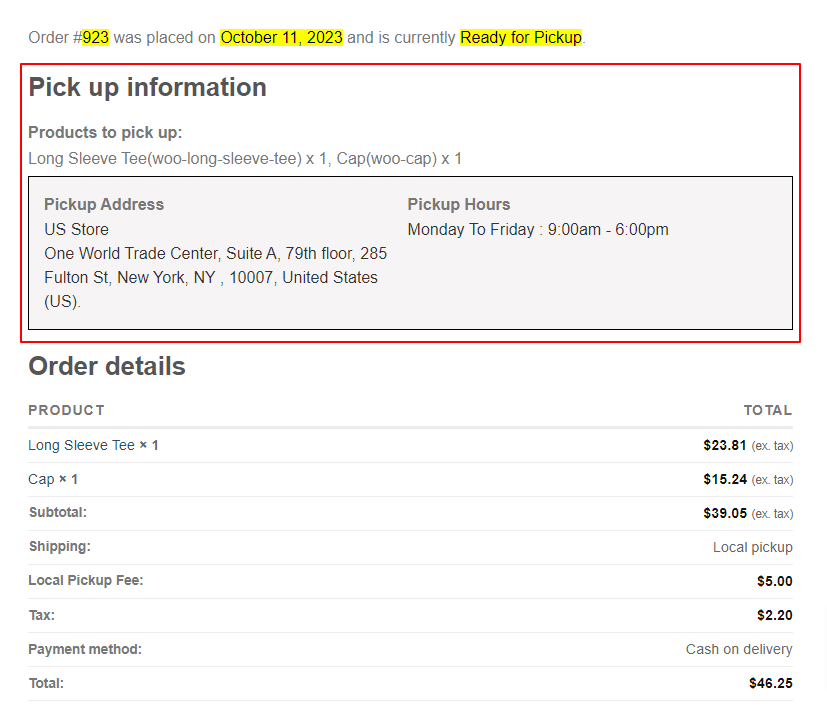
Pickup information is shown on the Order Received (thank-you) page right after checkout, and on the My Account → View Order page. When the QR confirmation code is enabled, the customer’s Pickup Confirmation Code also appears on the View Order page, and — for curbside locations — so does the “I’ve arrived” button once the order is Ready for Pickup. Whether these show is controlled by the Display Options.
On the Admin Edit Order Screen
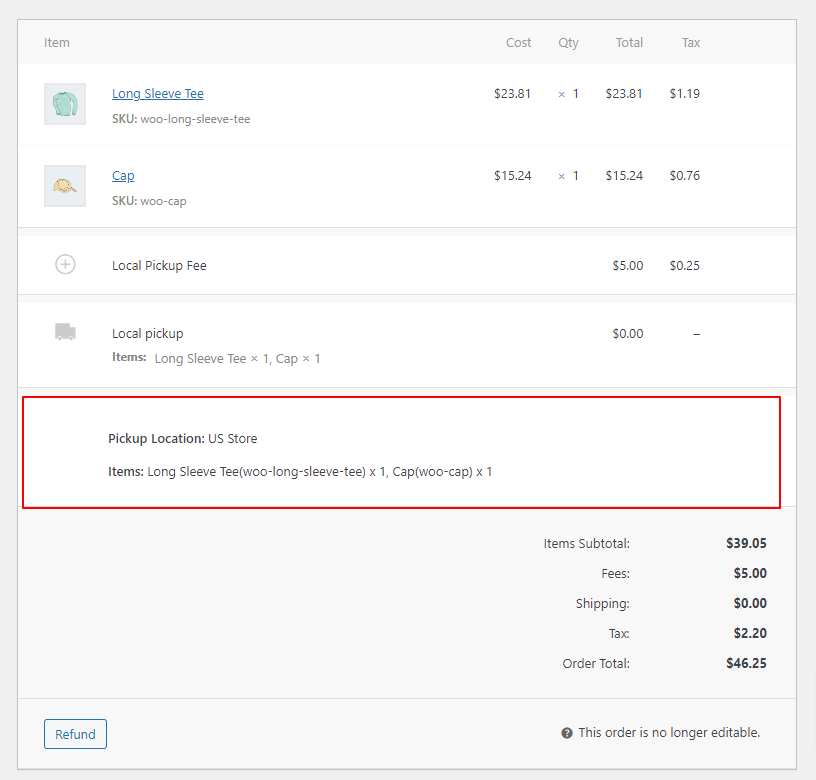
For your team, the same pickup information appears on the order edit screen in the WordPress admin, so staff can see the location and appointment for each order (this is an admin screen — customers never see it).
In Customer Emails
The pickup information widget is included in the pickup workflow emails, and can be added to further transactional emails with the Additional order emails display setting.

Next Steps
- How to Configure Display Options — control where the widget appears.
- How to Customize Email Notifications — style the widget and the emails.