This page shows what customers see on the cart and checkout pages. Everything below renders on both the classic checkout and the block checkout — ALP PRO supports the classic zone-based Local Pickup method and the checkout block’s “Local pickup” method alike.
Pickup Location Selector
When the customer chooses Local Pickup, the pickup location selector appears — as an inline dropdown or a popup, depending on the Select pickup location layout setting. Depending on your Cart & Checkout Options, the selector can also show the location’s address, short description, opening hours, pickup terms, and contact details, and can be accompanied by the map-based location picker. Any per-location discount or fee appears as a line in the cart totals. For locations with Curbside Pickup enabled, the optional vehicle and parking fields appear at checkout too.
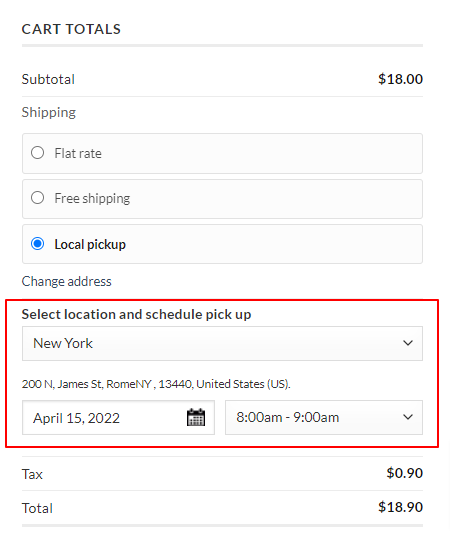
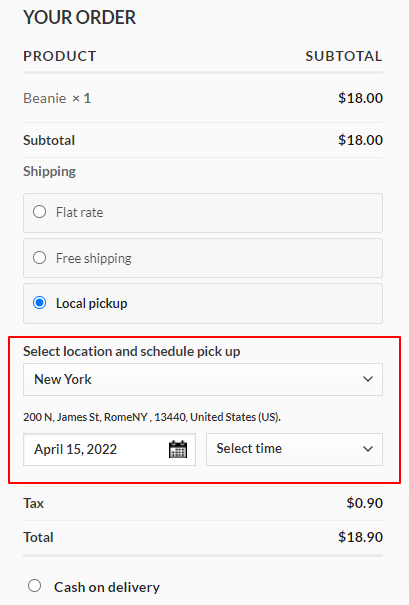
Pickup Appointment
After completing the setup for pickup appointments, navigate to the cart/checkout page. Here, you’ll find the pickup appointment options, as illustrated below.
Pickup Appointment with Pickup Per Item
With Allow pickup per item enabled, each cart item gets its own location choice, and the appointment options follow, as illustrated below.

Next Steps
- How to Configure Cart & Checkout Options — the settings behind these screens.
- How to Display Pickup Information — what customers see after ordering.