You have two ways to put Smart Form in front of your customers.
Option 1 — Shortcode (any page or post)
Add this shortcode to any page, post, or widget where you want the form to appear:
[cev_smart_form]
The form will render using the template and verification methods you chose in Settings. You can place the shortcode in your theme’s account page, a custom landing page, or anywhere else you want to direct sign-ups.
Option 2 — Replace the WooCommerce My Account form
If you want Smart Form to take over the standard /my-account/ page automatically (without adding a shortcode), enable the Replace the My Account page form with Smart Form toggle in the Signup Verification settings. WooCommerce’s default login form on /my-account/ will be replaced by your chosen Smart Form template for logged-out visitors. The logged-in dashboard is not affected.
Smart Form templates
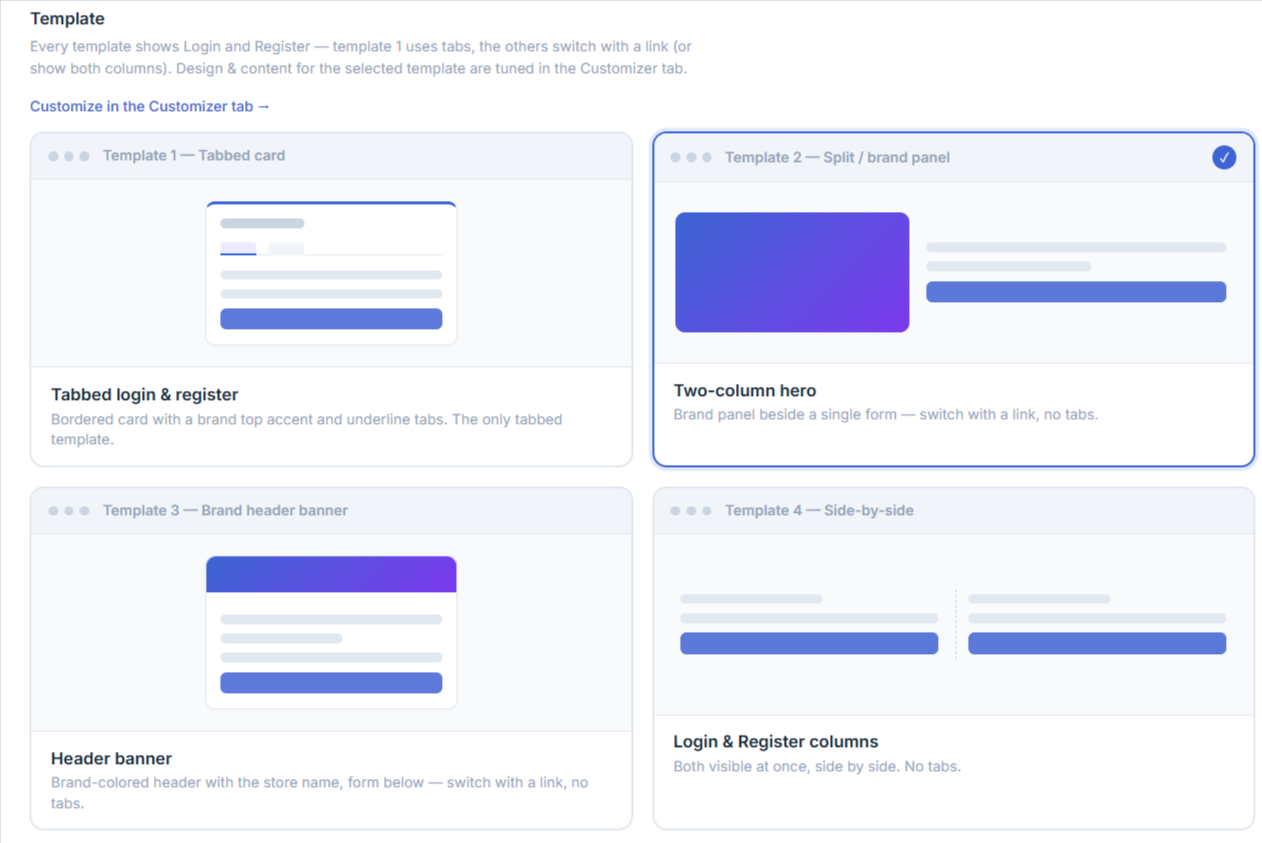
Four layouts are included. All four are fully responsive and inherit your brand colour, title, and panel image from the Customizer.
- Template 1 — Combined (tabs) – Single centered card with Login and Register tabs. Best for stores that want both forms on one screen with minimal scrolling.
- Template 2 — Split / brand panel – Two-column hero with brand image or colour on the left and the form on the right. Best for branded landing pages where you want to show the brand prominently.
- Template 3 — Minimal centered – Single column with plenty of whitespace and logo on top. Best for clean, distraction-free sign-up — perfect for ad landing pages.
- Template 4 — Side-by-side – Login and Register shown in parallel columns. Best for returning-customer-heavy stores where both flows need equal weight.
Registration methods
Smart Form supports two ways for a new customer to verify their account at sign-up. Choose one under Signup Verification → Registration verification method.
- Email verification – the customer enters their email address and receives a one-time code. They type the code into the form to complete sign-up. This uses the same OTP engine, throttling, resend limits, and email templates as the existing Email Verification feature.
- Phone (SMS) verification – the customer enters their mobile number and receives the OTP by SMS or WhatsApp. Requires an SMS gateway to be configured first (see SMS gateway configuration below).
Login methods
Returning customers can sign in to Smart Form using one of three login methods. Choose one under Signup Verification → Login method.
- Password – the classic username/email + password flow. If two-factor authentication is enabled on the account, the user is also prompted for their authenticator code.
- Email OTP – the customer enters their email address and receives a one-time code by email. No password required.
- Phone OTP – the customer enters their mobile number and receives a one-time code by SMS or WhatsApp. Requires an SMS gateway.
Phone OTP fallback. If you enable Phone OTP login and a customer’s account has no phone number on file, Smart Form will automatically offer Email OTP as a fallback so the customer is never locked out. For accounts with a prior order, the saved billing phone is used automatically.
SMS gateway configuration
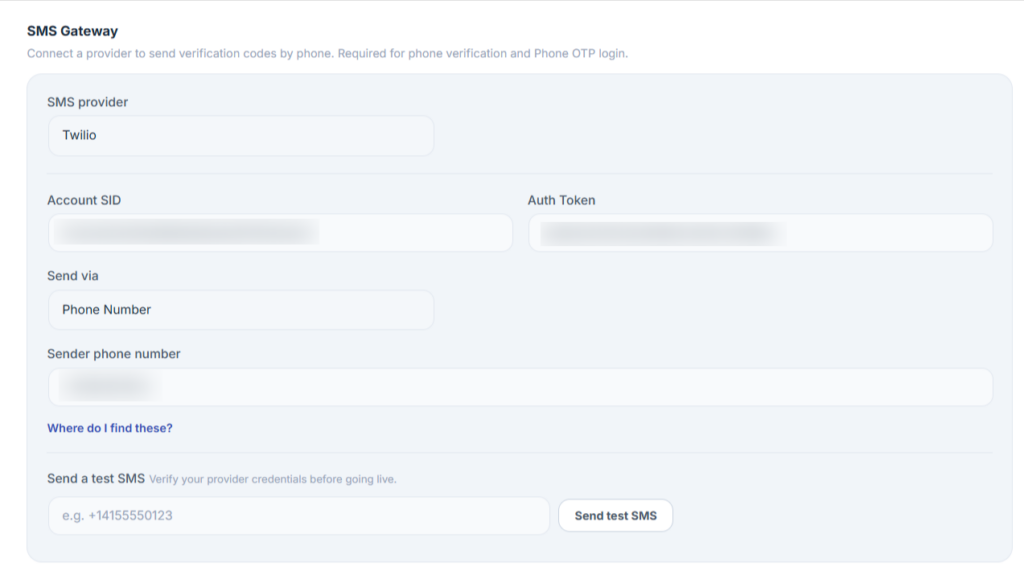
If you choose Phone verification for registration or Phone OTP for login, Smart Form needs an SMS gateway to deliver the codes. Four providers are supported out of the box:
- MSG91
- Twilio
- Vonage (Nexmo)
- WhatsApp Business
How to configure an SMS gateway
- Go to WooCommerce → Email Verification → Settings → Signup Verification.
- Scroll to the SMS Gateway section.
- Pick a Provider from the dropdown.
- Enter the API credentials shown by the provider — each provider asks for its own combination of API key, sender ID, account SID, etc.
- Click Send test SMS to verify the connection.
- Click Save changes.