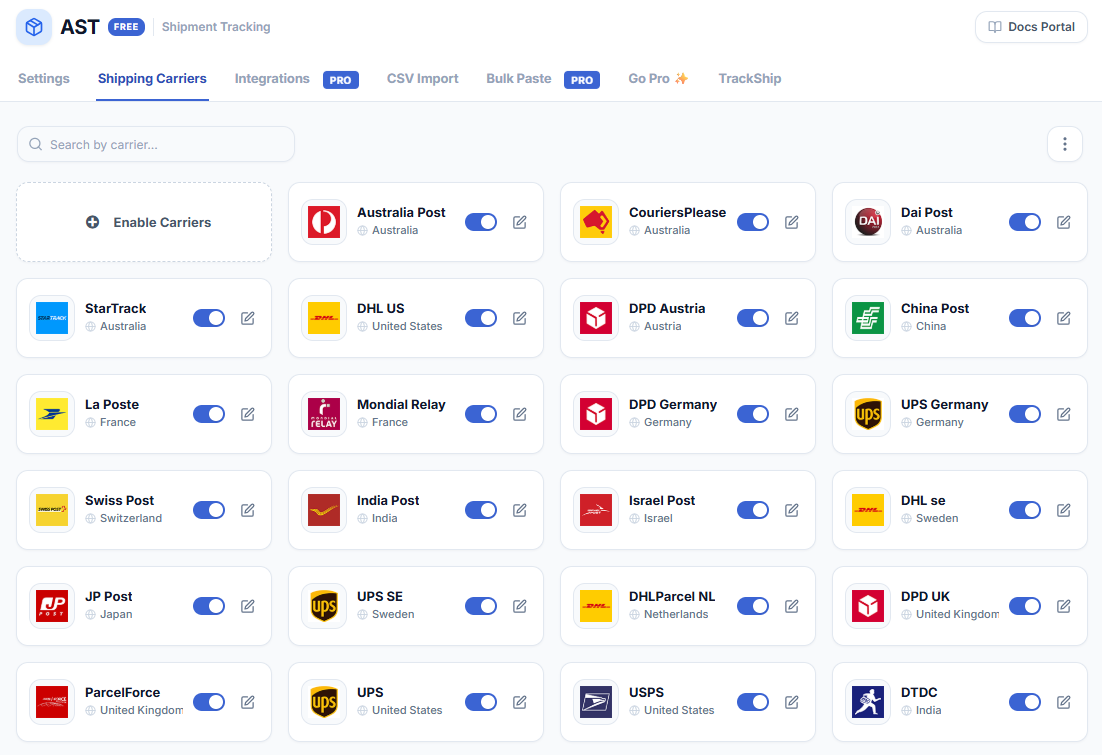
AST comes with a list of 1010+ shipping carriers (provided by TrackShip). Each carrier has a predefined tracking link, so when you add a tracking number to an order, AST builds the tracking URL for you and sends it to the customer.
You’ll find the list under WooCommerce > Shipment Tracking > Shipping Carriers.
Shipping Carriers List Options
- Enable only the shipping carriers you use to ship orders, so the carrier dropdown on the order screen stays short.
- Sync the carriers list with TrackShip’s API to keep the tracking links up to date and pick up newly added carriers.
- Remove carriers you enabled by mistake.
In this section
- Enable Shipping Carriers — find a carrier and add it to your list.
- Sync Shipping Carriers — refresh the built-in carrier list and its tracking links.
- Removing Shipping Carriers — take a carrier off your list.
- Shipping Carriers Reference — every supported carrier and its slug, for CSV imports and the REST API.
Can’t find your carrier?
Check the carriers reference first, then sync the list — we add carriers regularly and a sync pulls in the new ones. If it’s still missing, you can suggest it and we’ll look at adding it.
If you need to ship with a carrier that isn’t in the list at all, Advanced Shipment Tracking PRO lets you add your own custom carriers with your own tracking URLs. PRO also lets you set a default carrier, override carrier display names, map alias names used by your API or CSV feed, and upload custom carrier logos.