Once you’ve enabled your carriers, you can start adding tracking numbers to orders. AST gives you two places to do it by hand, plus CSV import and the REST API for doing it in bulk.
As soon as the tracking is saved, the tracking link is built from the carrier’s URL pattern and included in the order email and on the customer’s My Account order page.
Where you can add tracking
Go to WooCommerce > Orders and click the Add Tracking icon in the Actions column. It opens a popup where you enter the tracking without leaving the list — the quickest way to work through a batch of orders.
If you don’t see the Actions column, open Screen Options at the top right of the orders list and tick it. If you see the column but not the Add Tracking icon, check which statuses you selected under Add Tracking Order Action in General settings.

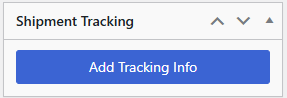
Open the order and find the Shipment Tracking box, then click Add Tracking Info. Use this when you need to see the order’s items before you decide what to mark as shipped.
Both screens work the same whether your store uses legacy order storage or WooCommerce High-Performance Order Storage (HPOS). With HPOS enabled, the orders list is at WooCommerce > Orders rather than under Posts, but nothing about adding tracking changes.
The add tracking form
| Field | Description |
|---|---|
| Tracking Number | The tracking number the carrier gave you. |
| Shipping Provider | The carrier, picked from your enabled carriers. If the one you want isn’t in the dropdown, enable it first. |
| Date Shipped | When the package went out. Defaults to today. |
| Mark Order As | Shipped — everything in the order has gone out. Partially Shipped — only part of it has, and more is coming. Partially Shipped only appears if you enabled that status in Order Statuses & Notifications. |
| Fulfill Items | Saves the tracking, applies the status change and sends the customer email for that status. |

You can add more than one tracking number to the same order — repeat the steps above for each shipment, each with its own carrier and date.
Need more?
If you ship at higher volume, Advanced Shipment Tracking PRO adds Bulk Paste for pasting many order numbers and tracking numbers at once, per-item tracking so each shipment records the SKUs and quantities it contains, scheduled FTP/SFTP imports, tracking sync to PayPal and Stripe, and integrations with SMS and email customizer plugins.
Next: CSV Import for adding tracking to many orders at once.