The AST plugin is fully translatable. It ships with translations contributed by the community, and you can translate it yourself with Loco Translate or WPML.
The up-to-date list of available languages and their translation progress is maintained on WordPress.org: Advanced Shipment Tracking on translate.wordpress.org. If your language isn’t complete there, you can contribute translations directly from that page.
Translate with Loco Translate
Loco Translate lets you edit translations from the WordPress admin, without any external tools.
- Install and activate the Loco Translate plugin.
- Go to Loco Translate > Plugins and select Advanced Shipment Tracking for WooCommerce.
- You’ll see every language the plugin already has a translation file for. Click Edit next to the language you want to work on — for example Bulgarian. To start a language that isn’t listed yet, click New language and choose it.
- Select a string in the list, enter your translation in the field below it, and repeat for the strings you need.
- Click Save. Loco Translate writes the
.poand.mofiles and your translation is live on the store.

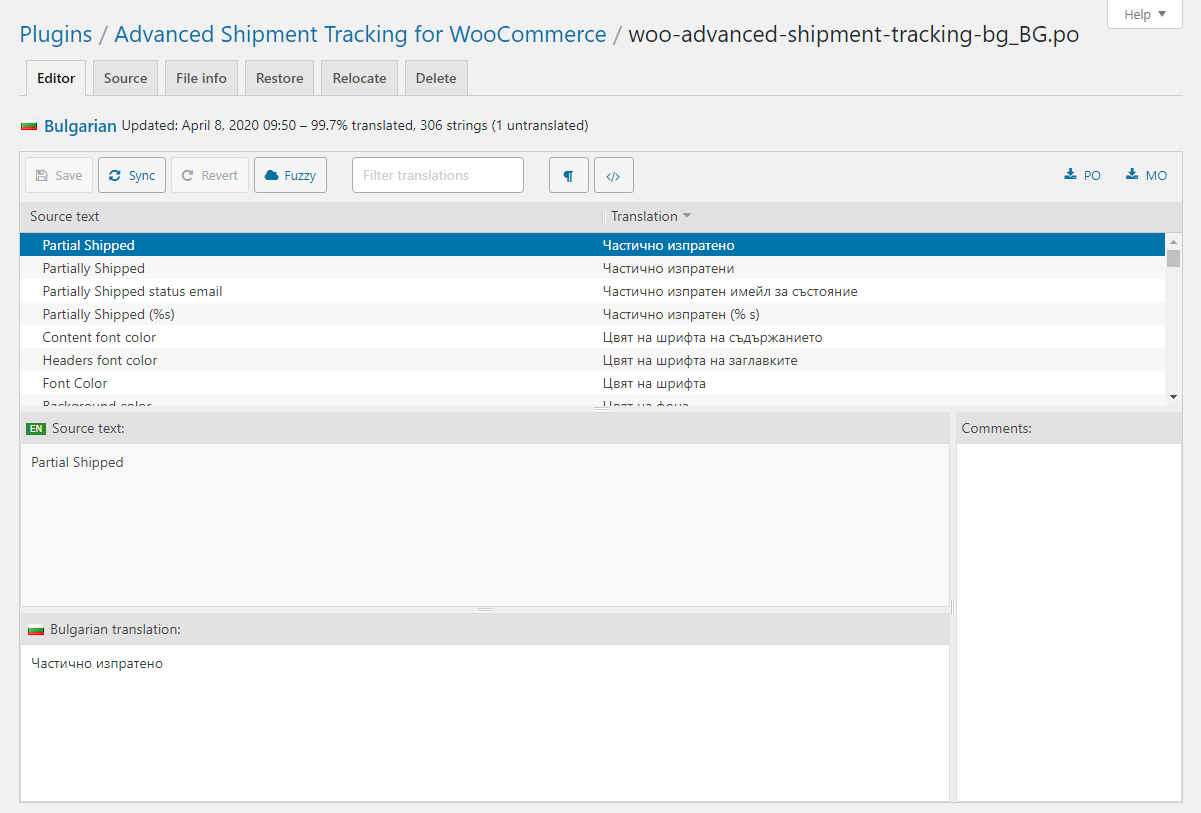
Note: save your translation files outside the plugin folder (Loco Translate offers a “custom” location) so they aren’t overwritten when the plugin updates.
Translate with WPML
Advanced Shipment Tracking (AST) is fully compatible with WPML, allowing you to translate all AST-related strings into your languages. You can translate strings individually or in bulk from WPML’s translation interface.
Bulk translation via the WPML Translation Dashboard
To translate multiple AST strings at once:
- Log in to your WordPress dashboard.
- Navigate to WPML > Translation Dashboard.
- Scroll down to the Other texts (Strings) section.
- In the Domains filter, search for AST strings such as
woocommerce_customer_partial_shipped_order_settingswoocommerce_customer_shipped_order_settingswoocommerce_customer_completed_order_settingstracking_info_settings
- Once the relevant strings are displayed, select the checkboxes for the strings you want to translate and click Translate your content.

At Step 2, choose your translation method. To translate many strings quickly, choose Translate automatically from the dropdown. For the best results, make sure your translation engine is Private Translation Cloud (PTC), WPML’s proprietary AI. The Translation Dashboard shows the cost of automatic translation in euros and credits. To translate the strings yourself, choose Translate myself.
When you’re ready, click Translate. With automatic translation, PTC translates your selected content in a few minutes. If you chose to translate yourself, go to WPML > Translations and add your translation for each string.
Sync your translations
Once you’ve translated the strings, make sure they’re synced across your site. If you chose to publish without review, WPML applies the translations automatically. Otherwise, go to WPML > Translations to review the translated content and publish it.
Submit translation files
If you translated the Advanced Shipment Tracking plugin into your language and would like us to include your language, or updated translations, in the plugin, you can submit the translation files (.po / .mo):