Use the free Loco Translate plugin to edit an existing translation or add a new language to Returns for WooCommerce directly from the WordPress admin.
Loco Translate → Plugins → Returns for WooCommerceEdit an Existing Translation
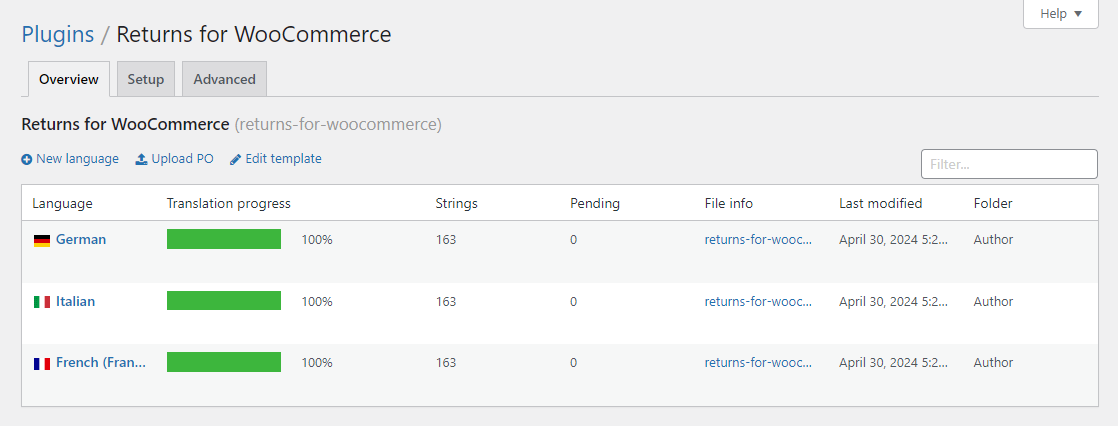
- Navigate to Loco Translate > Plugins and click Returns for WooCommerce.
- Find the language you want to edit and click Edit.
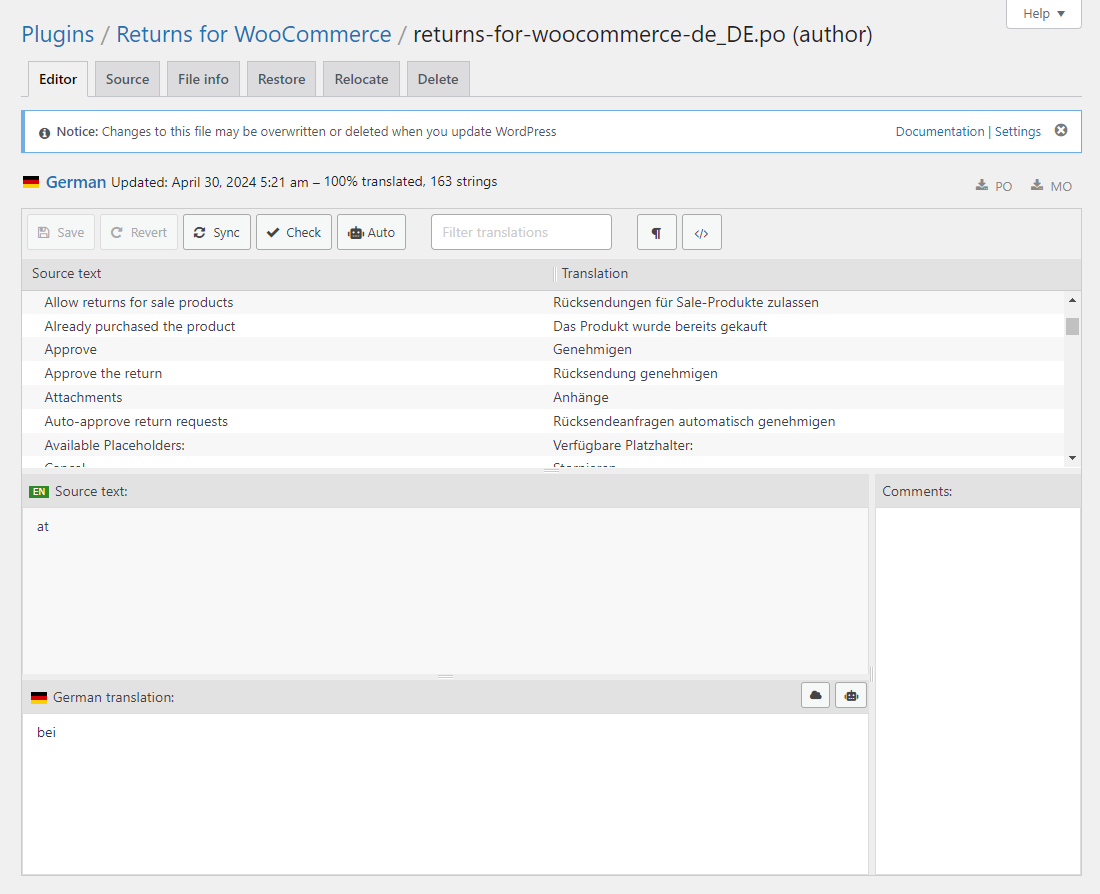
- Use the string list to find the text you want to change. Click a source string, then type the translation in the field below.
- Click Save when finished.
Add a New Language
- Go to Loco Translate > Plugins > Returns for WooCommerce and click New language.
- Select the language from the dropdown and choose Custom as the file location so the translation is saved in
wp-content/languages/plugins/and survives plugin updates. (Choose System only if you have a specific reason to store it with WordPress core files.) - Click Start translating. Loco opens the string editor for the new language.
- Translate the strings you need, then click Save.
- To sync new strings added by a plugin update, reopen the language file and click Sync to pull in any untranslated source strings.
Next Steps
- How to Translate with WPML – Translate plugin strings in bulk using WPML’s Translation Dashboard.
- Translation – See all available languages and translation methods.