To open the AI Assistant settings, go to your WordPress admin menu:
WooCommerce > Returns & Exchanges Center > AI Assistant (tab in the header) > AI Assistant (left sidebar).
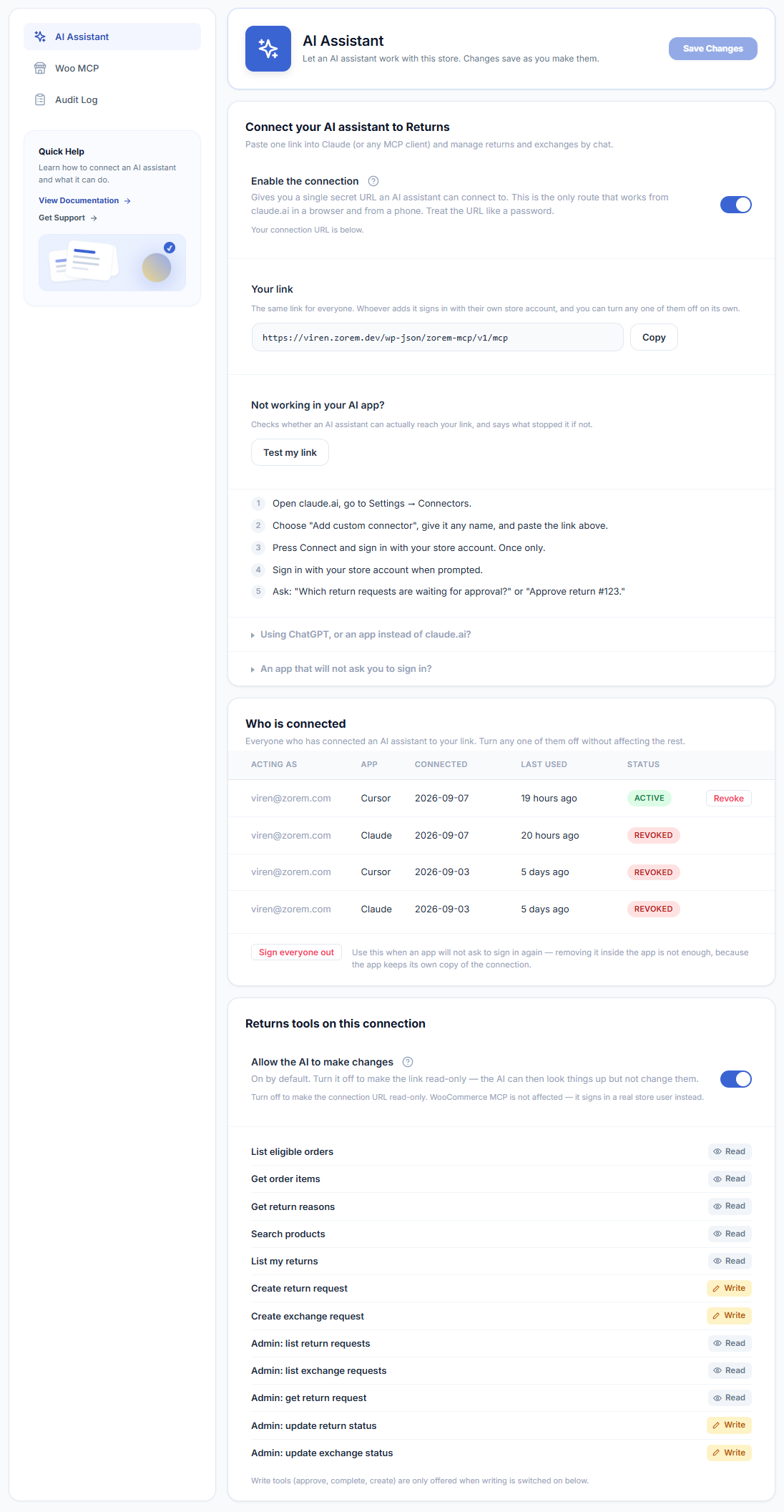
Connect your AI assistant to Returns
Paste one link into Claude (or any MCP client) and manage returns and exchanges by chat.
Enable the connection
The Enable the connection toggle is the master switch. When off, the endpoint is closed and no AI can connect. Turning it on gives you a single secret URL an AI assistant can connect to. This is the only route that works from claude.ai in a browser and from a phone.
After enabling, your Connection URL appears below the toggle. Use the Copy button to copy it. The same link works for everyone — whoever adds it signs in with their own store account, and you can turn any one of them off individually.
How to connect (Claude)
- Open claude.ai, go to Settings → Connectors.
- Choose Add custom connector, give it any name, and paste the link above.
- Press Connect and sign in with your store account. Once only.
- Ask: “Which return requests are waiting for approval?” or “Approve return #123.”
The same Connection URL works with any MCP-compatible assistant (ChatGPT, Claude Desktop, Cursor, and others). For other clients, expand Using ChatGPT, or an app instead of claude.ai? on the settings screen.
Test my link
Use the Test my link button to check whether an AI assistant can actually reach your store’s endpoint. If it fails, the button reports what stopped it.
Who is connected
The Who is connected table lists every AI assistant that has connected to your link. Each row shows:
- Acting as — the store account the assistant signed in with.
- App — the AI client used (for example, Claude or Cursor).
- Connected — the date the assistant first connected.
- Last used — how long ago it last made a request.
- Status — Active or Revoked. Click Revoke on any active row to immediately cut off that assistant’s access without affecting anyone else.
The Sign everyone out button revokes all active connections at once. Use this when an app will not ask to sign in again — removing a connection inside the app is not enough, because the app keeps its own copy of the connection.
Returns tools on this connection
The lower section lists every tool available on this connection, each with a Read or Write badge.
- Allow the AI to make changes — on by default. Turn it off to make the connection URL read-only; the AI can look things up but not change anything. Write tools (approve, complete, create) are only offered when this is switched on. WooCommerce MCP is not affected by this toggle — it signs in as a real store user instead.
Important: toggles save automatically
Settings on this screen save as you make them — there is no Save button for the toggles. The Save Changes button shown in the header is intentionally inactive on this tab. If an AI assistant reports a connection error, confirm the Enable the connection toggle is on, then try connecting again.