This page shows what the return and exchange experience looks like from the customer’s side — how they submit requests, check status, cancel requests, and use the guest return portal.
WooCommerce → My Account → Returns & ExchangesHow to View Return & Exchange Status in My Account
Customers can see all their return and exchange requests from a dedicated section in My Account. This section displays:
- Order number and request number
- Current request status
- Total refund amount
- Available actions (View, Cancel)
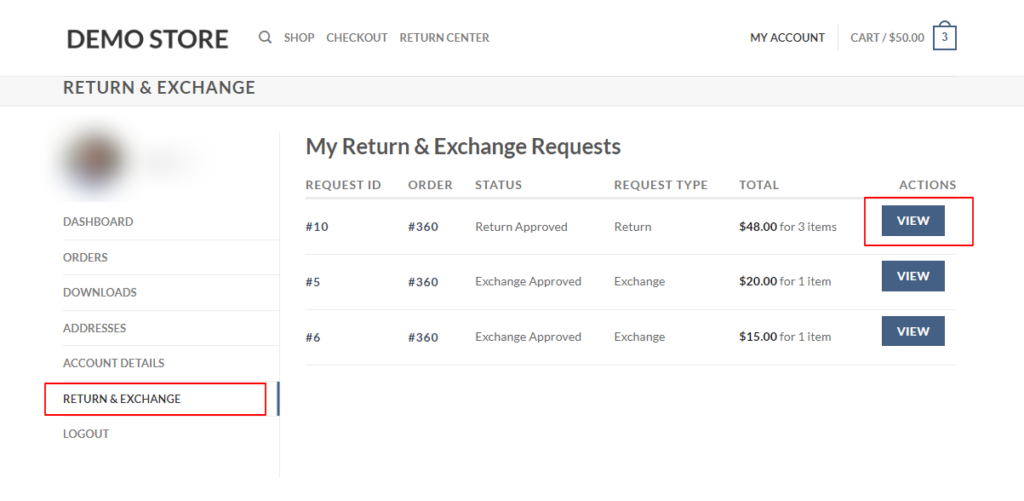
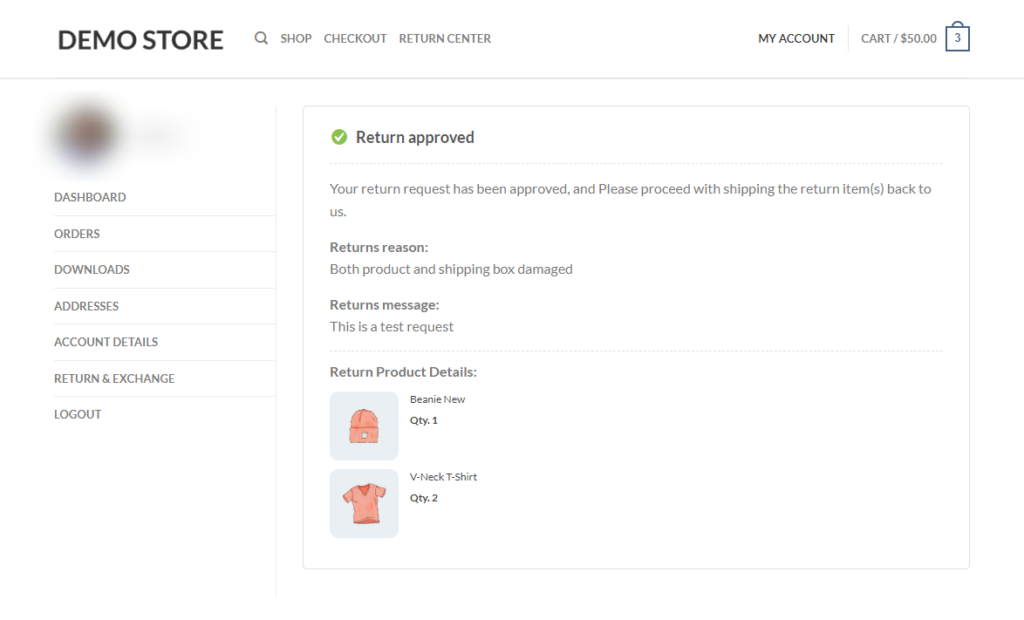
To view more detailed information about a specific return or exchange request, customers can click on the linked request number or the View button located to the right of the request.
How Customers Submit a Return & Exchange on the Order View Page
Customers can initiate a return or exchange request for items directly from the order view page. Return and Exchange action buttons appear both in the order list and on the order detail page next to each product, allowing customers to submit a request for specific items.

Return Portal
Return Request Form
In the return request form, customers can select multiple items and quantities, specify the return reason, provide a description, attach product images, and choose their preferred refund method. After submitting, the form initiates a return. If the customer selects store credit as the refund method, a coupon is automatically generated and emailed once the admin approves the request.
After clicking Request a Return, the request is submitted and the return status for that request is displayed immediately.
Return Status
How Customers Cancel a Return Request
Customers can cancel a return request when its status is Return Requested. Once cancelled, the return status is updated and a “Return Request Cancelled” email is sent to the admin.
Exchange Portal
Exchange Request Form
In the exchange request form, customers can select the quantity, specify the exchange reason, describe the issue, and attach images. After submitting, a new child order is created and sent to the customer once the admin approves the exchange request.
After clicking Request an Exchange, the request is submitted and the exchange status is displayed immediately.
Exchange Status
How Customers Cancel an Exchange Request
Customers can cancel an exchange request when its status is Exchange Requested. Once cancelled, the exchange status is updated and an “Exchange Request Cancelled” email is sent to the admin.
When Returns or Exchanges Are Disabled for a Payment Method
You can configure which payment gateways are eligible for returns and exchanges from WooCommerce > Returns Center > Settings. When a customer’s order was paid using an excluded payment method, the Return and/or Exchange buttons are replaced by an informational message on the order page, so the customer immediately understands why those options are unavailable.
The message is fully customisable from the Return Disabled Message and Exchange Disabled Message fields in the plugin settings.
The example above shows an order paid via a method excluded from exchanges only. The customer can still request a return (the Return button is visible), but exchanges are blocked with the message:
Exchanges are not available for this payment method.
Cross-Product Exchange
Cross-Product Exchange allows customers to exchange a returned item for any product in your catalog — not just a different variation of the same product. When enabled in the plugin settings, a Search for a replacement product field appears on the exchange form.
Admin setting: Enable Cross-Product Exchange at WooCommerce > Returns Center > Settings > Exchange Settings by turning on Allow Cross-Product Exchange.
How the Customer Selects a Replacement Product
- The customer clicks the Exchange button on their order details page.
- The exchange request form opens, showing the original product on the left and a Search for a replacement product input field on the right.
- The customer types a product name. Matching products appear in a live dropdown with their image, name, and price.
- The customer clicks a result to select it. The selected product is shown in a card with its image, name, and price.
- If the chosen product is a variable product, a Select variant dropdown appears so the customer can choose the specific variation and quantity.
- A price comparison banner shows the difference between the original item and the new selection.
- The customer fills in the issue description, optionally uploads a photo, accepts the terms and conditions, and clicks Request an Exchange.
How Guest Users Submit a Return or Exchange Request
Guest customers use the Return Center page — a page you create with the [return-center] shortcode — to look up their order and submit requests without logging in.
Steps for Guest Users
- Find Order:
- Navigate to the Return Center page.
- Enter the Order ID and Email Address to locate the order.
- Request Return or Exchange:
- Based on the order’s available items, Return and Exchange buttons are displayed.
- Select the desired action and follow the steps to specify quantity, provide the reason and description, and optionally attach images.
- Submit the request.
- Status Update:
- After submitting, the status of the return or exchange request is displayed for tracking.
Next Steps
- Setup & Configuration – Configure which payment methods, products, and customers are eligible for returns and exchanges.
- Email Notifications – Customise the emails sent at each return and exchange status.
- How to Use the Returns & Exchanges Center – Manage incoming return and exchange requests from the admin dashboard.