Keep your customers informed in real time by sending SMS notifications whenever their return or exchange status changes. Returns for WooCommerce integrates seamlessly with the SMS for WooCommerce plugin to send instant text message updates alongside your existing email notifications — reducing “where is my refund?” support tickets and creating a more polished post-purchase experience.
SMS notifications work independently of email notifications, so you can enable either, both, or just specific status messages depending on your store’s needs.
Use SMS notifications to:
- Send Instant Updates – Notify customers the moment their return or exchange request is received, approved, completed, or rejected.
- Increase Engagement – SMS open rates exceed 90%, far higher than email, ensuring customers actually see status updates.
- Reduce Support Inquiries – Proactive SMS updates eliminate “what’s the status of my return?” tickets.
- Customise Every Message – Use dynamic variables like order number, customer name, and return status to personalise each SMS.
- Work With Multiple Providers – Send SMS via Twilio, ClickSend, Vonage, WhatsApp Business and other leading providers.
Step 1: Install SMS for WooCommerce
Before you can send SMS notifications for returns and exchanges, the SMS for WooCommerce plugin must be installed and activated on your store.
- Visit the SMS for WooCommerce product page and purchase a license.
- Download the plugin
.zipfile from your zorem.com account. - In your WordPress admin, navigate to Plugins > Add New > Upload Plugin, upload the
.zipfile, and click Install Now. - Click Activate Plugin.
- Connect your preferred SMS provider (Twilio, ClickSend, Vonage, WhatsApp Business, etc.) by navigating to WooCommerce > SMS Settings > Settings.
Once the SMS plugin is active and connected to a provider, the SMS notification options for Returns for WooCommerce will become available automatically.
Step 2: Access SMS Notifications for Returns
Navigate to WooCommerce > Returns Center > Settings > Notifications, then click the SMS tab next to Email.
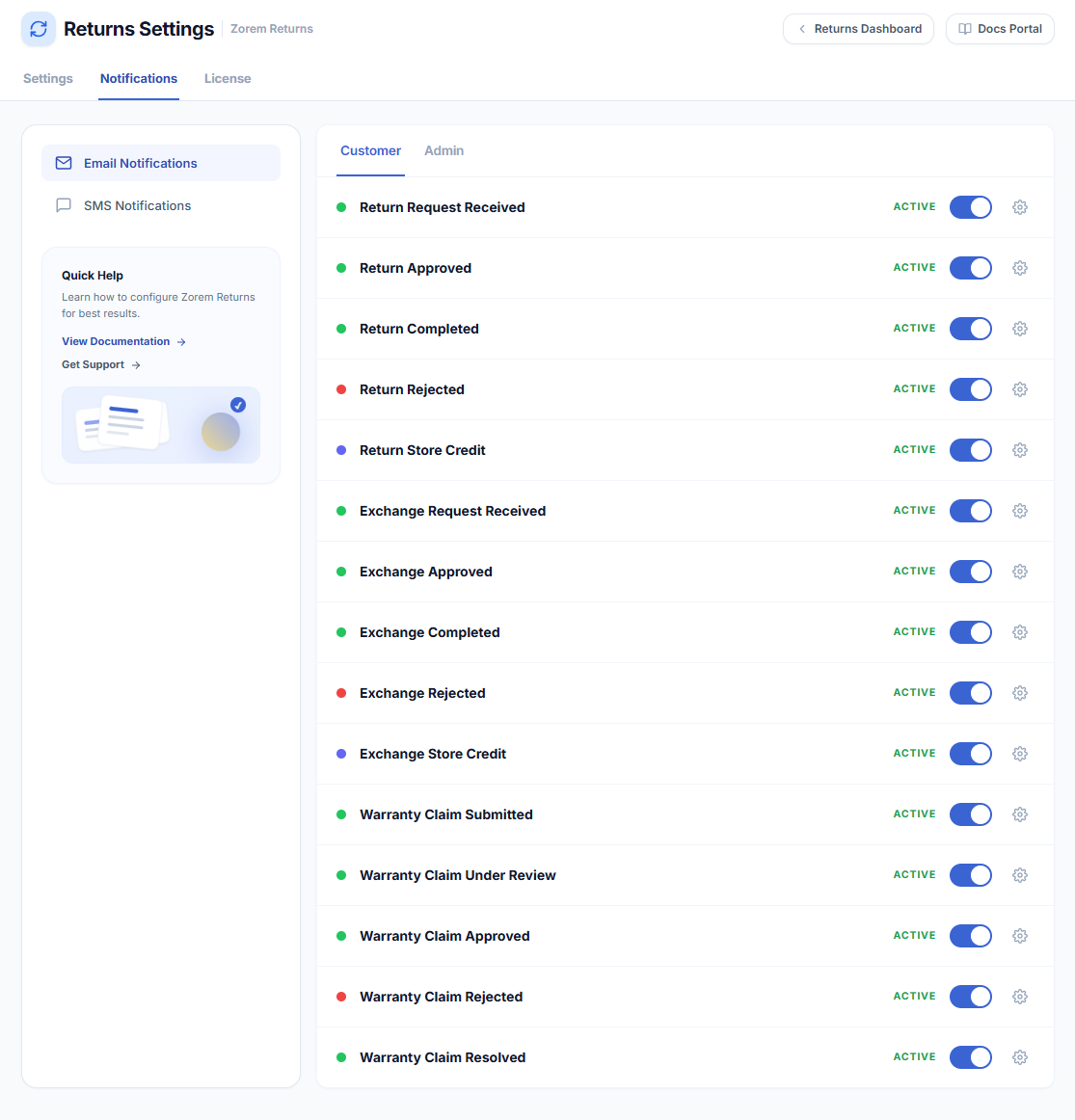
If the SMS for WooCommerce plugin is active, clicking the SMS tab will take you directly to the SMS notifications panel inside the SMS for WooCommerce settings, under the Returns & Exchanges tab.
If the plugin is not installed, the SMS tab will display an install prompt with a link to purchase and download SMS for WooCommerce.
Step 3: Configure SMS Notifications
From WooCommerce > SMS Settings > SMS Notifications > Returns & Exchanges, you’ll see all available SMS notification types for returns and exchanges. Each one can be independently enabled, disabled, and customised.
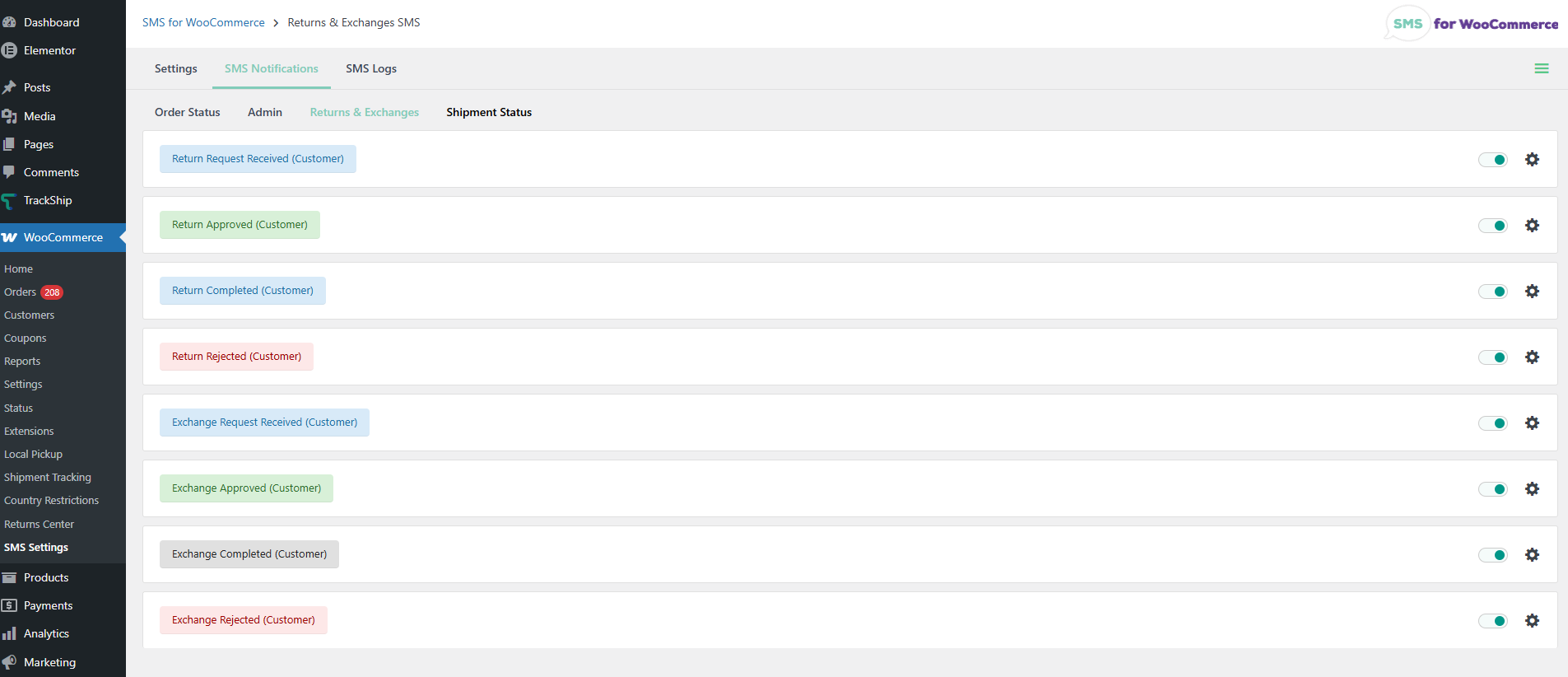
To enable an SMS notification, click the toggle on the right side of each notification row. To customise the message content, click the gear icon next to the toggle.
Available SMS Notifications:
- Return Request Received (Customer) – Sent when a customer submits a return request, confirming it was received and is pending review.
- Return Approved (Customer) – Sent when an admin approves a return request, letting the customer know they can ship the item back.
- Return Completed (Customer) – Sent when the return is fully processed and the refund or store credit has been issued.
- Return Rejected (Customer) – Sent when an admin rejects a return request, with the reason included.
- Exchange Request Received (Customer) – Sent when a customer submits an exchange request, confirming it was received.
- Exchange Approved (Customer) – Sent when an admin approves an exchange request and the replacement is being prepared.
- Exchange Completed (Customer) – Sent when the exchange has been fully processed and the replacement order is ready.
- Exchange Rejected (Customer) – Sent when an admin rejects an exchange request, with the reason included.
Customising SMS Message Content
Clicking the gear icon next to any SMS notification opens the message editor, where you can:
- Edit the SMS template – Write your own message text to match your brand voice and tone.
- Insert dynamic variables – Add placeholders like
{customer_first_name},{order_number},{return_status}, and{site_title}that are automatically replaced with real order data when the SMS is sent. - Preview the message – See a sample of how the message will look on a customer’s phone before saving.
- Test the SMS – Send a test message to your own phone number to verify the content and delivery before going live.
SMS and email notifications operate independently. Enabling an SMS notification does not disable the corresponding email, and vice versa. This gives you full flexibility to:
- Send both email and SMS for critical updates (e.g. Return Approved, Refund Completed).
- Send only SMS for short, time-sensitive notifications (e.g. Request Received).
- Send only email for longer messages that need detailed instructions or attachments.
- Send neither by disabling both toggles for a particular status.
This makes it easy to design a notification strategy that respects customer preferences and avoids sending duplicate or excessive messages.
Customer Opt-In
Customers must opt in to receive SMS notifications during checkout, on the Order Received page, or from the View Order page. SMS for WooCommerce automatically respects customer preferences — if a customer has not opted in, no SMS will be sent for their return or exchange, even if SMS notifications are enabled in your settings.
For full details on customer opt-in, phone number validation, SMS providers, message variables, and Do Not Disturb hours, please refer to the SMS for WooCommerce documentation.
Next Steps
- Email Notifications – Configure the email templates sent for each return and exchange status.
- Setup & Configuration – Review all settings and defaults for the plugin.
- Returns Analytics Dashboard – Monitor return trends and measure the revenue impact of your returns policy.