Once the AI Assistant is enabled, any customer (or you, the store owner) can connect an AI assistant using the Connection URL. The login and consent happen automatically through OAuth 2.1 — there is no API key to copy by hand.
Step 1 — Copy the Connection URL
In Returns & Exchanges Center > AI Assistant > AI Settings, click Copy next to the Connection URL. It looks like this:
https://your-store.com/wp-json/zorem-returns/mcp/v1/mcpStep 2 — Add it as a connector in Claude
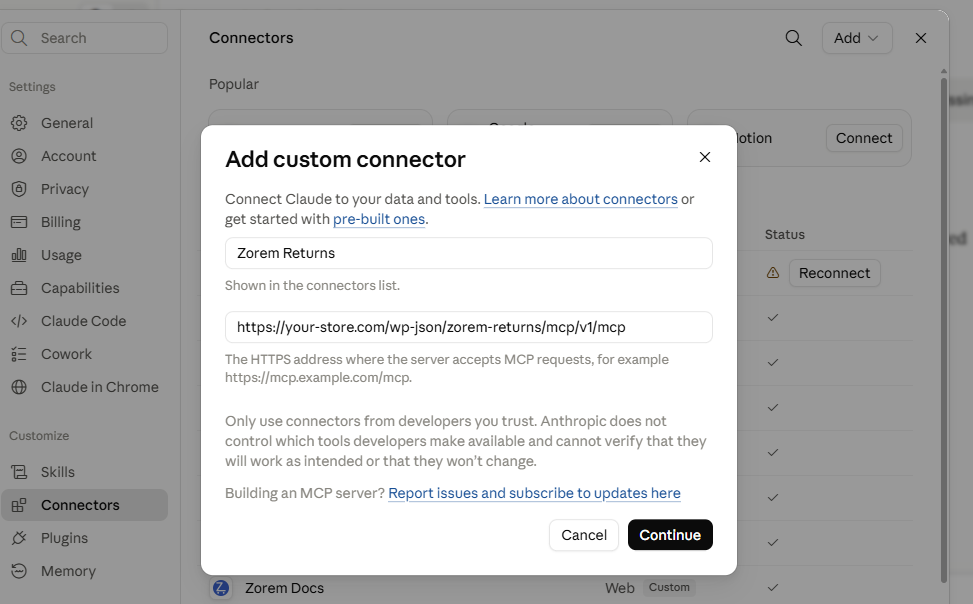
- In Claude, open Settings > Connectors.
- Click Add custom connector.
- Give it a name (for example, Returns) and paste the Connection URL into the address field.
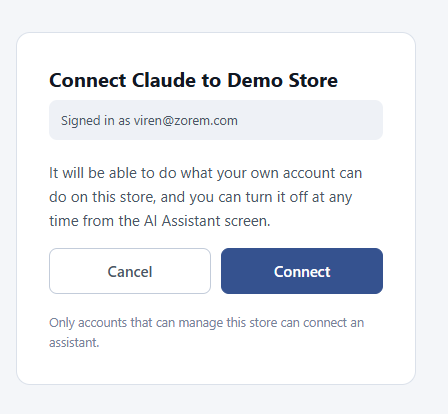
- Click Continue / Add. Claude will check the server and then open your store’s login page.
- Log in with your normal store account and approve the access request. You’ll be returned to Claude with the connector active.
Step 3 — Start chatting
The customer can now say things like “Show me my recent orders I can return“, “Start a return for my blue shirt, it’s the wrong size“, or “What’s the status of my return?“. The assistant only ever sees and acts on that customer’s own orders.
ChatGPT and other assistants
The same Connection URL works with any assistant that supports custom MCP connectors. In ChatGPT, add it under the connector / custom-connector settings and paste the same URL. The login and consent flow is identical.