Advanced Shipment Tracking integrates with TrackShip for WooCommerce to add post-shipping automation and real-time shipment visibility to your orders.
What TrackShip Adds
AST stores the tracking number and builds the tracking link. It doesn’t follow the shipment — once the parcel leaves, AST has no way of knowing where it is.
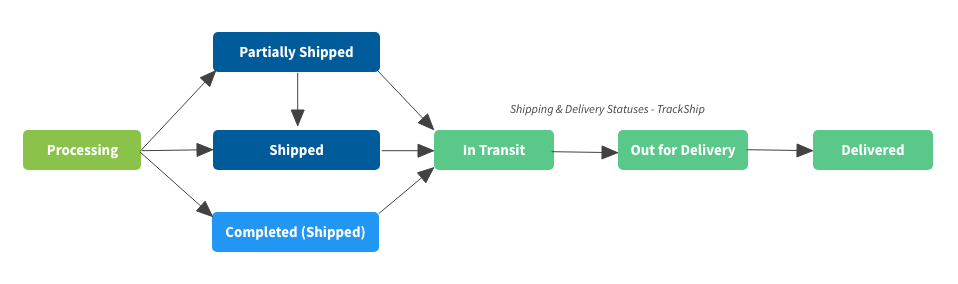
TrackShip is what fills that gap. It watches each shipment with the carrier and reports back to your store as the parcel moves — In Transit, Out for Delivery, Delivered — so order statuses update on their own and your customers can be notified at each stage. It works with the same carrier list AST uses, 1010+ carriers.
This is also what makes the Delivered order status update automatically. Without TrackShip you can still enable Delivered, but you have to set it on each order yourself.
Setting It Up
- Make sure AST is installed and you’ve enabled the carriers you ship with.
- Install and activate TrackShip for WooCommerce from the WordPress plugin directory.
- Create a TrackShip account and connect your store to it from the TrackShip plugin. This links the store so TrackShip can receive your shipments.
- In the TrackShip settings, choose which shipment statuses you want reported back and which ones should change the WooCommerce order status or email the customer.
- Add tracking to a test order in AST as usual. Once TrackShip picks it up, the shipment status appears on the order and updates as the parcel moves.
From then on, every tracking number you add in AST — by hand, by CSV or through the REST API — is sent to TrackShip automatically.
Order Status Flow
This chart shows how order statuses move once TrackShip is following the shipment: