Returns for WooCommerce is fully compatible with WPML, allowing you to translate all plugin-related strings into your desired languages. You can translate strings individually or in bulk using the WPML Translation Dashboard.
Bulk Translation via WPML Translation Dashboard
To translate multiple plugin strings at once:
- Log in to your WordPress dashboard.
- Navigate to WPML > Translation Dashboard.
- Scroll down to the Other texts (Strings) section.
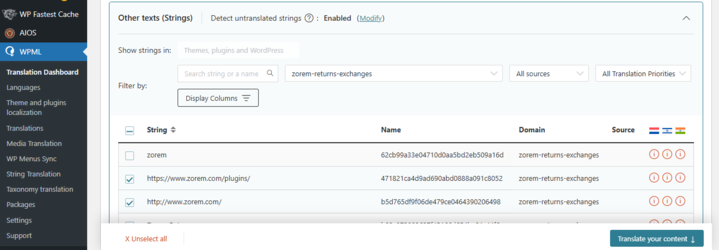
- In the Domains filter, search for Returns for WooCommerce strings such as:
- admin_texts_return_general_settings_option
- admin_texts_rt4wc_customer_return_approved_settings
- admin_texts_rt4wc_customer_return_rejected_settings
- admin_texts_rt4wc_customer_return_requested_settings
- admin_texts_ex4wc_customer_exchange_approved_settings
- admin_texts_ex4wc_customer_exchange_rejected_settings
- admin_texts_ex4wc_customer_exchange_requested_settings
- Once the relevant strings are displayed, select the checkboxes for all the strings you want to translate and click Translate your content.
- At Step 2, choose your translation method. To quickly translate multiple strings, choose Translate automatically from the dropdown. For the best results, ensure your translation engine is Private Translation Cloud (PTC), WPML’s proprietary AI. If you prefer to translate strings yourself, choose Translate myself.
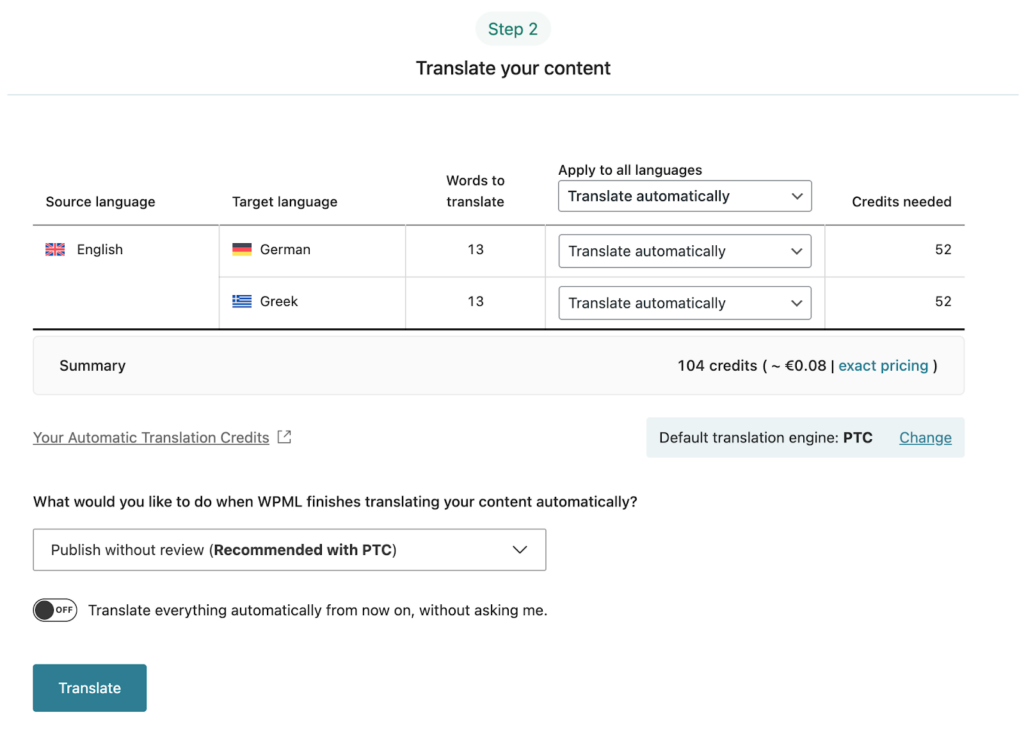
- Click Translate. With automatic translation, PTC translates your content in a few minutes. If you chose to translate yourself, navigate to WPML > Translations to add your translations for each string.
Sync Your Translations
Once you’ve translated the strings, ensure they are synced across your website. If you’ve chosen to publish without review, WPML automatically applies translations. Otherwise, go to WPML > Translations to review translated content and publish.
Next Steps
- How to Translate with Loco Translate – Edit translations or add new languages directly in WordPress.
- Translation – View all included languages and translation methods.