Country Based Restrictions PRO (CBR PRO) is fully compatible with WPML. Use WPML String Translation to translate your custom restriction messages and the widget texts — the texts you entered in Setup & Configuration, which are settings rather than plugin strings, so they are not covered by .po language files.
Translate CBR PRO Strings via the WPML Translation Dashboard
- Log in — to your WordPress dashboard.
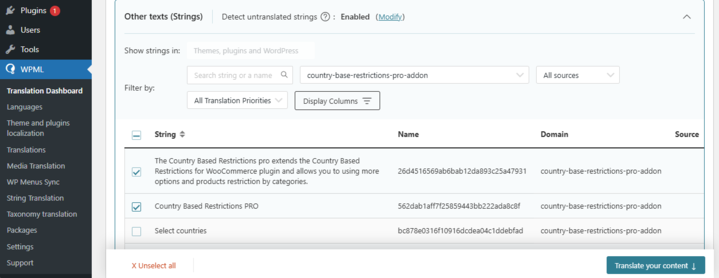
- Navigate to WPML → Translation Dashboard — and scroll down to the Other texts (Strings) section.
- Filter the CBR PRO string domains — in the Domains filter, search for:
- admin_texts_wpcbr_default_message (product restriction message)
- admin_texts_wpcbr_cart_message (cart restriction message)
- admin_texts_cbr_cat_default_message (category restriction message)
- admin_texts_cbrwl_header_text (widget popup header)
- admin_texts_cbrwl_text_before_dropdown (widget popup message)
- admin_texts_cbrwl_text_after_dropdown (widget popup footer)
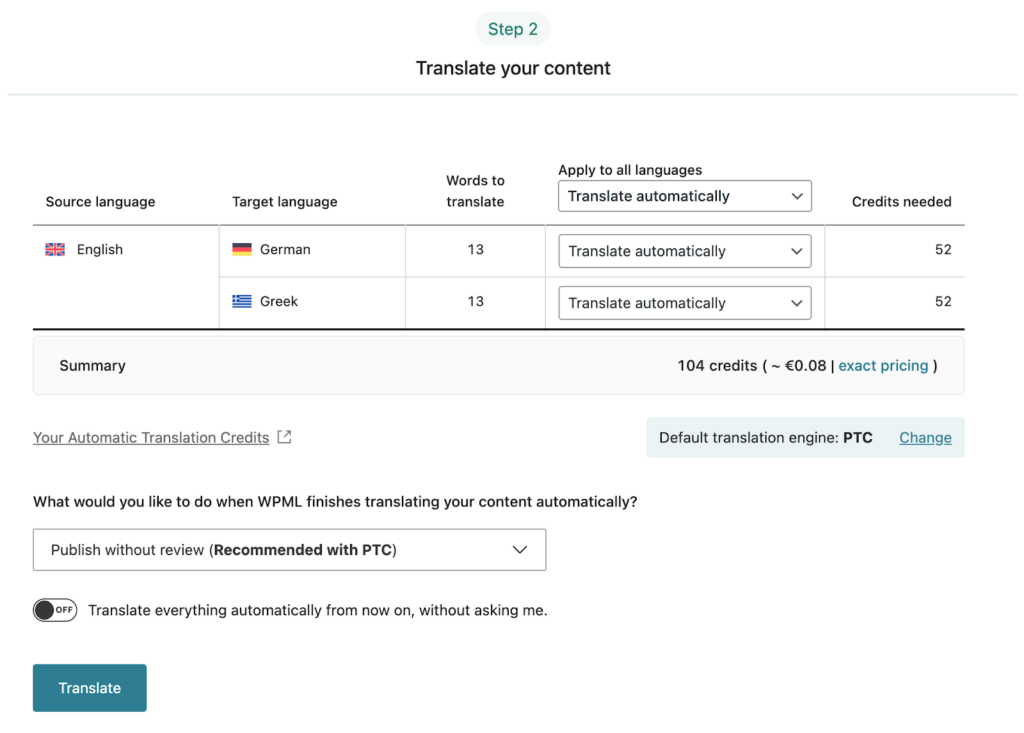
- Select the strings — tick the checkboxes for the strings you want to translate and click Translate your content.
Sync Your Translations
Once you’ve translated the strings, ensure they are synced across your website. If you’ve chosen to publish without review, WPML applies translations automatically. Otherwise, go to WPML → Translations to review the translated content and publish it.
INFO
The Product Listing Restriction Message (the custom “No products found” text) is not yet registered for WPML String Translation in the current plugin version. If you need it translated per language, contact zorem support.
Next Steps
- How to Use with WPML — keep restriction rules in sync across languages.
- How to Translate with Loco Translate — the plugin’s built-in strings.