Bulk catalog restrictions apply one rule to many products at once — all products in a category, with a tag, an attribute, a shipping class, a custom taxonomy term, or your entire catalog (Global). Products added to your store later are covered automatically, so you don’t need to add rules to new products one by one.
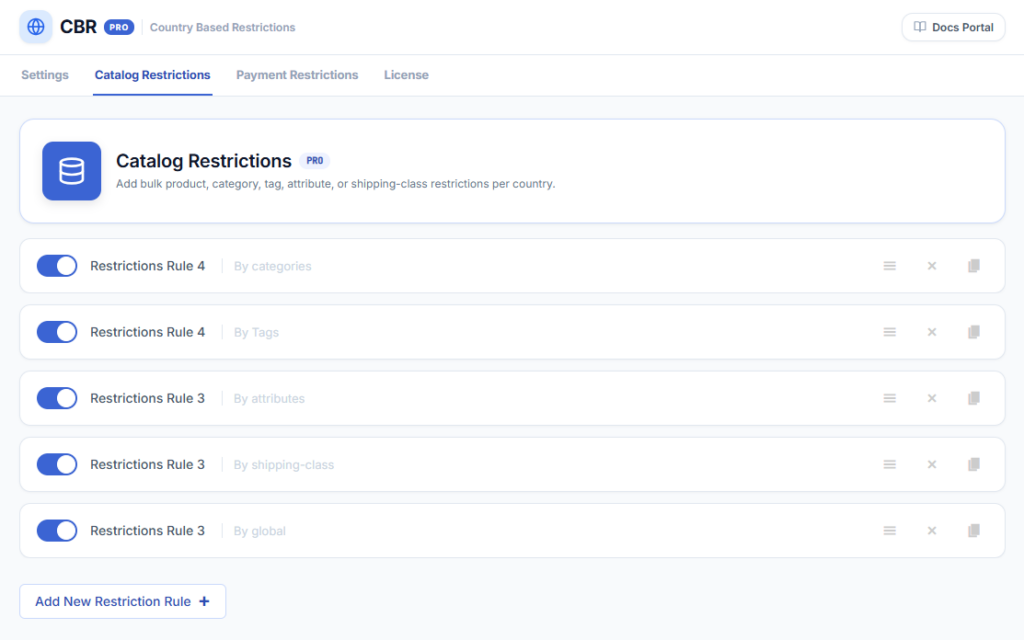
WooCommerce → Country Restrictions → Catalog RestrictionsYou can create multiple rules, enable and disable them with the toggle, duplicate a rule, or delete it.
How to Create a Rule
- Click Add New Restriction Rule — on the Catalog Restrictions tab.
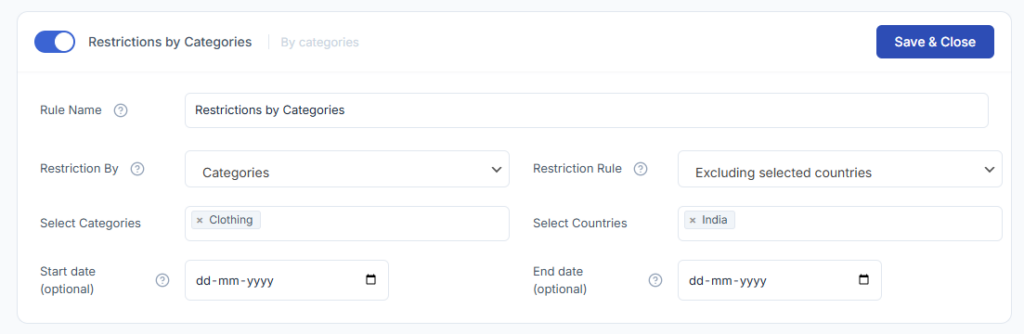
- Rule Name — a name for the rule, shown only to admins.
- Restriction By — what the rule matches: Categories, Tags, Attributes, Shipping class, Global (all products), or Custom Taxonomy.
- Select values — the categories, tags, attributes, shipping classes, or taxonomy terms the rule applies to (not shown for Global). Multiple values can be selected.
- Restriction Rule — Selected countries only (default): the matched products are available only in the selected countries and restricted everywhere else. Excluding selected countries: the matched products are restricted in the selected countries and available everywhere else.
- Select Countries — the countries for the rule; multiple countries can be selected.
- Start date / End date (optional) — schedule the rule. It activates at 00:00 on the start date and stops at 23:59:59 on the end date (site timezone). Leave empty to start immediately / never end.
- Click Save & Close — to save the rule.
How Rules Combine
Examples of Each Rule Type
Restriction by Categories
Applies to all products within the selected categories.
Restriction by Tags
Applies to all products with the selected tags.

Restriction by Attributes
Applies to products and variations with the selected attribute values.
Restriction by Shipping Class
Applies to products with the selected shipping classes.
Restriction by Global
Applies to all products in your store.
Restriction by Custom Taxonomy
Applies to products with the selected terms of any custom taxonomy registered for products (for example, a Brand taxonomy added by another plugin). Choose the taxonomy in Select Taxonomy, then pick its terms in Select Terms.
Next Steps
- How to Set Product Restrictions — per-product rules that override bulk rules.
- Setup & Configuration — how restricted products display, and the category restriction message.
- Payment Gateway Restrictions — restrict payment methods by country.