The Shopping assistant tab is where you switch the chat on and decide how it looks to shoppers. Usage today is shown on the right.
AI Shopping Assistant → Shopping assistantAvailability
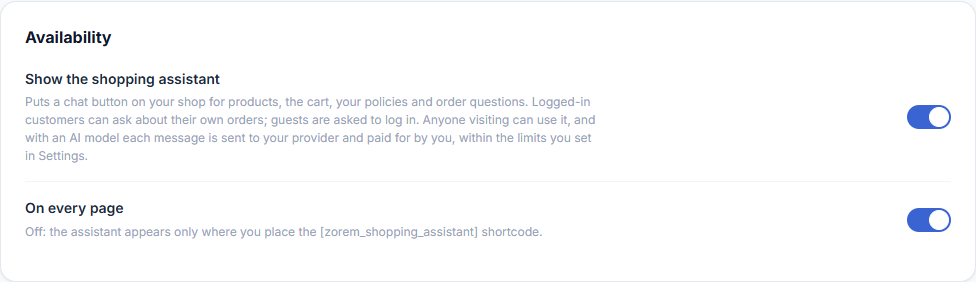
| Setting | Default | What it does |
|---|---|---|
| Show the shopping assistant | Off | Puts the chat button on your shop. Saved as soon as you switch it. |
| On every page | On | Off = the chat shows only where you place the [zorem_shopping_assistant] shortcode. |
How the Assistant Looks
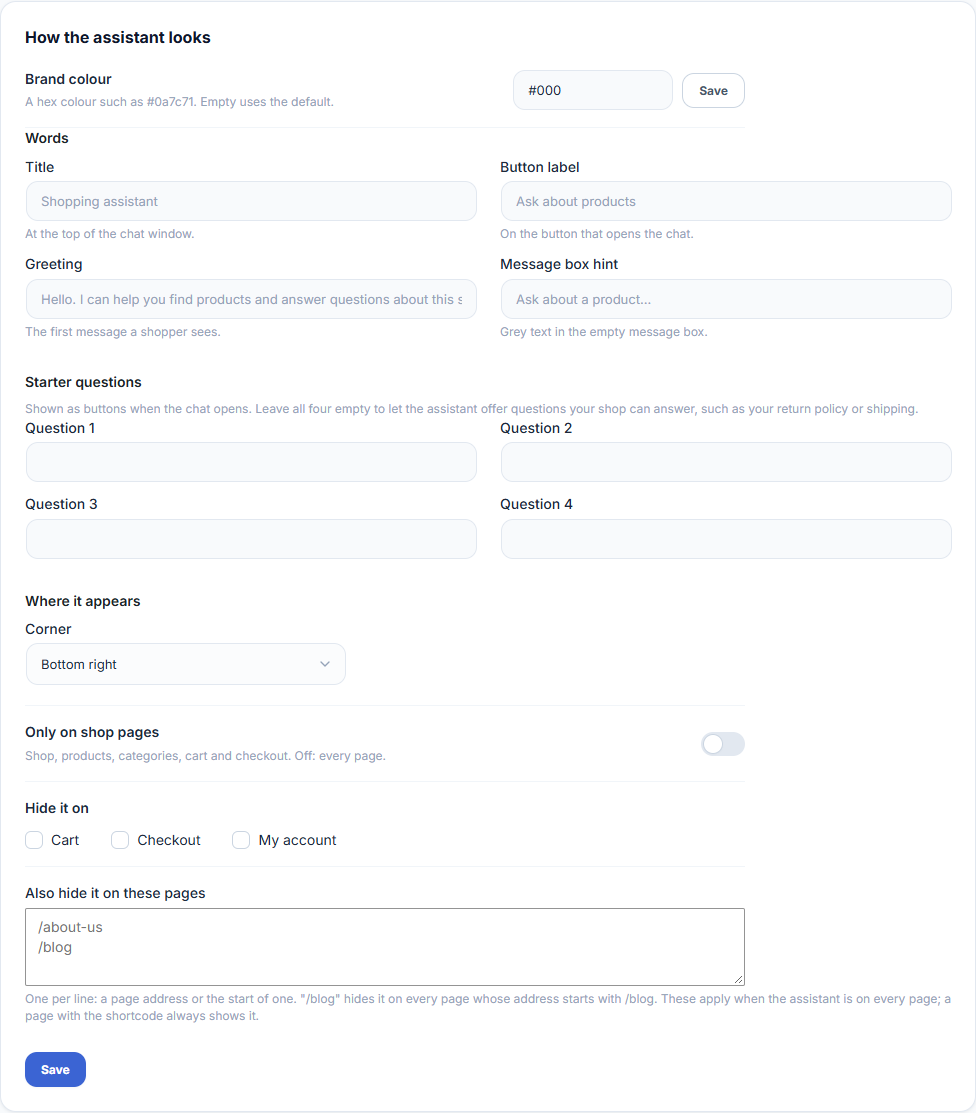
| Setting | What it does |
|---|---|
| Brand colour | A hex colour such as #0a7c71 for the button and the chat. Empty uses the default. Click Save next to it. |
| Title | Shown at the top of the chat window. |
| Button label | The text on the button that opens the chat. |
| Greeting | The first message a shopper sees. |
| Message box hint | The grey text in the empty message box. |
| Starter questions | Up to four questions shoppers can tap. Leave all empty and the chat suggests its own, only for things your shop can answer (returns, shipping, recommendations). |
Leave a word field empty to keep the default. Click Save at the bottom of the card to save the words, starter questions and pages together.
Where It Appears
| Setting | What it does |
|---|---|
| Corner | Bottom right or bottom left. On a phone the chat fills the screen. |
| Only on shop pages | Shows the chat only on the shop, product, category, cart and checkout pages. |
| Hide it on | Tick Cart, Checkout or My account to keep the chat off those pages. |
| Also hide it on these pages | One page address per line. /blog hides it on every page whose address starts with /blog. |
What Shoppers Are Told When the Assistant Cannot Help

Edit the short messages shoppers see when the chat cannot answer: not set up yet, unavailable, conversation ended, daily limit reached, login required, too fast, timed out, provider error and network error. Leave a field empty to use the default shown in it, then click Save messages.
Usage Today
The card on the right shows today’s AI tokens, messages answered, conversations, the limit per conversation and how many shoppers reached their limit. Token counts are estimated on your site from the text sent and received; they are not your provider’s bill.