Product restrictions let you make an individual product available — or not available — for specific countries. Rules are set on the product edit screen:
Products → All Products → Edit product → Product data → Country RestrictionsSetting a Restriction Rule
- Open the product — go to Products → All Products and edit the product.
- Open the Country Restrictions section — in the Product data panel.
- Choose a Restriction rule — see the options below.
- Select countries — the countries the rule applies to. This field appears once a rule is chosen.
- Optionally schedule the rule — set a Start date and/or End date (see Scheduled Restrictions below).
- Update the product — to save the rule.
The Restriction rule dropdown has three options (default: Select a Rule, which means no restriction):
- Select a Rule — no country restriction is applied to this product.
- Product Available for selected countries — the product can only be seen and purchased by customers in the selected countries; it is restricted everywhere else.
- Product not Available for selected countries — the product is restricted in the selected countries and available everywhere else.
How a restricted product displays (hidden, visible but non-purchasable, and so on) is controlled by the Catalog Visibility mode in Setup & Configuration.
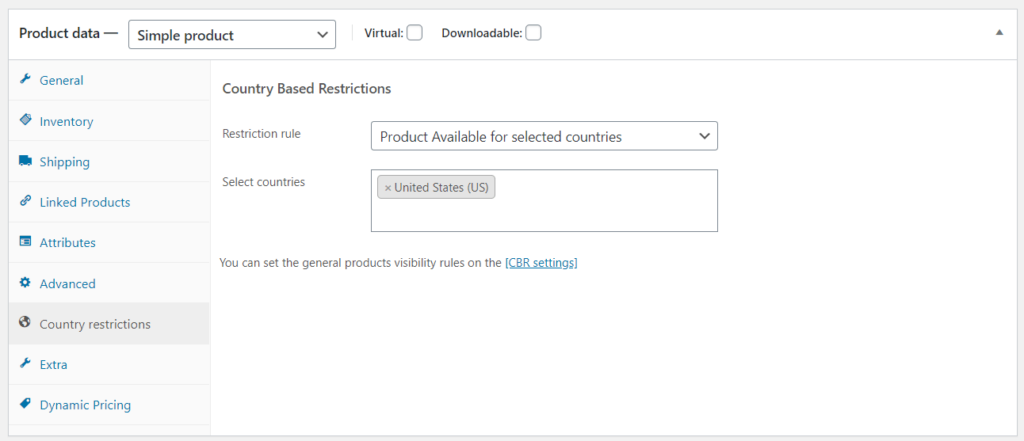
In this example, the product is available only to customers from the United States:
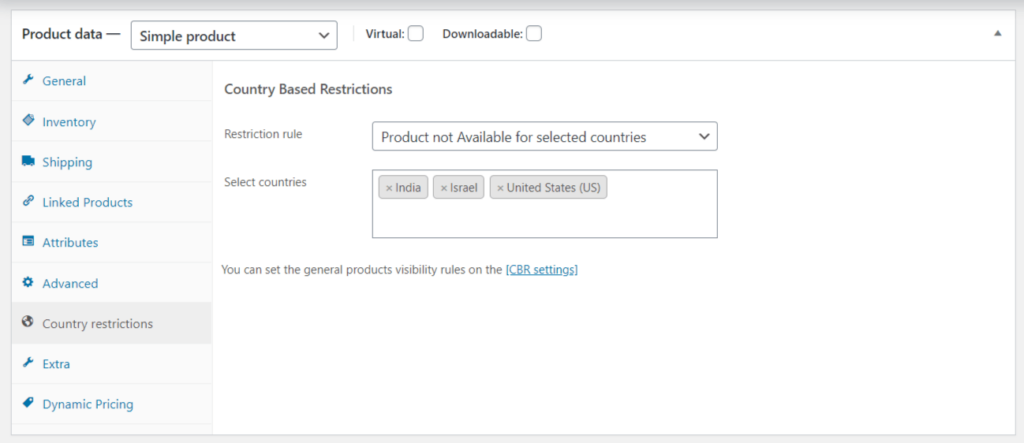
In this example, the product is not available to customers from the United States, India, and Israel:
Variable Products and Variations
Variations can have their own restriction rules. Open the variation in the Variations tab of the Product data panel — each variation has the same Restriction rule, country selection, and schedule fields. A variation rule applies to that variation only; a rule on the parent product applies to the whole product, including all variations. Whether restricted variations are hidden from the variation options depends on the Hide Product Variations setting in Setup & Configuration.
Scheduled Restrictions
Each rule can be scheduled with two optional date fields:
- Start date (optional) — leave empty to apply the rule immediately. Past dates are disabled.
- End date (optional) — leave empty for no end date. The rule stops applying after this date.
Dates use the WordPress site timezone. Scheduling is useful for time-limited launches, licensing windows, or temporary restrictions.
Product Rules vs. Bulk Catalog Rules
Removing Rules in Bulk
To remove product-level rules from many products at once, use the Remove CBR Rule bulk action:
Products → All Products → select products → Bulk actions → Remove CBR Rule → Apply
Next Steps
- How to Set Up Bulk Catalog Restrictions — restrict whole categories, tags, attributes, and more.
- CSV Upload Restrictions — import and export product rules in bulk.
- Setup & Configuration — control how restricted products display.