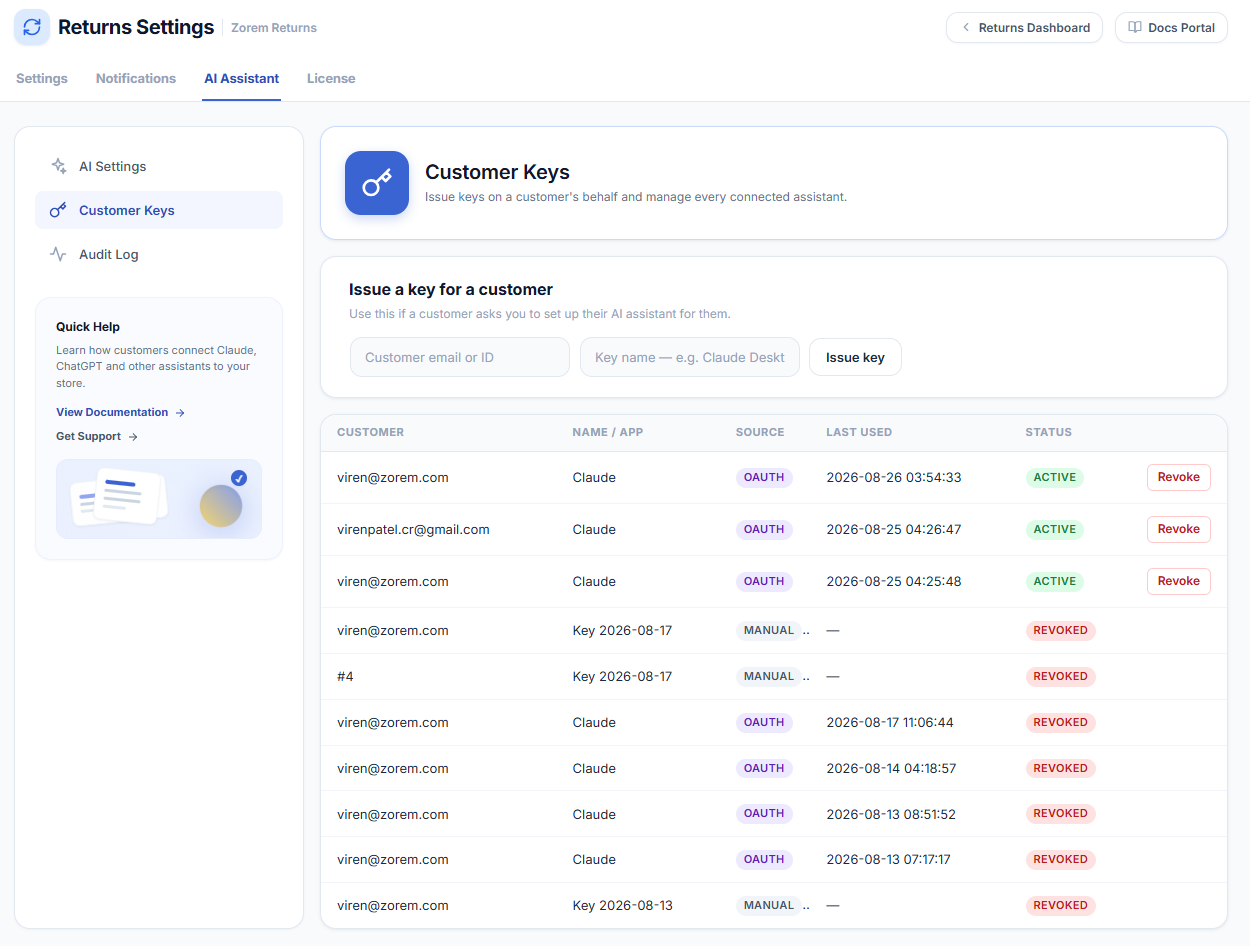
The Customer Keys screen (under AI Assistant > Customer Keys) lists every AI assistant connected to your store and lets you issue or revoke access on a customer’s behalf.
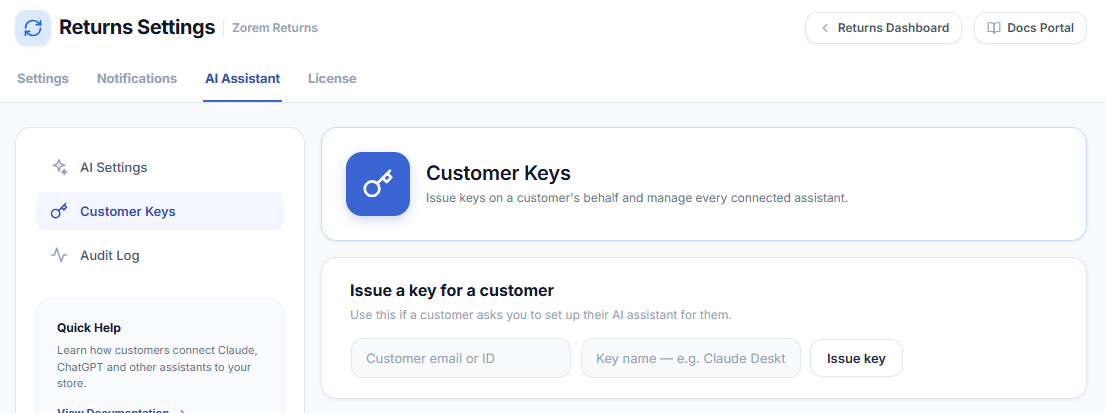
Issue a key for a customer
Use this when a customer asks you to set up their AI assistant for them. Enter the customer’s email or user ID and a key name (for example, “Claude Desktop”), then click Issue key. Share the generated key with the customer to paste into their assistant.
Most customers won’t need this — the automatic OAuth flow (see Connect Your AI Assistant) issues keys for them. Manual keys are a convenience for support scenarios.
The connected-assistants table
- Customer — the account the key belongs to (email or user ID).
- Name / App — the assistant the key was issued for (for example, Claude).
- Source — OAUTH for keys created automatically when a customer connected their assistant, or MANUAL for keys you issued from this screen.
- Last used — when the key was last used to make a request.
- Status — ACTIVE or REVOKED.
Revoking access
Click Revoke next to any active key to immediately cut off that assistant’s access. This is useful if a customer’s device is lost, or if you want to force an assistant to reconnect. Revoking is instant and cannot be undone — the customer simply reconnects to get a fresh key.