Add an extra layer of security to your store with Authenticator App 2FA. Customers and staff can scan a QR code in Google Authenticator, Authy, Microsoft Authenticator, 1Password, or any TOTP-compatible app, and from then on every login asks for a 6-digit time-based code in addition to their password.
What it does
- Authenticator-App based 2FA — no SMS, no email OTPs, no third-party service. Setup is one-time and works with any RFC-6238 TOTP app.
- Fully opt-in — no one is ever forced to enroll or blocked from logging in. The “Set up 2FA” card simply appears on the account page for users the policy applies to; they choose whether to enable it.
- Role-based visibility — show the 2FA option to All users, Only users with selected roles, or All users EXCEPT selected roles. Useful when you want to offer 2FA to staff but keep the option hidden from regular shoppers.
- “Remember this device” trust cookie — after a successful 2FA verification, the same browser/device is remembered for 1, 3, 7, 14, or 30 days (admin-configurable), or never (Don’t remember, which re-prompts at every login). The user isn’t re-prompted for a code until that period elapses or they sign in from a different browser.
- Frontend prompt for customers — the 2FA verification step renders inside your store theme on /my-account/, not on wp-login.php. Admins get the standard wp-login.php prompt.
- Backup codes — 10 one-time-use recovery codes generated at enrollment, in case the user loses their phone.
- Tolerates clock drift automatically — the code from the authenticator app is still accepted if its clock is off by up to about 30 seconds either way, before a backup code is ever needed.
How to enable it
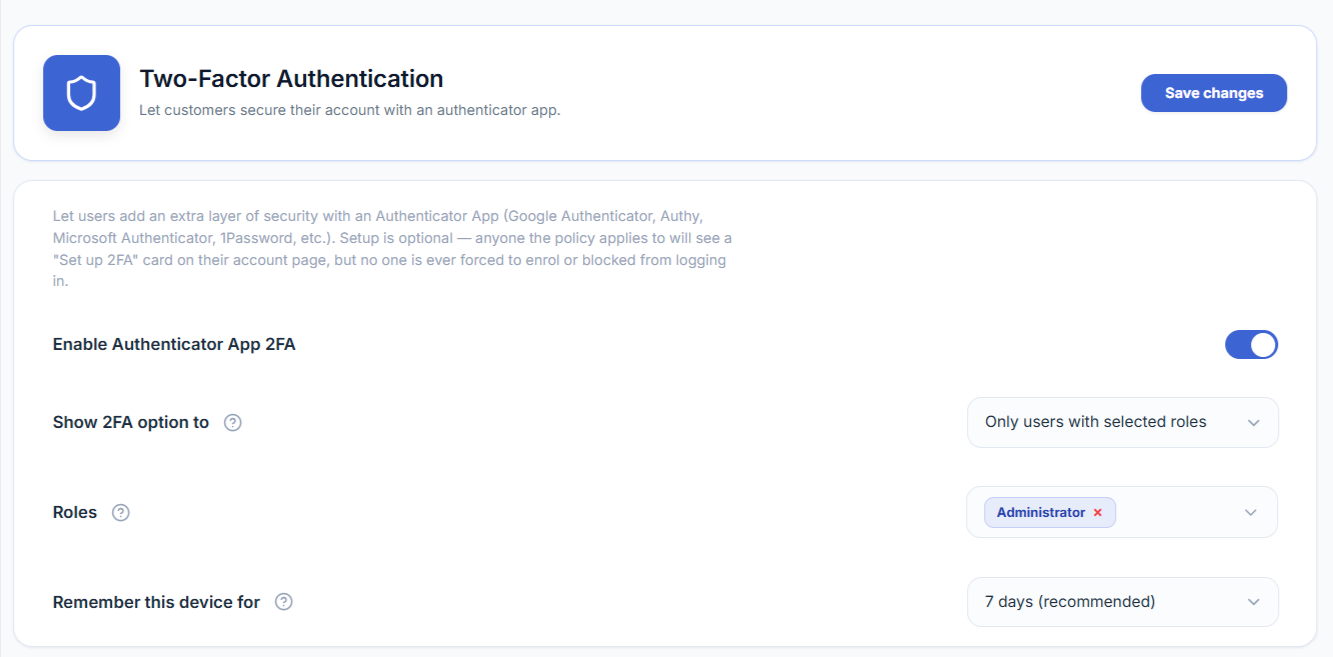
- Go to WooCommerce → Email Verification → Settings → Two-Factor Authentication.
- Toggle Enable Authenticator App 2FA on.
- Choose Show 2FA option to:
- All users — the setup card is shown to everyone.
- Only users with selected roles — pick the roles below (e.g. Administrator, Shop manager) — only those users see the setup card.
- All users EXCEPT selected roles — useful to hide 2FA from “Customer” while keeping it for staff.
- Pick Remember this device for — how long a verified browser stays trusted, or Don’t remember to ask every time (7 days is the recommended default).
- Click Save at the top of the section.
How a user enrolls (first-time setup)
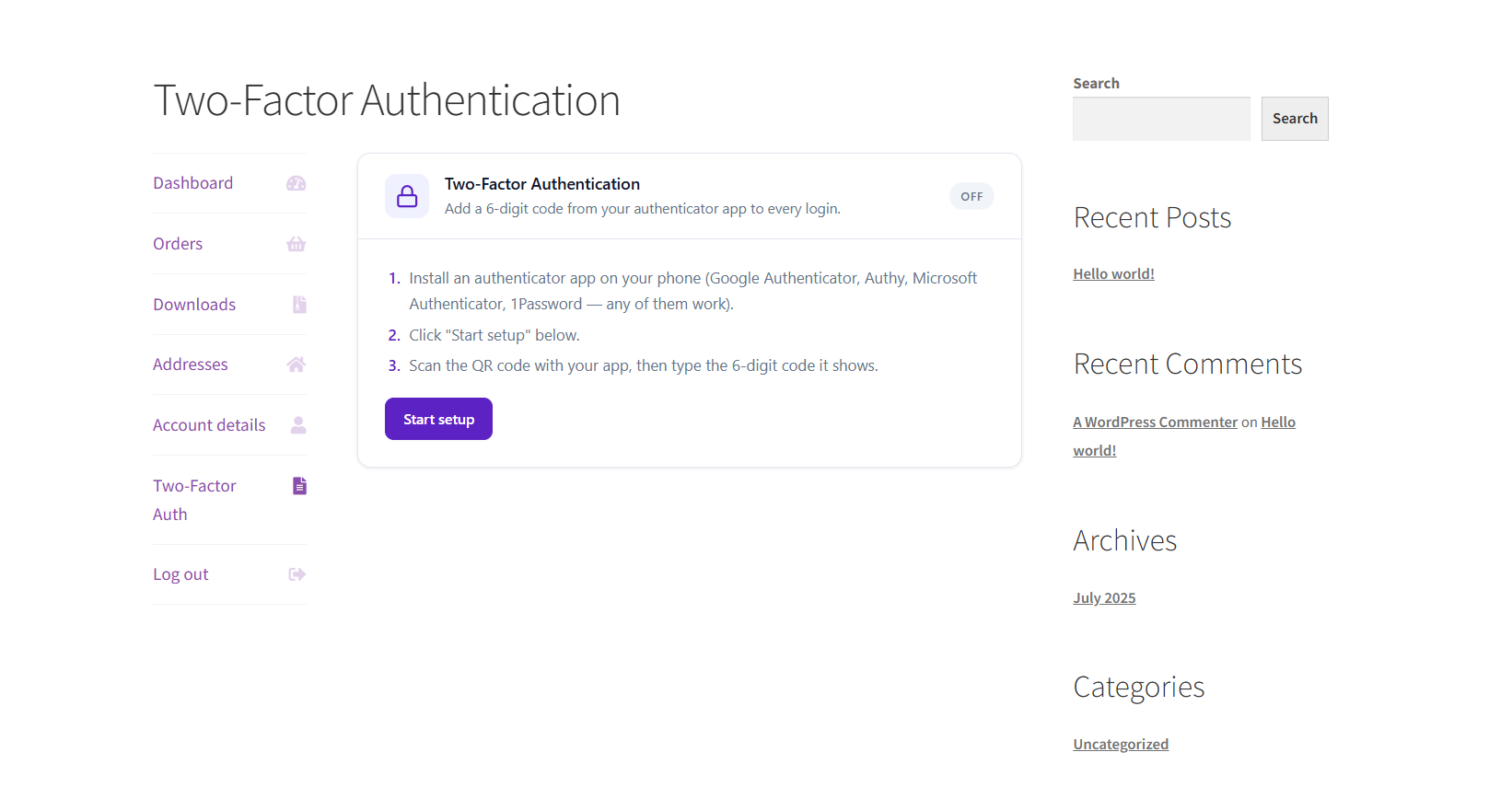
When a user the policy applies to opens My Account → Two-Factor Auth (or for admin/editor users: Users → Profile), they’ll see a “Set up 2FA” card.
- Click Set up two-factor authentication.
- A QR code appears alongside a setup key.
- Open the user’s authenticator app (Google Authenticator, Authy, Microsoft Authenticator, 1Password, etc.) and either:
- Scan the QR code with the app’s camera, or
- Tap “Enter a setup key” / “Add manually” in the app, then paste the setup key shown on screen.
- The app immediately starts showing a 6-digit code that changes every 30 seconds.
- Type the current 6-digit code into the “Enter the 6-digit code” field on the setup card and click Verify & enable.
- Important step — the page now shows 10 backup codes. The user MUST save these somewhere safe (password manager, printed copy, downloaded text file) before closing the page. These are the only way back into the account if the authenticator app is lost.
From the next login onward, the user will be asked for a 6-digit code from their authenticator app after entering their password.
How to use backup codes
Backup codes are 10 one-time-use codes (each 10 characters long, formatted like a1b2c-3d4e5) issued at enrollment. They exist so a user isn’t locked out if they lose access to their authenticator app.
When to use a backup code
- Lost your phone
- Reinstalled your authenticator app and lost the entries
- Got a new device and forgot to migrate
- Authenticator app’s clock is out of sync by more than about 30 seconds (rare, but possible — smaller drift is tolerated automatically)
How to enter a backup code at login
- At the 2FA prompt during login, type one of your unused backup codes into the same “Enter the 6-digit code” field instead of a TOTP code.
- Click Verify.
The plugin auto-detects whether the input is a 6-digit TOTP code or a 10-character backup code and handles each correctly — there’s no separate “use backup code” link to click.
Important rules for backup codes
- Each code can be used only once. After it’s used, it’s permanently consumed and can’t be reused.
- The plugin tracks how many backup codes you have left. When you’re running low (say 2-3 codes remaining), you should regenerate.
- Backup codes are stored as hashes, not in plaintext — neither the store admin nor a database leak can read them after enrollment. That’s also why you must save them at the moment they’re issued; if you lose them, they can’t be recovered, only regenerated.
How to regenerate backup codes
If the user has used most of them, or thinks the printed copy is no longer safe:
- Go to My Account → Two-Factor Auth (or Users → Profile for staff) — the same page used for enrollment.
- On the 2FA card, click Regenerate backup codes.
- The previous codes are invalidated immediately and a new set of 10 is issued.
- Save the new set somewhere safe.
What if a user loses everything (phone AND backup codes)?
If any other administrator can still log in, they can reset 2FA for the locked-out user:
- Go to Users → All Users, find the user, click Edit.
- Scroll to the 2FA section and click Reset 2FA for this user.
- Confirm in the dialog. The user’s 2FA enrollment is wiped — they can log in normally with just their password, then re-enroll if desired.
This action is admin-only and logged in the Analytics dashboard as a 2fa_disabled event.

Settings reference
| Setting | What it does |
|---|---|
| Enable Authenticator App 2FA | Master toggle. When off, the entire 2FA system is dormant — no setup cards, no login prompts, even for users already enrolled. |
| Show 2FA option to | Decides which users see the “Set up 2FA” card on their account page. Setup remains optional even for users the policy applies to. |
| Roles | Used by the two role-based policy modes above. Multi-select. |
| Remember this device for | Trust-cookie lifetime after a successful 2FA verification. Don't remember makes the code prompt appear at every login. |
Data retention
The TOTP secret and hashed backup codes are stored as WordPress user meta on the account. Deleting a WordPress user account removes this data automatically, as WordPress does for all of a user’s meta. Uninstalling the plugin does not remove it — if you deactivate and delete Customer Email Verification Pro while keeping your users, existing 2FA secrets and backup-code hashes remain in the database until the accounts themselves are deleted or you clear them manually.
Related
- Settings — where Login Authentication (email/SMS OTP on unfamiliar logins) is configured.
- Customer Management — the Unverified Users / Users list referenced above.
- Verification Analytics Dashboard — where 2FA and other security events are logged.