Settings holds the switches that apply to the whole site and every agent at once. Choices for a single agent live on that agent’s own page instead.
AI Agent OS → SettingsOnly an administrator can save these settings. Someone you gave AI Agent OS access, such as a Shop Manager, can view them but not change them. Nothing is saved until you click Save changes.
General Settings
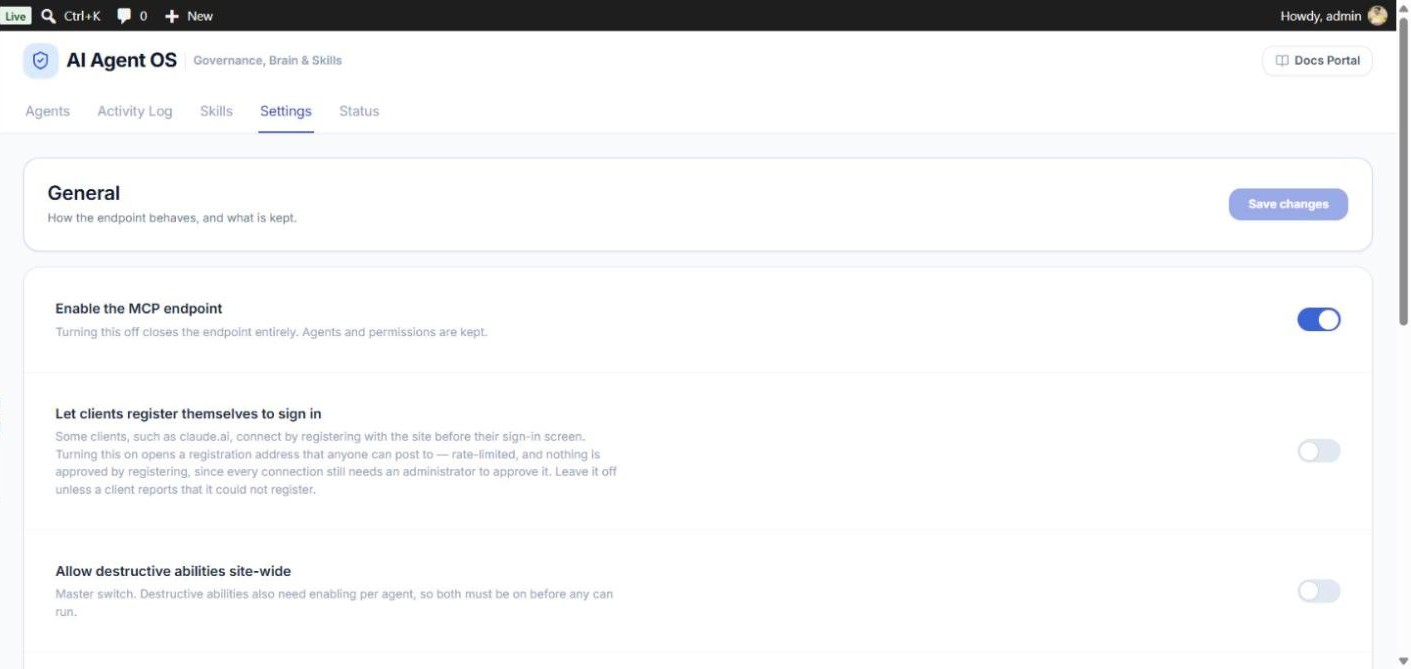
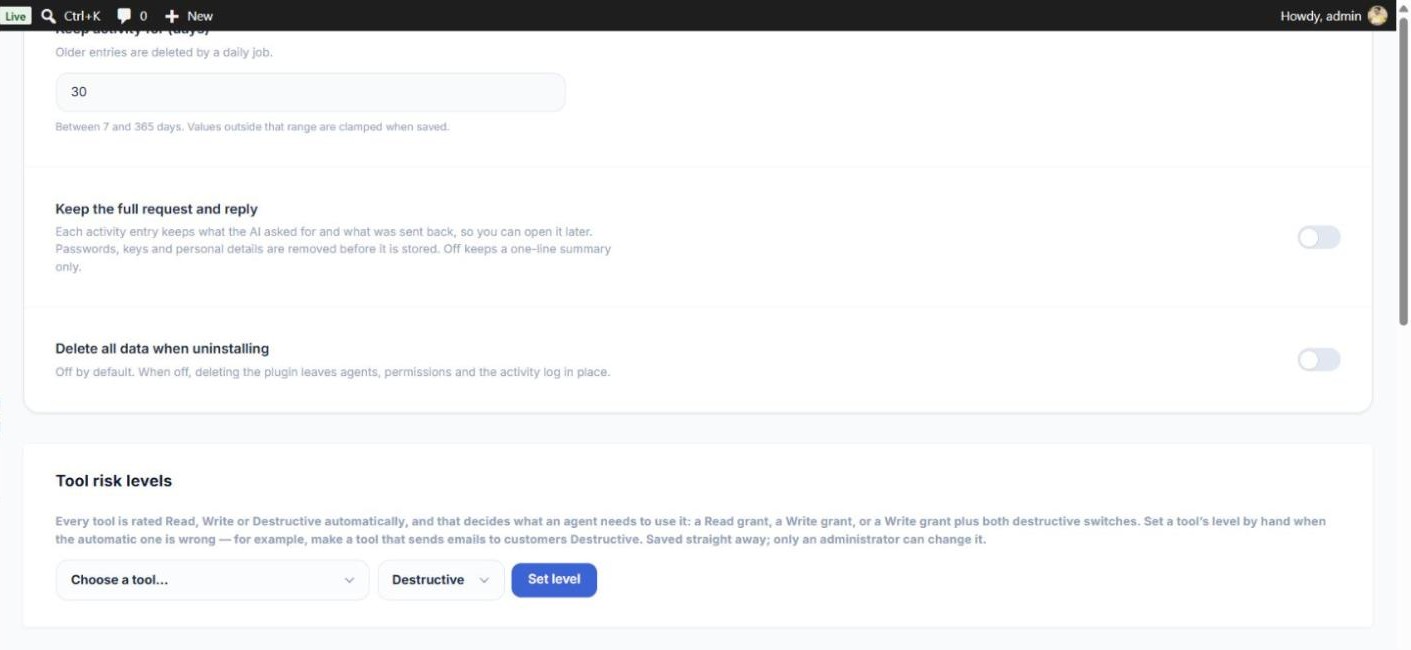
| Setting | Default | What it does |
|---|---|---|
| Enable the MCP endpoint | On | The main door for AI apps. Off = no app can connect over MCP and no new sign-in can start. Agents, permissions and history are kept. WooCommerce API keys issued to agents keep working — revoke an agent to stop it completely. |
| Let clients register themselves to sign in | Off | Some apps, such as Codex, register with your site before signing in. Turn this on if an app says it could not register. Registering never gives access — you still approve every connection. Turning it off again disconnects apps that registered. |
| Allow destructive abilities site-wide | Off | The master switch for tools that delete, cancel or refund. Each agent also needs its own switch on and a Write grant. |
| Keep activity for (days) | 30 | How long the Activity Log keeps entries, from 7 to 365 days. Older entries are deleted by a daily job. |
| Keep the full request and reply | Off | Also store the full request and reply on each Activity Log entry, with passwords and personal details removed. Applies to new entries only. |
| Delete all data when uninstalling | Off | Off = agents, permissions and history stay if you delete the plugin, so reinstalling brings everything back. On = everything the plugin stored is removed when you delete it. |
With Delete all data when uninstalling on, deleting the plugin permanently removes every agent, token, permission and log entry. Connected apps are always signed out when the plugin is deleted, whatever this setting.
Tool Risk Levels
Below the general settings, Tool risk levels lets an administrator change how risky a tool is rated. The rating decides what an agent needs: a Read grant, a Write grant, or a Write grant plus both destructive switches.
- Choose a tool — each shows its current rating.
- Choose a level — Read, Write or Destructive.
- Click Set level. It is saved straight away and applies to every agent.
- To undo, click Use automatic next to the tool in the list.
Lowering a tool from Destructive to Write removes the two-switch protection for it on every agent. Raise ratings freely; lower them only when you are sure.