The Activity Log is your site’s record of everything AI agents did: every tool they used, every change they made, every connection — and every time an agent tried something and was not allowed. Successful and refused attempts sit in the same list, newest first.
AI Agent OS → Activity LogThe Summary Tiles
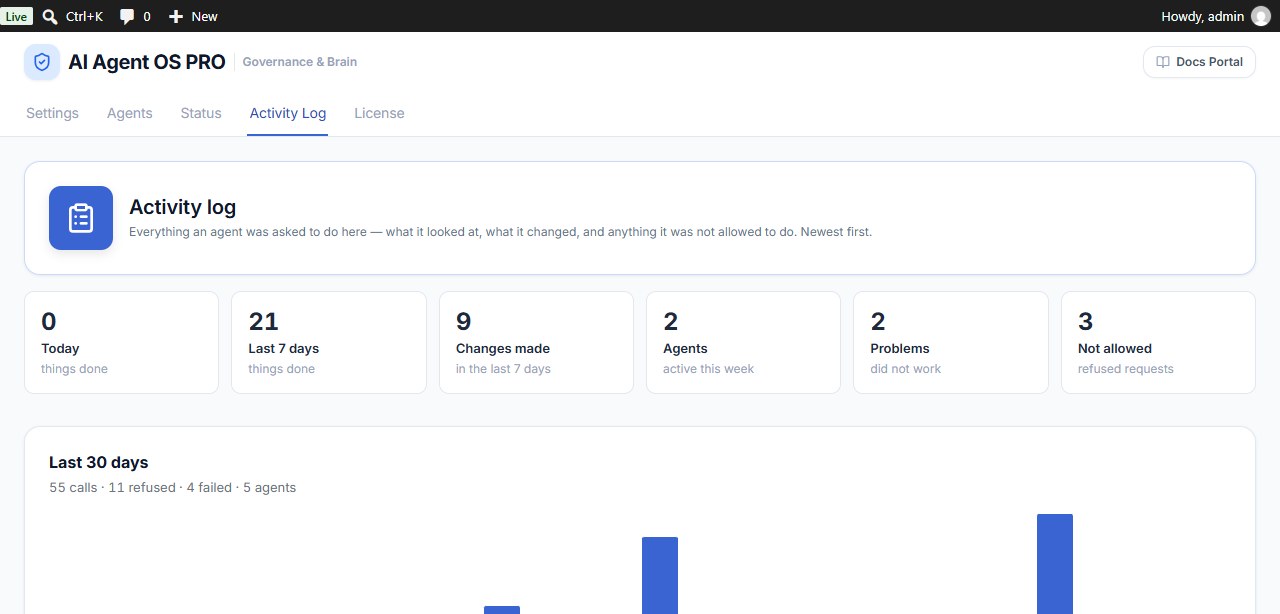
The six tiles at the top always describe the whole site (filters do not change them):
| Tile | What it counts |
|---|---|
| Today | Tool calls since midnight (your site’s time zone) that were not refused. |
| Last 7 days | The same over the last 7 days. |
| Changes made | Successful calls that changed something, last 7 days. |
| Agents | How many different agents were active this week. |
| Problems | Calls that were allowed but the tool returned an error. |
| Not allowed | Refused requests, including attempts with an unknown token. |
Last 30 Days
Below the tiles, the Last 30 days card sums up how much AI apps used your site: calls, refusals, failures and how many agents, with one bar per day (hover a bar to see the date, calls and refusals; days are counted in UTC). It shows on the first page of the log when no filters are set.
- Calls include refused and failed ones, and connections: 100 calls with 10 refused and 5 failed means 85 went through.
- Click By agent and by tool to see each agent with its calls, refusals, failures and last active day, and the 20 most used tools. mcp/connected means connections.
- The card keeps its own daily totals for 400 days, so shortening how long the log is kept does not remove this history. It counts differently from the tiles (30 days, and attempts with an unknown token are not counted), so the numbers rarely match.
How to Filter the Log
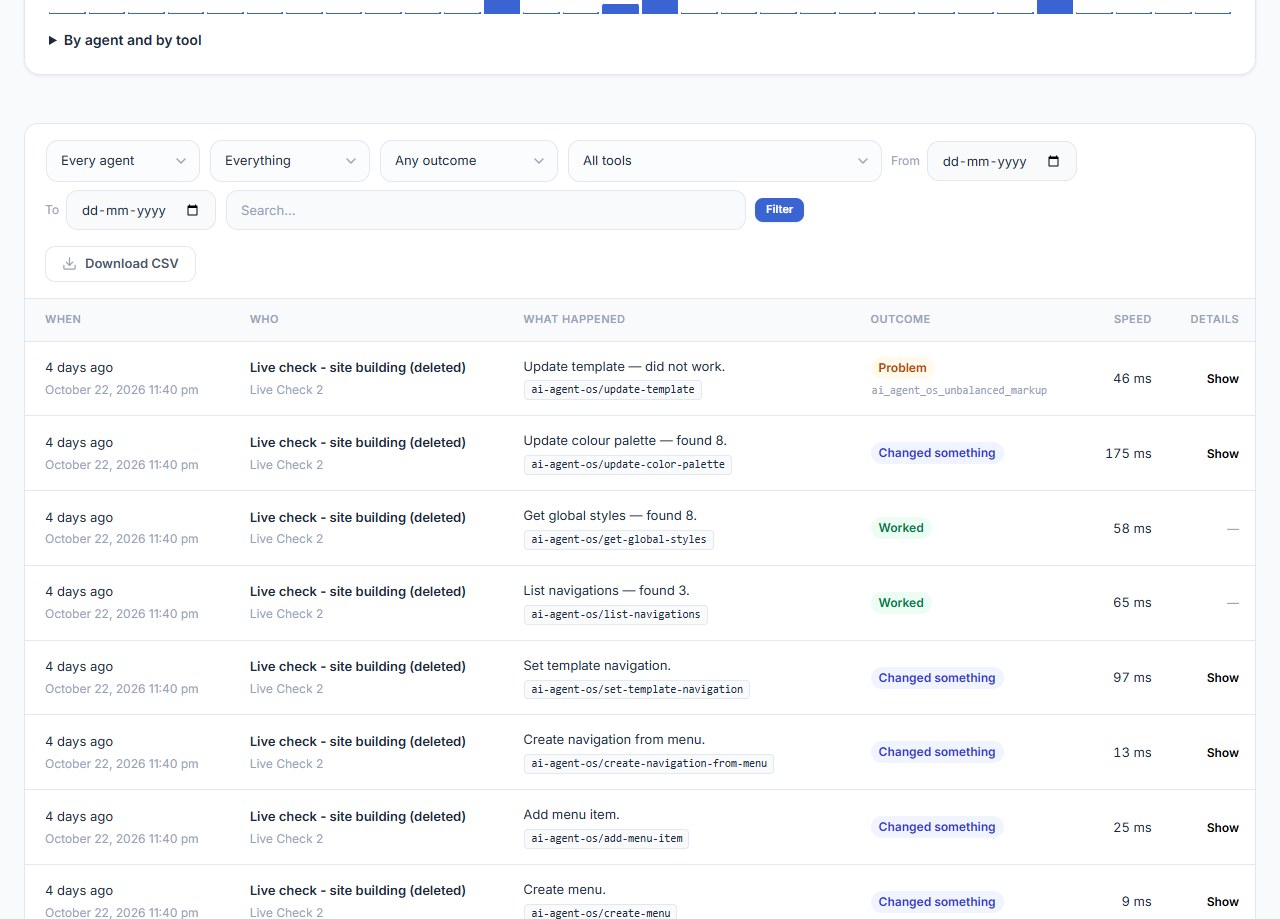
- Choose any of Agent, Kind (looked things up, changed things, connections), Outcome, Tool, From / To dates, or type in Search.
- Click Filter. Nothing changes until you click it.
- Click Clear to remove all filters.
The filters are kept in the page address, so you can bookmark a question such as what did the Order Assistant change last week? and open it again later.
Reading a Row
| Column | What it shows |
|---|---|
| When | How long ago, and the exact date and time. |
| Who | The agent, and the app it used (Claude, ChatGPT…). Deleted agents keep their name with (deleted). |
| What happened | What the AI says it was asked, a plain sentence such as Update post (#1234), and the tool’s name. |
| Outcome | Worked, Changed something, Problem or Not allowed. Refused rows are tinted red and show the reason. |
| Speed | How long the tool took. |
| Details | Click Show to see what was asked for and, if enabled, what was sent back. |
Common Refusal Reasons
| Reason | What to do |
|---|---|
| This agent has not been granted this ability. | Give the agent a Read or Write grant on that tool, if you want it to use it. |
| This agent has read access, but this ability requires write access. | Raise the grant to Write. |
| …destructive abilities are not enabled for this agent. | Turn on Allow destructive abilities in the agent’s Connection section → Access. |
| This agent’s access has expired. / has been revoked. | Extend the expiry date or reactivate the agent. |
| The agent token was not recognised. | A connection with a missing, wrong or expired credential. Check the app’s configuration. |
| This agent signed in at another agent’s MCP address. | The app is set up with a different agent’s address. |
Download CSV
Click Download CSV to export the rows that match the filters you applied (newest first, up to 5,000 rows). Narrow the date range to export more.
What Is Stored, and for How Long
- Passwords, keys and personal details are removed before a row is saved — not just hidden on screen.
- By default each row keeps a one-line summary. Turn on Settings → Keep the full request and reply to also store the full request and reply (cleaned the same way).
- Rows are kept for 30 days by default. Change it under Settings → Keep activity for (days) (7 to 365).