Every tool that a plugin on your site offers to AI agents is listed on the agent’s Permissions section. For each tool you choose whether this agent may not use it, may use it to look, or may use it to change things. A tool you did not grant simply does not exist for the agent.
AI Agent OS → Agents → Configure → Permissions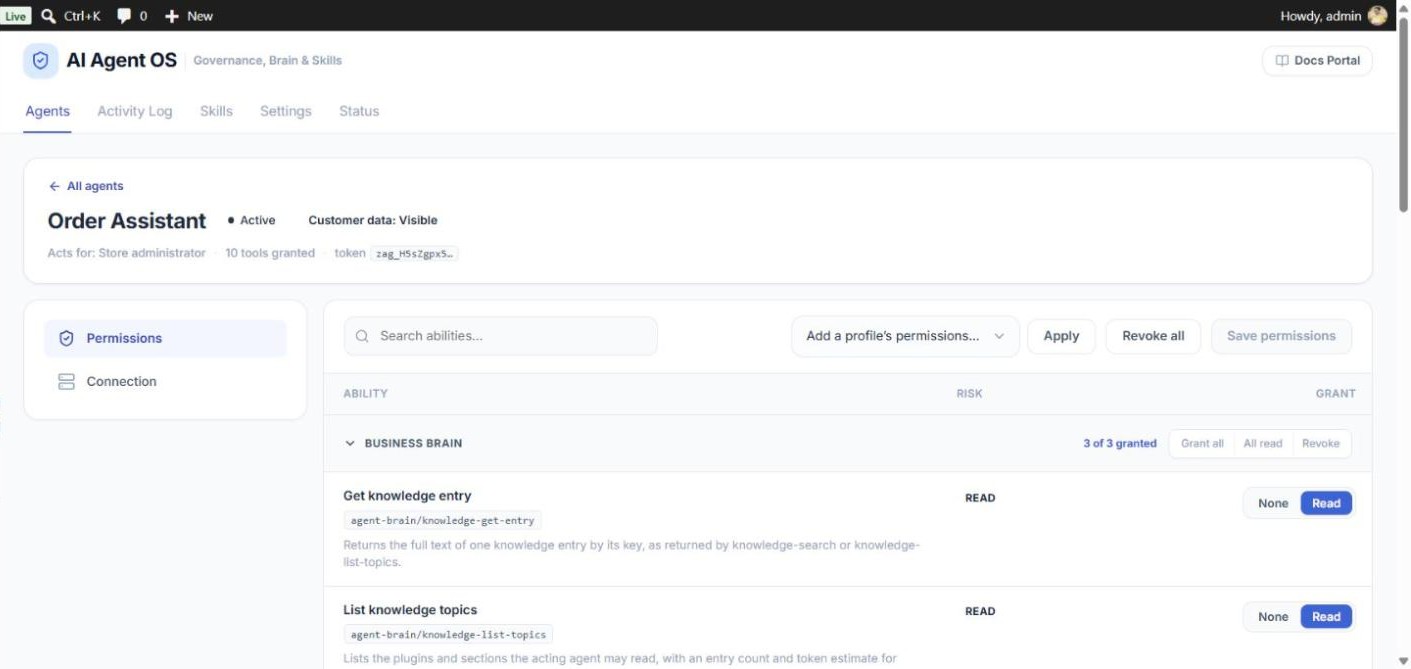
None, Read and Write
| Level | What it means |
|---|---|
| None | Not allowed. The tool is not even shown to the AI app. |
| Read | May use tools that only look things up. |
| Write | May use tools that change things. Tools that cannot be undone also need the two destructive switches (below). |
A read-only tool offers only None and Read. On a tool that changes data, a Read grant is not enough — the call is refused.
How to Change an Agent’s Permissions
- Open the agent from AI Agent OS → Agents and stay on the Permissions section.
- Find the tool — tools are grouped by plugin. Use Search abilities to find one by name.
- Click None, Read or Write on each row you want to change. Each section also has Grant all, All read and Revoke buttons.
- Click Save permissions. A message confirms how many tools the agent may now use.
The change is live at once. The AI app sees the new list of tools the next time it connects (usually a new chat).
Revoke all (top right of the table) takes every permission away while keeping the agent active and connected — useful when you want to rebuild its permissions from zero.
The Risk Column
Each tool is rated READ, WRITE or DESTRUCTIVE. Most plugins do not say how risky their tools are, so AI Agent OS works it out from the tool’s name and description. When in doubt it chooses the higher risk. An asterisk (for example WRITE*) means the rating was worked out this way — hover it for the explanation.
If a tool’s rating is wrong for your store — for example a tool that emails customers rated only WRITE — an administrator can set it by hand under Settings → Tool risk levels. The new rating applies to every agent at once.
Add a Profile’s Permissions
To give an existing agent everything a ready-made profile has, pick the profile in the list at the top of its Permissions section and click Apply. The profile’s permissions are added; nothing the agent already has is taken away, and who it acts for does not change.
Destructive Tools Need Two Switches
Tools that delete, cancel or refund cannot be undone, so they need two deliberate decisions in two places, plus a Write grant:
- The site switch — AI Agent OS → Settings → Allow destructive abilities site-wide.
- The agent’s switch — the agent’s Connection section → Allow destructive abilities.
- A Write grant on that tool in the Permissions table.
While the agent’s switch is off, destructive rows show a lock. Turning off the site switch closes destructive tools for every agent at once.
Who May Grant What
You can only give an agent what you could do yourself. An administrator can grant anything. Someone else with AI Agent OS access — for example a Shop Manager — can only grant tools whose WordPress capabilities they hold. Tools marked Capabilities lent automatically need an administrator. Taking a permission away is always allowed.
If you try to grant something you are not allowed to, it is skipped. The tool count after saving shows what was really stored.