An agent is one AI identity on your store. Each agent has its own name, permissions, MCP address and activity history. Create one agent per job — for example one for order handling and one for answering customers — so you can see and control each separately.
AI Agent OS → AgentsThe Agents List
The list shows every agent, newest first, 25 per page.
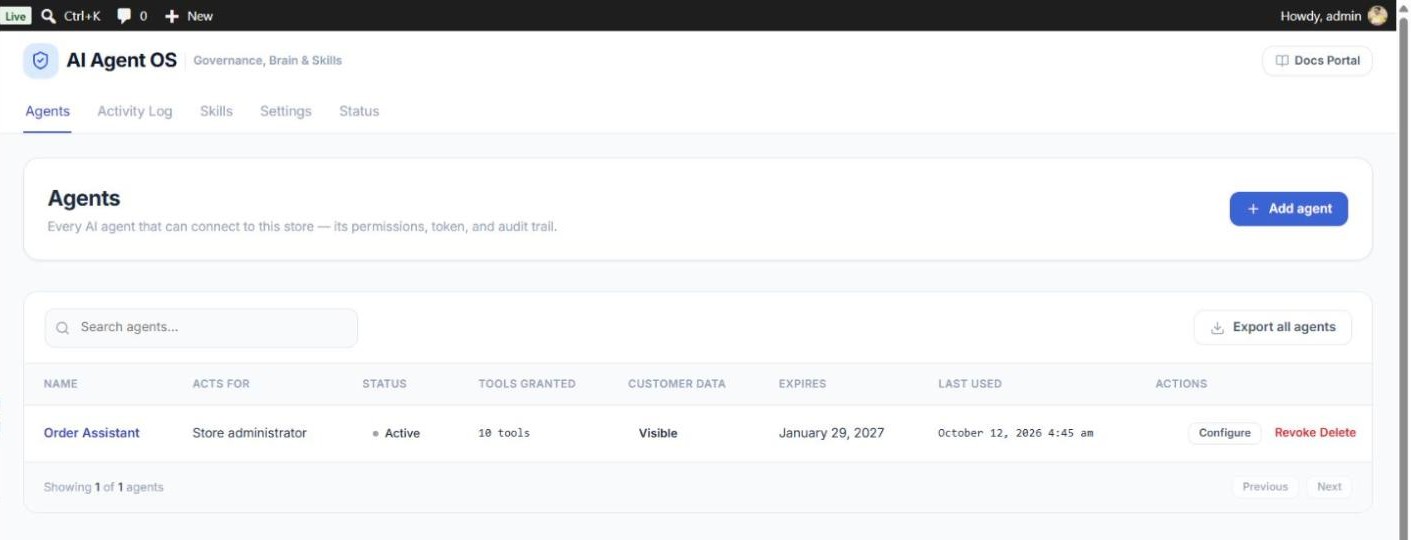
| Column | What it shows |
|---|---|
| Name | The agent’s name. Click it to open the agent. |
| Acts for | Who the agent works on behalf of: Store administrator, A partner or The public. Any agent not acting for the store administrator has customer data masked by default and cannot read internal knowledge. |
| Status | Active, Revoked, Expired, Waiting for approval (proposed by a plugin) or Turned down. A No token tag means nothing can connect as the agent yet. |
| Tools granted | How many tools the agent may use. |
| Customer data | Visible, Masked or No access — whether the agent can see customer names, emails, phone numbers and addresses. |
| Expires | The date the agent stops working by itself, or Never. |
| Last used | When the agent last connected. |
Use Search agents to filter the list by name, and Export all agents to download a CSV of every agent (it never contains tokens).
How to Add an Agent
AI Agent OS → Agents → Add agent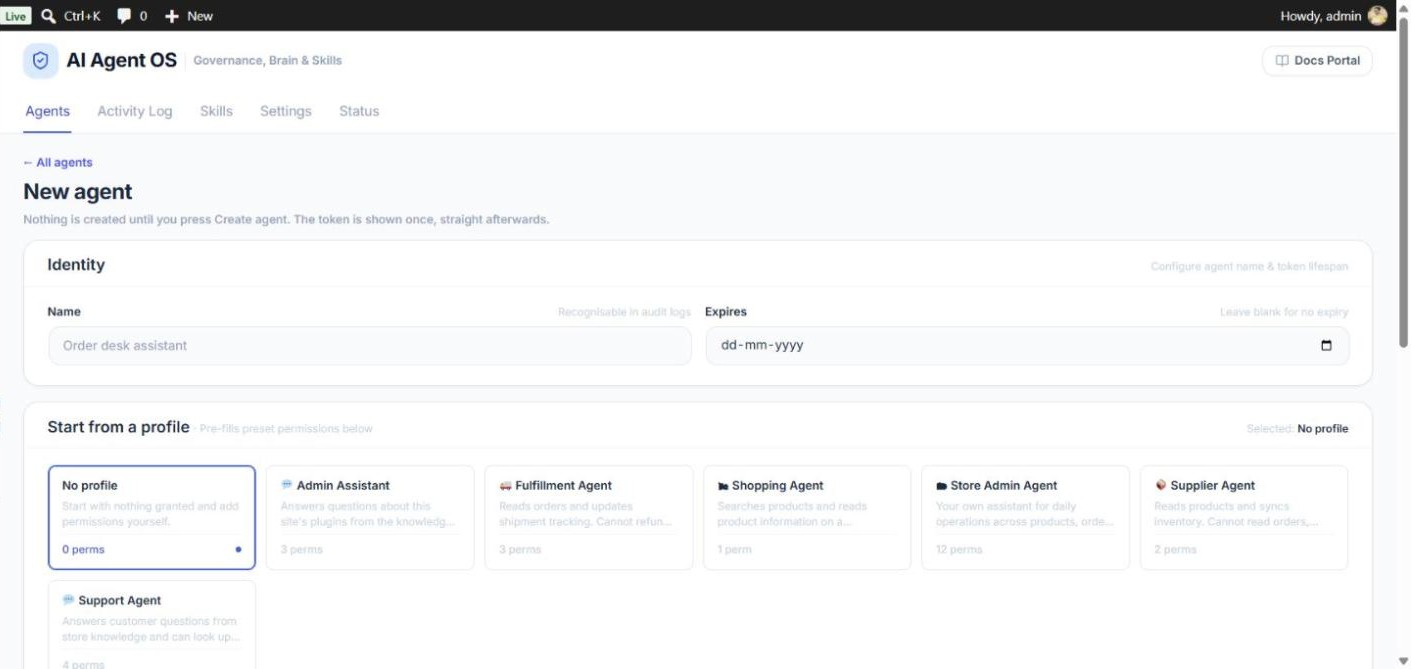
- Name — name the agent after its job, not after the app that will connect. The name appears in the Activity Log.
- Expires (optional) — a date after which the agent stops working on its own. The agent stops at the start of that day (UTC), so pick the day after the last day it should work.
- Start from a profile — click a card to fill in its permissions, or keep No profile to start with nothing.
- Check the permissions in the table below the profiles and change anything you like. What you see is exactly what will be saved.
- Click Create agent.
Nothing is created until you click Create agent. Straight afterwards, a dialog shows the agent’s token and a ready-made configuration.
The Ready-Made Profiles
| Profile | For | Customer data |
|---|---|---|
| Admin Assistant | Answers questions about your site’s plugins from the Business Brain. No orders, customers or products. | Masked |
| Fulfillment Agent | Reads orders and updates shipment tracking. No refunds. Needs WooCommerce. | Masked |
| Shopping Agent | Searches products for a shopper. No admin access. Needs WooCommerce. | Masked |
| Store Admin Agent | Your own day-to-day assistant across products, orders and content. | Visible |
| Supplier Agent | Reads products and syncs inventory. No orders or prices. Needs WooCommerce. | Masked |
| Support Agent | Answers customer questions from store knowledge and looks up order status. Changes nothing. | Masked |
A profile is only a starting point: the agent keeps the permissions you saved, and you can change them at any time. No profile allows tools that cannot be undone.
Revoke, Reactivate and Delete
| Revoke | Delete | |
|---|---|---|
| Agent stops working at once | Yes | Yes |
| Can be undone | Yes — click Reactivate | No |
| Connected apps signed out, WooCommerce keys removed | Yes | Yes |
| Permissions and settings | Kept | Removed |
| Activity history | Kept | Kept, still showing the agent’s name |
| Use it when… | You want it stopped now, maybe back later | You never need it again |
- Revoke — click Revoke on the agent’s row and confirm. Every app connected as the agent is disconnected the same second.
- Reactivate — click Reactivate on a revoked agent. Its token works again, but apps must sign in again and WooCommerce keys must be issued again.
- Delete — click Delete and confirm. This cannot be undone.
Agents Proposed by Other Plugins
A plugin with its own AI assistant can ask AI Agent OS for an agent instead of giving itself access. Such an agent appears as Waiting for approval and can do nothing until you decide. Open it to see a card listing what it asks for:
- Approve — grants the plugin’s own tools and the Business Brain’s read-only tools.
- Approve and include these — also grants the tools it asked for that belong to other plugins.
- Turn down — the agent stays turned down and the plugin is not asked again. Click Reconsider to change your mind.
After approving, you can change the agent’s permissions like any other agent.